
In Access you can add a subform to a form to provide related data from a one-to-many relationship. With this feature you can present many related records in just one record.
But before starting this let's have short info about subform is a form that is nested inside of another form. It usually contains data that is relevant to the record which is currently open in the main form.
Here in this tutorial, we will add a subform to a form that contains information about countries. The subform displays the cities within each country.
In the left navigation pane, make a right click on the Form and select Design View from the contextual menu.

Go to the controls group on the Design Tab in the ribbon. Click the little down-arrow to expand the list of a available form controls.

Tap to the Subform/Subreport icon to select it. then tap in the form, in the location where you like the subform to be displayed. This launches the Subform wizard.

You can also base your subform on a table or query or an existing form.
Here, we will select Use existing Tables and Queries. Once you have selected the option, click Next.

After selecting the Use existing Tables and Queries, you will now be prompted to choose the fields to use in the subform. Now make a selection for the table or query from the drop-down list.
From the left panel, select each field that you want to keep on the subform, then click the little > button to move it across to the right pane.
You can choose fields from more than one table or query. After completing the first one, select another table/query from the drop-down. After completing all this, just click to the Next option.

It's compulsory to have a field that links the main form and its subform. This is typically an ID field or much similar like that.
If you have already setup the relationship for the tables, then access will itself decides which fields to be used on the primary key and foreign key of the relationship.
At this section of wizard, access gives you the opportunity to choose own fields or another one from the given list.
After selecting, complete fields, tap to the next option.

Now assign name to the subform and then hit the Finish option.

Subform is now get added to the form, at the location you have specified in the step 3. now it appears like big embedded form.
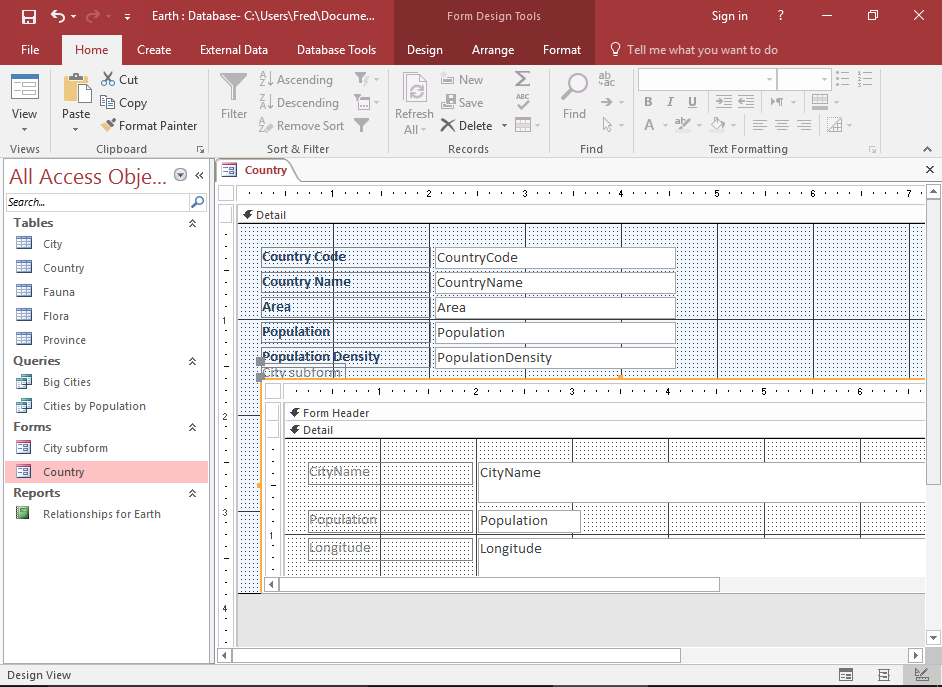
You need to do some small changes to the formatting. Such as adjusting label position, colors, font weight etc.
Now shift to the Layout view and get back to Design view to modify as required.
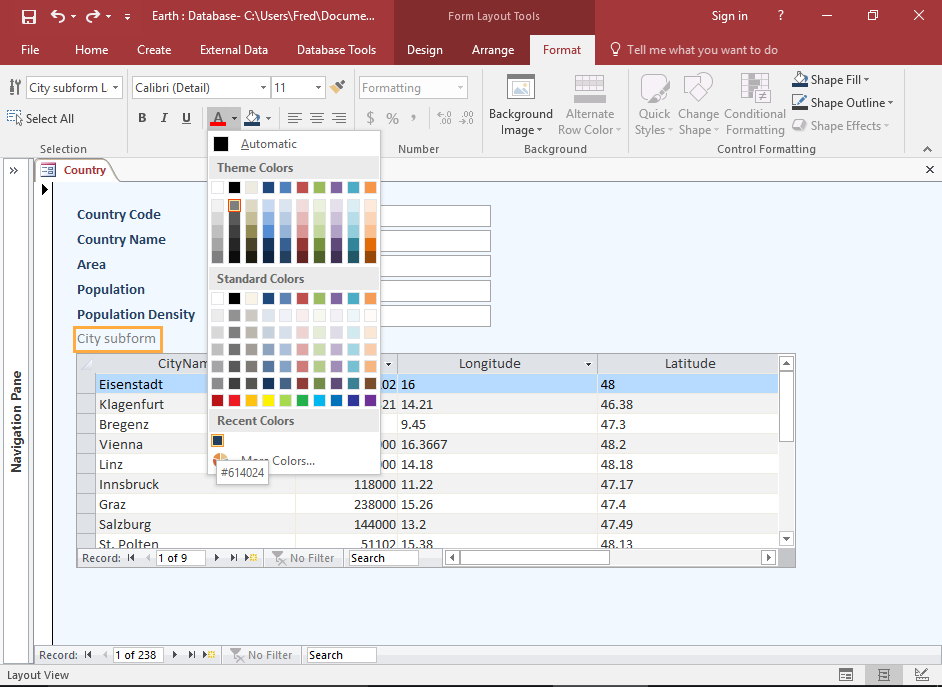

Switch to the form view to see how it appears to the user. Main form appears with the subform embedded within it.
Here the subform will appear just like a regular table or query results.
Search through the records in the main form, the data in the subform updates.

Now it's time to save the form. So when you save the form, the subform is saved as a separate form.

To see how it is displayed, just switch to Form View.
