MS Access allows you to create & manage databases proficiently. Using Design View is one of the excellent ways to structure a table. Design View offers precise customization, which helps to define field names, data types, and descriptions. But the question arises- how to create a table in design view in Access database?
Well, in this blog, you will learn complete steps to add a new table in design view in a hassle-free manner. So, without any further ado, let’s get started…
Free MS Access Database Repair Tool
Repair corrupt MDB and ACCDB database files and recover deleted database tables, queries, indexes and records easily. Try Now!
By clicking the button above and installing Stellar Repair for Access (14.8 MB), I acknowledge that I have read and agree to the End User License Agreement and Privacy Policy of this site.
What Is the Design View in MS Access?
Design view gives you a detailed view of the structure of the database form. Though you can see Header, Detail, and Footer sections for the form.
The best part is that, you cannot see the primary data while you’re making design changes. However, there’re certain responsibilities you can perform in Design view more easily than in Layout view.
How To Create a Table in Design View in Access?
Follow the below steps for how to create a table in design view in Access with ease.
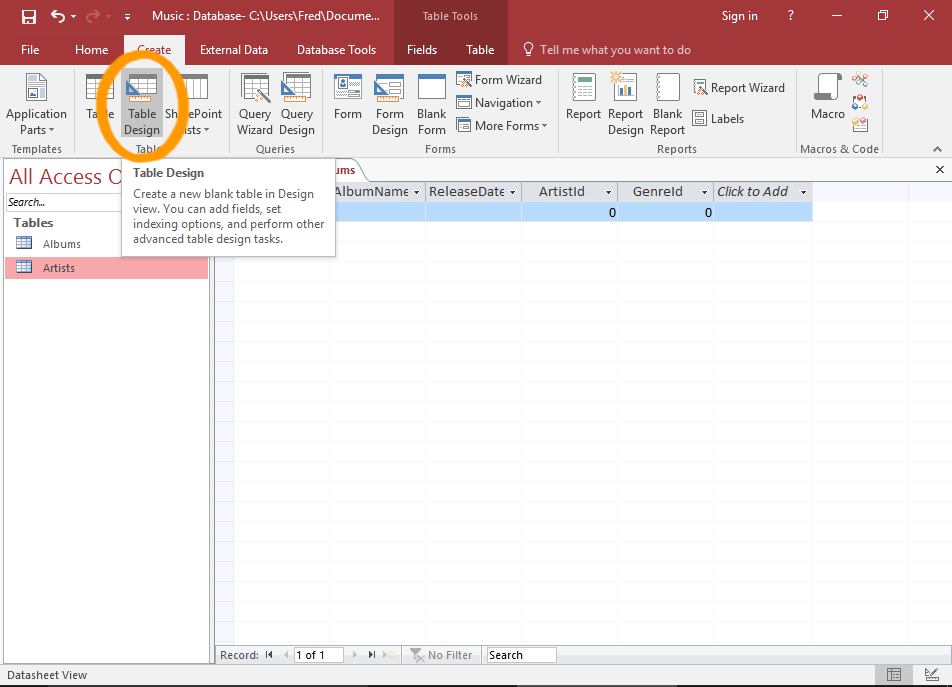
Step 1- Click on Table Design Option
First of all, you have to click on Table Design option (from a Create tab).
Step 2- Blank Table Will Open
After this, a new blank table will open in a Design View.
Now, you can type the field names on the left column, & their corresponding information will be recorded in next column.

Step 3- Enter Fields
Next, you have to enter a name for each field below a left column.
Choose data of each field type from the next column.
Here, you can even make a lookup table if needed, simply by choosing the Lookup Wizard from a data type.

Step 4- Enter Field Properties
Moreover, you can change each & every field’s properties.
For this, you have to click on field first. Then, click the field updates from a bottom sheet with properties for a specific field.
Now, the properties shown in a bottom pane will be changed, it is completely depending on a file type of a selected field.
The Field properties will help you to specify the default value for each field, create the input mask and even stipulate whether it is an essential field, etc.

Step 5- Set the Primary Key
In order to set the field as the primary key, simply right-click the field & select the Primary Key.

After configuring the table, just save it. However, you’ll be provoked to save the changes you have made when you attempt to convert to the Datasheet View mode or close a table.
Well, you can easily switch between the Design View & Datasheet View anytime by simply using a little Design View/ Datasheet View icon at a bottom right side of your screen. Otherwise, you can get a View option on a left side (from a Design tab).
Also Read: How to Create A Split Form In Access [Working Tutorial]
How To Create Table in MS Access Using Query?
Creating a table in MS Access using a query is not an easy task as you think it is. To make it simpler, we have below discussed the complete steps for how to create table in MS Access using query.
- On a Create tab, you have to go to a Queries group >> click on Query Design
- Next, make a double-click on those tables from which you need to retrieve the data. Now, each table seems as a window in a query designer’s upper section.
- After that, click on the Close once have over adding tables process.
- Now, in each & every table, you have to double-click on field(s) that you need to use in the query. However, each field seems in the blank cell in a Field row in the Access of a design grid. (Fig shown below).

- Optionally, you can add any of the expressions to Field
- Otherwise, you can add any of the criteria to Criteriarow of a design grid.
- At this time, click the Run to start running the query & show results in the datasheet.
- Optionally, you can change the fields, criteria, or expressions & repeat the query till it gets the data back that you need to place in a new table.
Tips for Better Table Design
- Keep field names short but descriptive.
- Use indexing for faster searches.
- Choose the correct data type to avoid errors.
- Avoid unnecessary fields to keep the database clean.
Related FAQs:
Can Tables Be Created in The Datasheet View and The Design View?
Yes, the tables can be created in both Datasheet view as well as Design view. However, creating a table in Design View mode is an outdated method. So, if you want to create a table in this era, then it is suggested to create a table in Datasheet view.
How Do I Create a Table in Access in Datasheet View?
In order to create/build a table in the Datasheet view, you have to follow the below steps:
- Choose Insert then Table option.
- After this, click on the Datasheet View >> and then OK. Finally, you will get a new & blank table in your computer’s screen.
What Is the Difference Between Datasheet and Design View in A Table?
In the Datasheet view, you can make minimal changes to a database’s format only, like inserting/deleting the records, but in the Design view, you can set any existing property for each field & open current tables.
How Do I Change Datasheet View to Design View?
Well, there’re two views available while working with the tables in MS Access, one is the Design view & the other is the Datasheet view. However, if you want to switch from Datasheet view to design view or vice-versa, then click on a down arrow that you can see next to a View button on the toolbar. After that, choose a view that you wish from a drop-down list.
Also Read: How To Create Calculated Field In Access?
Final Verdict
Creating a table in Design View in Access ensures a strong foundation for your database. Though it gives you control over every element, making data management efficient and reliable.
However, by following these steps accordingly, you can easily add a new table in design view.
For more queries & doubts, you can simply contact us on our Facebook or Twitter page.
References:
 Still having issues? Fix them with this Access repair tool:
 This software repairs & restores all ACCDB/MDB objects including tables, reports, queries, records, forms, and indexes along with modules, macros, and other stuffs effectively.
- Download Stellar Repair for Access rated Great on Cnet (download starts on this page).
- Click Browse and Search option to locate corrupt Access database.
- Click Repair button to repair & preview the database objects.
Pearson Willey

Pearson Willey is a website content writer and long-form content planner. Besides this, he is also an avid reader. Thus he knows very well how to write an engaging content for readers. Writing is like a growing edge for him. He loves exploring his knowledge on MS Access & sharing tech blogs.