While handling an MS Access database, users often encounter issues. One such problem that you may face is- Access database not showing images. This particular issue is usually encountered when viewing the images in a report or form that uses a Bound Object Frame control. This leads to the problem of the OLE objects not being displayed. In this blog, you will learn various solutions to solve this, along with the major factors.
Free MS Access Database Repair Tool
Repair corrupt MDB and ACCDB database files and recover deleted database tables, queries, indexes and records easily. Try Now!
By clicking the button above and installing Stellar Repair for Access (14.8 MB), I acknowledge that I have read and agree to the End User License Agreement and Privacy Policy of this site.
Why Is My Access Database Forms and Reports Not Displaying Pictures?
However, issues like missing images from database forms, reports, or tables can be frustrating. Several factors can cause this error. It could be a broken file path, an unsupported format, file permission, or a corrupted database.
Moreover, this also happens due to a change in the order of preference for formats used to cache the presentation of OLE Objects, along with an issue when using the Enhanced Metafile format.
You can make changes in behaviour by explicitly specifying the order of format preference by trying the following registry key:
HKEY_LOCAL_MACHINE\SYSTEM\CurrentControlSet\Control\Session Manager
Under this key, add a new Multi-String value, named OlePictureFormatPreferenceList, with the value data:
METAFILEPICT
ENHMETAFILE
BITMAP
DIB
How to Fix Access Database Not Showing Images Problem?
Try out the tricks below to overcome the problem of missing a problem.
Way 1- Check the Image Path & Location
It is known, images in Access are often linked, not embedded. Thus, if the DB file has been moved, renamed, or deleted, it won’t show. In such a situation, it is suggested to do the following things.
- Verify the file path.
- Restore the misplaced images from backup.
- Keep files in a stable location.
Way 2- Use the Compatible Formats
Most of the time, pictures don’t display due to incompatible image types.
Access database mainly supports formats like .jpg, .bmp, or .gif. If you found other formats, convert them to a compatible format.
Also Read: Microsoft Access Not Showing Tabs/Missing Tabs Issue!
Way 3- Enable the “OLE Object Display” Option
Another effective method you can try is to fix the image not displaying from Access database is enabling OLE object display. To do so, follow the steps below:
- Right-click on a form/report where you need to embed the object.
- Choose the “Insert Object” from a context menu.
- Then, select the “Create New” or “Create from File“.
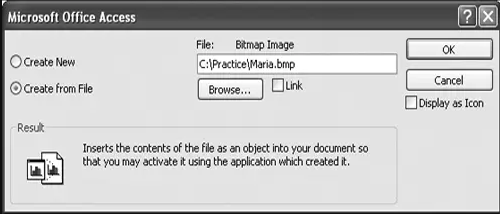
- Navigate to the file(s) or choose the object type if creating a new object.
- Now, check the box known as “Display as icon” or uncheck it to display the object’s content.
- Hit “OK“.
Way 4- Modify DB File Permissions
Inadequate database file permissions can also cause this problem. To check & modify the file permissions, follow these steps:
- Navigate to the Access DB file location.
- Then, right-click on the file >> select “Properties.”

- Under the “Security” tab, simply allow full control to the necessary users.
Way 5- Checking Trust Center Settings
Sometimes, incorrect security settings may block the content from loading, including images.
- Navigate to File > Options > Trust Center.
- Next, click on the “Trust Center Settings“.

- Enable active content and allow external files.
This ensures your images load correctly.
Alternative Solution To Fix MS Access Report Not Showing Data:
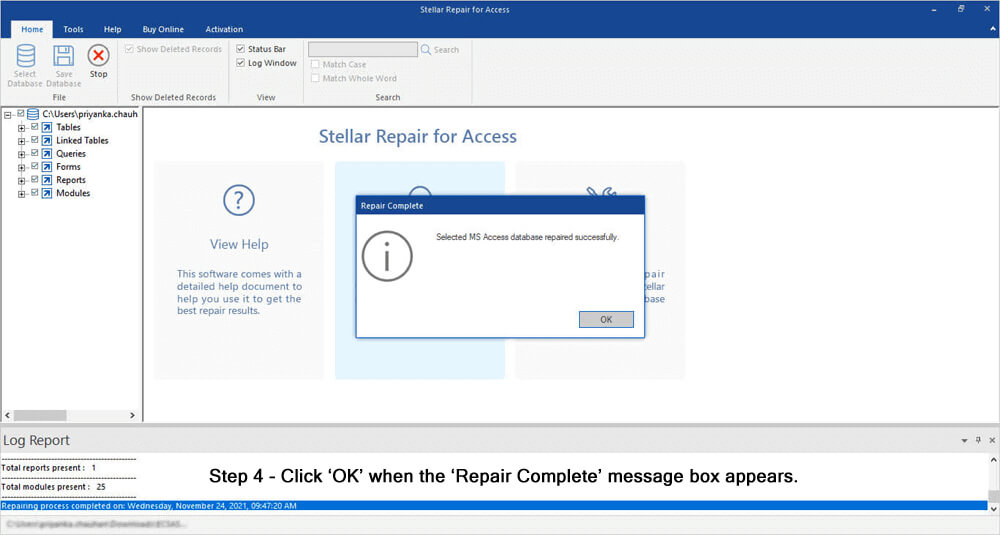
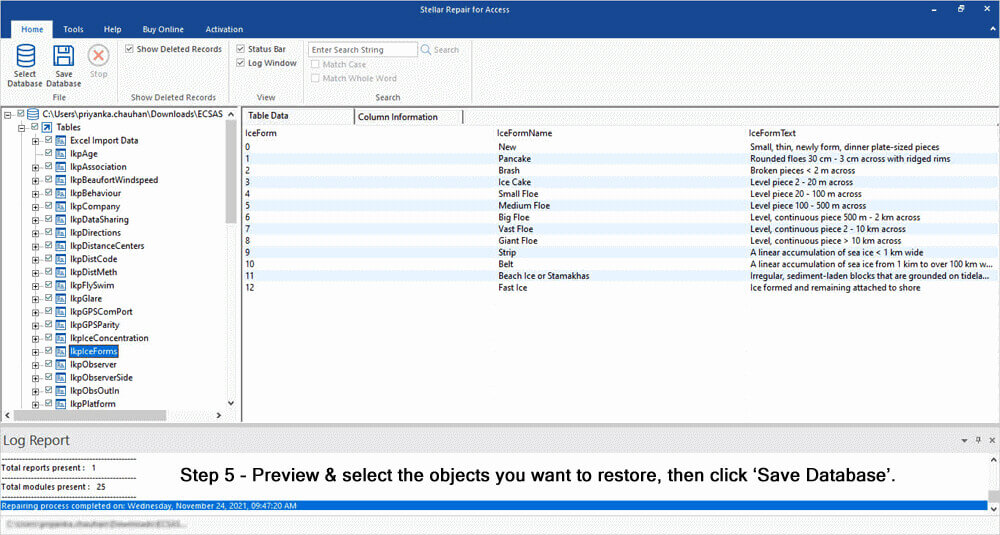
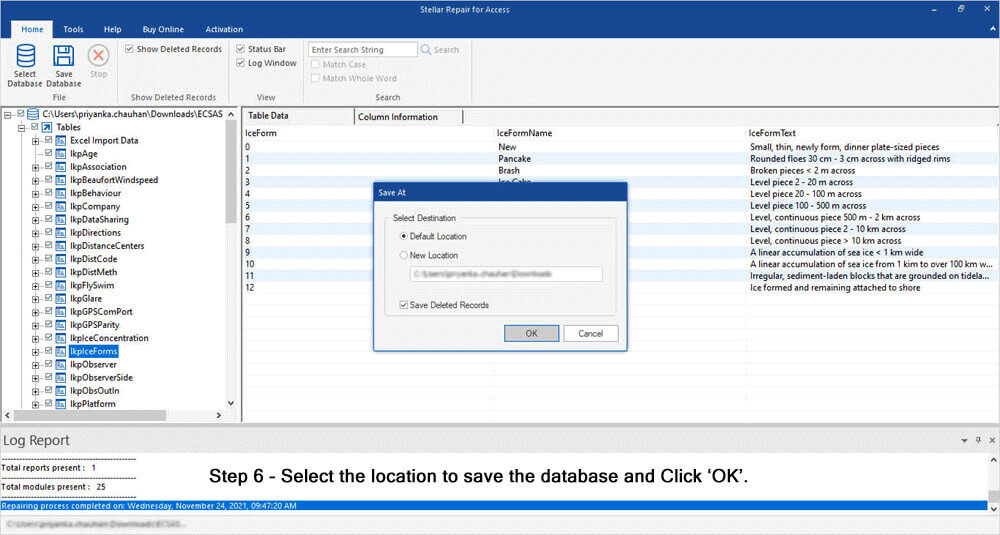
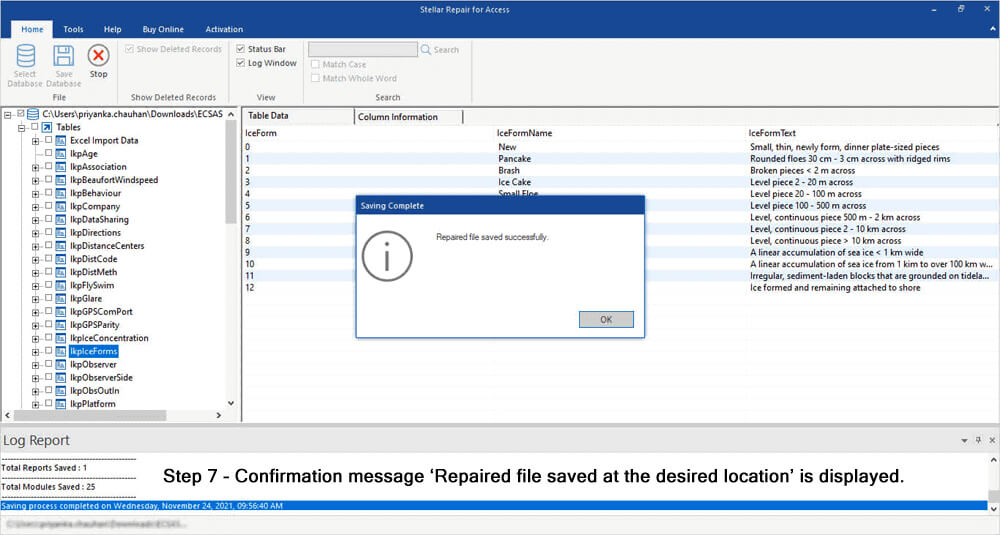
Meanwhile, if you have lost your Access Database embedded OLE objects, then you also have the chance to recover it back. This is possible with Access Database Repair, which is software that is particularly designed to repair corrupt or damaged MS Access database files. It comes with a powerful algorithm that scans even severely corrupted Access database files.
It easily restores damaged or corrupt tables, queries, indexes, and other data. This tool can easily fix all minor and major database errors and problems of MS Access 2013, 2010, 2007, 2003, 2002, 2000 on almost all versions of the Windows operating system, such as Windows 8/7/Vista/XP/2003. A free trial version is available that you can install to check the features and reliability of the software.
Steps to Recover a Corrupted or Damaged MS Access Database
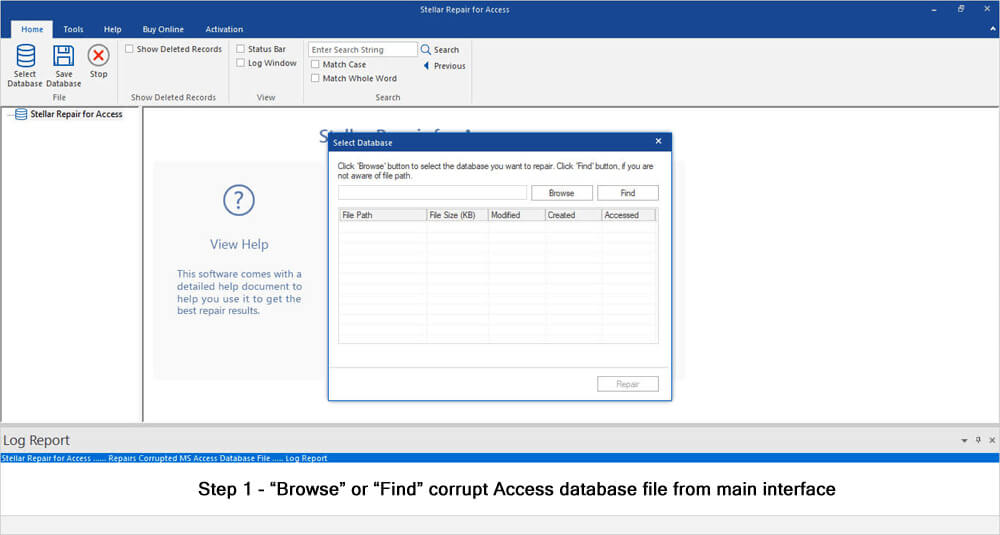
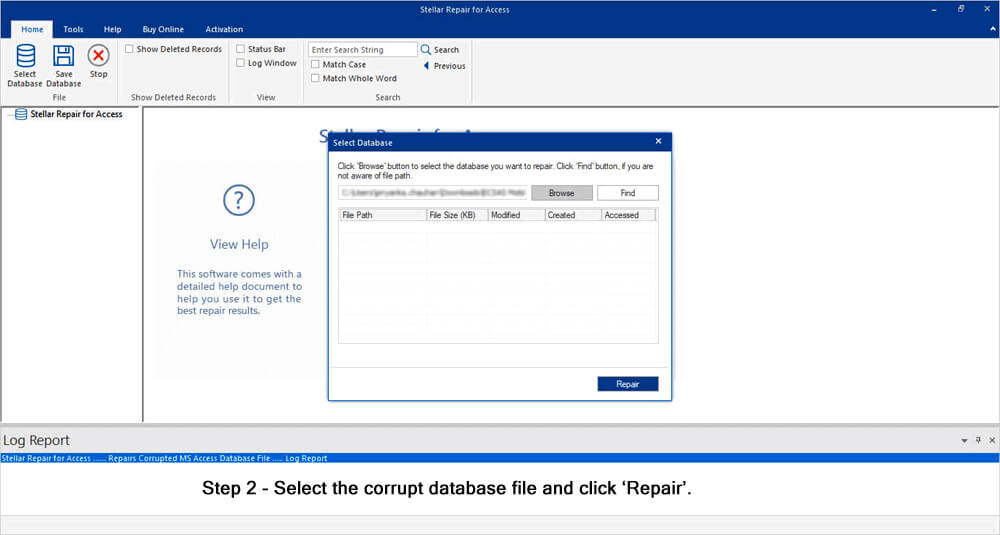
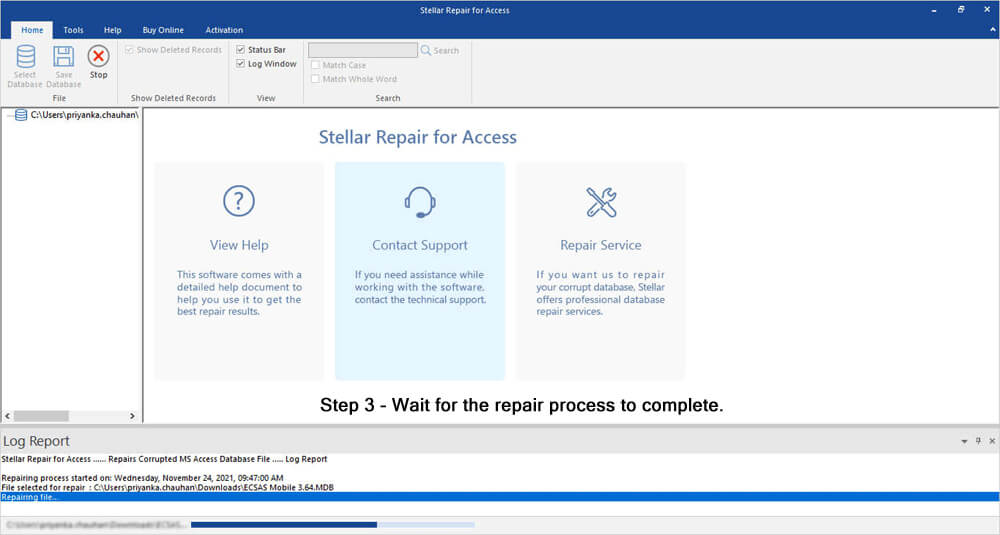


Resolution to Fix Access 2016 Report Image Not Showing issue:
If you are rendering with this access report not showing data, then just follow the complete manual fixes to resolve Access 2010/2013/2016 Image Not Showing error.
Impacted by the Picture Property Storage Format Setting
On further investigation, it is found that the problem is mainly associated with the database’s Picture Property Storage Format when the pictures were added to the form or report. This comes under the Access Option setting for the Current Database.
Well, there are two options that you can try:
- Either Preserve source image format (smaller file size)
- Or convert all your picture data to bitmaps (compatible with Access 2003 and earlier)

If the image is added when the second option is selected, then the non-BMP graphics do not appear in the Access 2016 version.
How To Include A Bound Picture In A Microsoft Access Report?
Well, it is possible to actually store the images within the Microsoft Access database itself as OLE objects, though it is not the preferred way. When you embed an OLE object in the table, it means you are storing a lot of overhead as well. This overhead is actually the information about the object that access application stores to render the objects properly.
In case of Images not showing in Access Forms and Report; the preferred way to display images is to store the complete path and filename of the actual file name themselves within the table and then use the image tool (in Access 97/2000) to update the display.
Here is the following example that will show you how to display Windows bitmap images on the MS Access report without storing the images in a Microsoft Access table.
Creating the Table to Store File and Path Data:
- Firstly you need to make a new table with the name Imagetableand then add a Text Field with the name ImagePath.
- Now Open the Imagetable table in Datasheet view. Then add the path and add the name of a bitmap file to each of your records. The following example is to show how the records look like:
c:\windows\circles.bmp
c:\windows\waves.bmp
c:\windows\tiles.bmp
c:\windows\bubbles.bmp
Also Read: Solutions for MS Access Date Picker Not Showing – Act Now!
Displaying Images in a Microsoft Access Report
- To create a new record you can also use the AutoReport Wizard which is based on the ImageTable table. Name the report ImageReport.
- Open ImageReport in Design view and then add an image control to the report by using the Image tool in the toolbox. You are prompted to select an image to insert. Select an image that is available on your computer. Name the control ImageFrame.
- Set the Format Event of the “Details” section of the report to the following Event Procedure:
Private Sub Detail_Format(Cancel As Integer, FormatCount As Integer)
Me![Imageframe].Picture = Me![Imagepath]End Sub
- Open the ImageReport in Print Preview mode. Notice that the report displays the corresponding bitmap for each record.
Note: You may need to amend the file paths and image names to correspond with images stored on your system.
Frequently Asked Questions:
How to Show Images in MS Access Form?
To display pictures in an MS Access Form, follow the steps below:
- Open your DB table in ‘Design View’.
- Add the new field with a data type ‘Attachment’.
- Click to ‘Datasheet View’.
- After that, click on ‘Attachment’ field >> paperclip icon to add an image.
Which Control Is Used to Display Images in an Access Form?
The image control is used to show images in a form or a report.
What Data Type Is an Image in MS Access?
OLE object type is an image in Access.
Summing Up
Fixing Access database not showing images can be simple if you know where to look and what to do. All you need to do is to follow the solutions mentioned above in this blog and you’ll likely resolve the issue fast.
Moreover, by keeping images organized and using the right field types, you’ll prevent this problem in the future.
I hope you liked this post.
 Still having issues? Fix them with this Access repair tool:
 This software repairs & restores all ACCDB/MDB objects including tables, reports, queries, records, forms, and indexes along with modules, macros, and other stuffs effectively.
- Download Stellar Repair for Access rated Great on Cnet (download starts on this page).
- Click Browse and Search option to locate corrupt Access database.
- Click Repair button to repair & preview the database objects.
Pearson Willey

Pearson Willey is a website content writer and long-form content planner. Besides this, he is also an avid reader. Thus he knows very well how to write an engaging content for readers. Writing is like a growing edge for him. He loves exploring his knowledge on MS Access & sharing tech blogs.