This article will walk you through the step-by-step process, ensuring a smooth shifting of all your important emails from Outlook to Access. By the end, you will have all your emails in one place, so you don’t have to keep signing into two separate accounts. Therefore, scroll down this page to learn how to easily import Outlook email to Access database with the best methods. Let’s dive right in!
Free MS Access Database Repair Tool
Repair corrupt MDB and ACCDB database files and recover deleted database tables, queries, indexes and records easily. Try Now!
By clicking the button above and installing Stellar Repair for Access (14.8 MB), I acknowledge that I have read and agree to the End User License Agreement and Privacy Policy of this site.
Why You Need To Import Outlook Email Into Access Database?
Access is Microsoft’s database software, and Outlook is email software. What if you need to work with these two different software programs simultaneously?
Don’t worry as now you can easily collect or update information through emails by using Microsoft Access 2007/ 2010/2013/2016 with Microsoft Outlook 2007/2010/2013/2016.
Access helps you in this through making a data collection form and sending the form in email message. When your email recipients return the completed forms, you can choose to have the collected data automatically processed and stored in a particular access database. By doing this you can save much of your time and effort, which is usually involved in copy/paste or manual data entry processes.
This tutorial gives you the best tips and tricks on integrate Access and Outlook. So, if you need to work with your Access database and email at the same time, then check out this tutorial sharing data between Access and Outlook.
How To Import From Outlook Within Access 2007, 2010, Or 2013?
1. First of all, you need to create a new blank database.
2. Then select a table.
3. Now select the External Data tab.
4. Now go to the Import & Link group and tap to the More. After that choose: Outlook Folder option from it.

5. This will open up the window “Get External Data – Outlook Folder”. Within this wizard box you will get three option buttons out of which you need to select for the last one. i.e:
Link to the data source by creating the linked table
- As this last option is quiet handy when you performs frequent work with the same data set which frequently keeps on changing. This option always helps you to have the latest data.

- The next opened dialog box of the wizard lets you expand tree view of your Outlook folders:
By clicking on the plus sign you can expand the address book, mailbox, public folder etc. So, make selection for the data which you want to link into MS Access as a table.

For example: if you want to link Contacts data then expand your mailbox and select the Contacts node. And tap to the Next option.
7. In last form of Wizard, specify linked table name and press Finish When Link/Exchange Wizard displays with the finished dialog box, then click the OK button.

8. Now you will see the linked table in your database.

Import From Outlook Within Access 2003 And Previous
- Make a new blank database.
- Choose a table.
- From the file menu -> Get External Data-> Import…
- In the Files of type drop down list select either Exchange() or Outlook()
Importing Access Data Back Into Outlook
If you need to import an Access database back into Outlook, you have to store the database in the Access 97-2003 .mdb format. As outlook 2007 and its later versions won’t accept the new Access 2007-2013 .accdb format. It’s an import and export limitation from the outlook.
So in order to import the access database table back to Outlook, you need to use the Export->Text file command within Access and then save it to the file with .csv-extension instead of txt-extension (or rename it afterwards). As in Outlook, there is an option to import from a CSV file.
How To Add The Data Through Outlook To Access Database?
Microsoft Access has such features that seamlessly link Outlook to Access database. This helps in easy collection of user data via email messages. This section of the tutorial will show you the steps for making the complete setting of the email template for collecting the data. Along with the steps for processing the collected data.
Step 1: Creating the email message
Follow down these steps to create the email message:
1. Make selection of the table for which you needs to collect the data from the Navigation Pane.
2. Now go to the External Data tab on the Ribbon, in the Collect Data group, tap to the Create E-mail.
3. The message wizard for collecting the data through e-mail messages should open as :
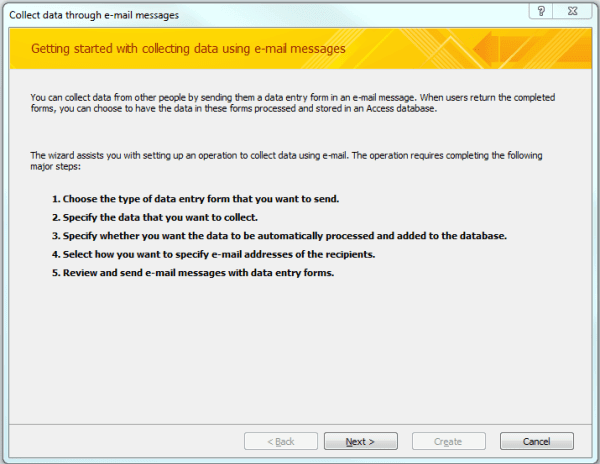
4. Now tap to the Next in the opened Window. after then choose the type of email form which you want to use. well here you will get two different types of form options i.e HTML or InfoPath forms. from these two choose only one.

if you don’t have such nfoPath installed on your PC then choose the HTML.
5. After the selection tap to the Next option.
6. If table already contains your existing data, then on the next appearing screen you have to choose one of the two option:
- collect new information only
- update existing information.

7. After that tap to the Next option.
8. On the next screen select for the fields from your table which you would like to insert in your email message for cultivating the data. You can also set the order for your fields or modify the label captions of each field.

9. After selecting all the fields that you wants to collect, tap to the Next option for reaching to the next screen.

10. In the next open window user can assign which outlook folder is to be used to store email replies for saving up the collected data. Well user has the privilege to do changes to the default location just by tapping on to the folder’s name. After then switch to the outlook window and else can choose or create a new folder.

11. On the same screen, for automatic processing of all email replies you need to specify that here only. So, make a check mark on the option automatically process replies and add data to the database. clicking to this option will put all the collected data automatically in to your Access table.

12. For controlling off the data process, tap on the link which is labeled as “Set properties to control the automatic processing of replies.”
13. On the opened screen tap to the Next option to move onto further step.
14. On the next opened screen you need to specify how you want to provide the email address for recipients of your message. so choose one of the option from the following open Window.

15. If you have made selection for assigning email address from the Access table. Then keep clicking on the Next option to reach to the next screen.

16. Choose the email address field either from related table or from current one. Then tap to the next option.
17. In the next opened window all you need to is, enter subject line and message body etc.

18. Tap Next to go to the next screen. The next opened screen contains information only.

19. Hitting the next option again, allow you to make selection for any specific recipients for sending your email message. So, now you can send any message to any of your recipients.

20. After completing up with your message tap to the Send option.
21. After receiving of the email messages, your receiver needs to reply back. for this they need to fill up the complete form in message with all the necessary asked information.
Step 2: Managing Automatic Reply Processing
After setting up the data collection email, just go to the Options screen for changing up its settings. Just follow down these steps:
1. Go to the External Data tab on the Ribbon, in then on the Collect Data group. After then tap to the Manage Replies as this will open up the Manage Data Collection Messages dialog window.

2.With the data collection message template you can do easy changes on the highlighted section. After then tapping on to the Message Options button.
3. After then “Collecting Data Using E-Mail Options” dialog window will open on your PC screen.

4. On this opened window, you can make either put check or un-check mark on the options you want to choose.
5. Tap to the OK option for closing of the Options window.
6. Hit the Close option on the Manage Data Collection Messages dialog window.
Step 3:Processing Replies
It is the last but the most important step of adding outlook emails to access database. As, if you don’t setup your email data collection to be processed automatically by outlook. Or if replay fails to process then you can manually process each of the reply just by following down the complete steps:
1. Assign the folder which you have selected for storing outlook’s collected data.
2. On the user’s reply make a right-click, that you currently want to process and hit the Export Data to Microsoft Access option.
3. Now from the Export data to Microsoft Access dialog window, please make verification of the data which you wants to add to your table. After then hit on the OK option.
4. After completion of the exportation process, a confirmation window will appear on the screen.

5. For each replay, you need to repeat the same steps.
6. So, repeat the same for processing each reply.
Related FAQs:
How Do I Transfer Outlook Emails to A New Computer?
You can transfer Outlook emails to a new computer by using the Exchange/IMAP. Simply log in to your email account on a new PC should automatically sync your emails. But if you are using POP, the import or export feature is a more appropriate method to transfer them. To do this, open Outlook >> click File – Open/Export – Import/Export.
How Do I Connect Outlook to Microsoft Access Database?
To integrate Access with Outlook, follow the steps below:
- Go to the menu bar >> click ‘External Data’.
- Next, find & click on ‘More’ option in Import & Link.
- Choose ‘Outlook Folder’ from the various options.
- After this, choose the Access database you want to use >> click ‘OK’.
Can I Transfer My Outlook Emails to Another Account?
You can use Microsoft Outlook to transfer emails from your Microsoft 365 account to the external email provider (Gmail, Yahoo, Hotmail, etc.) To move your emails, you must have both accounts configured in MS Outlook. To choose your whole Inbox, press Ctrl + A.
Wrapping Up
Importing Outlook emails into an Access database can streamline your work. Though it allows better email tracking, easier reports, and reliable data management. Follow the simple VBA approach and start organizing your emails today.
I hope you enjoyed reading this post!
References:
 Still having issues? Fix them with this Access repair tool:
 This software repairs & restores all ACCDB/MDB objects including tables, reports, queries, records, forms, and indexes along with modules, macros, and other stuffs effectively.
- Download Stellar Repair for Access rated Great on Cnet (download starts on this page).
- Click Browse and Search option to locate corrupt Access database.
- Click Repair button to repair & preview the database objects.
Pearson Willey

Pearson Willey is a website content writer and long-form content planner. Besides this, he is also an avid reader. Thus he knows very well how to write an engaging content for readers. Writing is like a growing edge for him. He loves exploring his knowledge on MS Access & sharing tech blogs.