In MS Access, navigating large datasets can get frustrating. When you scroll across the extensive tables, significant columns often disappear from view. To avoid this, Microsoft Access provides a useful feature known as column freezing. This simple technique locks your selected column(s) in place, keeping vital data visible as you scroll. In this blog, I will show you how to freeze a column in MS Access or how to unfreeze a column in Access effortlessly.
Free MS Access Database Repair Tool
Repair corrupt MDB and ACCDB database files and recover deleted database tables, queries, indexes and records easily. Try Now!
By clicking the button above and installing Stellar Repair for Access (14.8 MB), I acknowledge that I have read and agree to the End User License Agreement and Privacy Policy of this site.
Quick Navigation:
- Why Freeze Columns in MS Access?
- How to Freeze a Column in MS Access Database?
- How to Unfreeze Columns in Microsoft Access?
- What to Do If the Freeze Option Is Greyed Out?
Why Freeze Columns in MS Access?
Freezing columns in Microsoft Access helps users to improve database readability & decrease errors. Whether you are managing customer records, inventory, or freezing, ensure key fields like IDs or names stay in sight.
However, it is exclusively beneficial when working with large database tables containing lots of fields.
How to Freeze a Column in MS Access Database?
As already mentioned, freezing the columns or rows helps to manage the customer records, inventory, or freezing confirms key fields like IDs or names stay in sight.
Let’s see how you can freeze column in MS Access in no time:
Step 1- Open Your Database Table in Datasheet View
- First, launch MS Access & open the database.
- Then, double-click your DB table to open it in the Datasheet View.
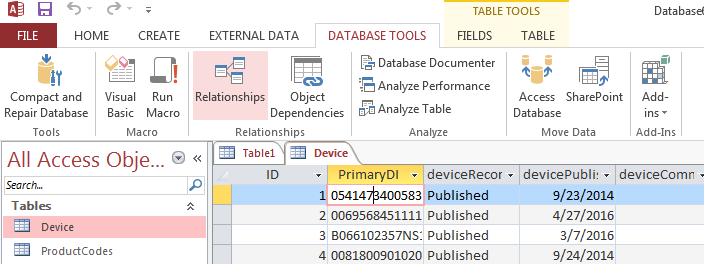
- This mode displays data in rows & columns like a spreadsheet.
Step 2- Select the Column that You Need to Freeze
- Click on the column header of the field you want to freeze.
- Ensure the entire column is highlighted.
- In case, you need to freeze numerous columns, hold a Shift key & click adjacent columns to highlight them together.
Step 3- Freeze the Selected Column(s)
With your desired column selected:
- Right-click the highlighted column header.
- From the context menu, click Freeze Fields.
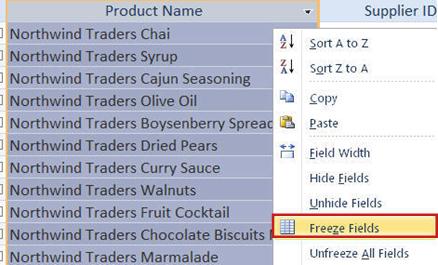
And you are done!
Also Read; How to Insert Header and Footer in Microsoft Access? –(2025)
How to Unfreeze Columns in Microsoft Access?
Unfreezing columns in Microsoft Access involves crucial steps that help to reverse the action. To do so, follow the instructions below carefully:
- First of all, right-click on any column header.
- After this, select the Unfreeze All Fields.
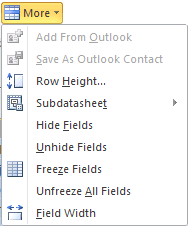
- All earlier frozen columns will now scroll with the rest.
This option is useful when switching focus or editing layouts.
What to Do If Freeze Option Is Greyed Out?
In MS Access, there are various features and options in the toolbar, one of which is the Freeze option. Sometimes, the Freeze Fields option might not be available or turn greyed out.
Here’s how you can solve this problem with less effort:
- Ensure your database is opened in the Datasheet View.
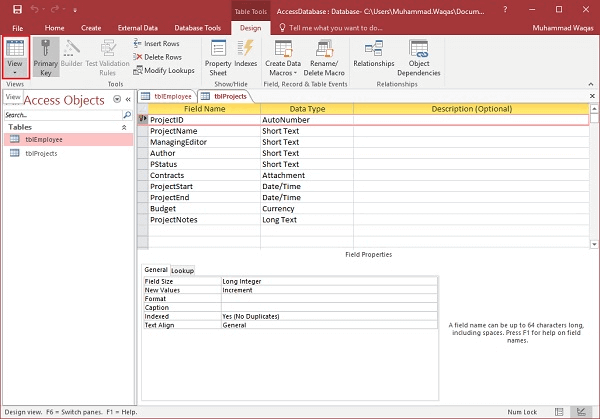
- Check that you haven’t opened a query or form.
- Make sure no design view is active on a table.
Switching to the accurate view typically fixes this issue instantly.
Related FAQs:
What Is the Shortcut for Freezing a Column?
The shortcut for freezing a column is Alt+W+F+C, one after another. If you want to freeze both rows & columns, then press the shortcut keys Alt+W+F+F one after another.
What Is the Difference Between Freezing and Hiding Columns?
Freezing a field means you can freeze 1 or more than one column on a database so that they remain visible all the time on a screen. On the other hand, hiding columns means you can hide 1 or more than one columns on a database so that they don’t remain visible all the time on the screen.
How to Freeze a Single Column in Sheet?
To freeze a single column in sheet, follow the steps below:
- On your spreadsheet, choose a column you want to freeze or unfreeze.
- From the top, you have to click on View > Freeze.
- Choose how many columns to freeze.
Final Verdict
So, this is all about how to freeze a column in MS Access or unfreeze a column in Access.
Well, freezing columns in Access is a simple yet powerful feature. It helps keep your focus on critical data. However, with just a few clicks mentioned above, you can make table navigation efficient. Use this excellent feature often to manage your database like a pro.
References:
 Still having issues? Fix them with this Access repair tool:
 This software repairs & restores all ACCDB/MDB objects including tables, reports, queries, records, forms, and indexes along with modules, macros, and other stuffs effectively.
- Download Stellar Repair for Access rated Great on Cnet (download starts on this page).
- Click Browse and Search option to locate corrupt Access database.
- Click Repair button to repair & preview the database objects.
Pearson Willey

Pearson Willey is a website content writer and long-form content planner. Besides this, he is also an avid reader. Thus he knows very well how to write an engaging content for readers. Writing is like a growing edge for him. He loves exploring his knowledge on MS Access & sharing tech blogs.