In Microsoft Access, managing data is a crucial step to maintaining records in the database. Frequently, users need to change the default currency symbol to suit their region or business needs. In this blog, I will discuss how to change currency in Microsoft Access in easy steps to update the currency settings efficiently.
Free MS Access Database Repair Tool
Repair corrupt MDB and ACCDB database files and recover deleted database tables, queries, indexes and records easily. Try Now!
By clicking the button above and installing Stellar Repair for Access (14.8 MB), I acknowledge that I have read and agree to the End User License Agreement and Privacy Policy of this site.
Quick Navigation:
- What Is the Currency Data Type in Access?
- Why You Need to Change the Currency in Access?
- How to Change Currency in Microsoft Access?
- How to Change System-Wide Currency Settings?
- How to Use Expressions for Currency Formatting?
What Is the Currency Data Type in Access?
In MS Access, the currency data type is a special sort of decimal that contains 4 digits on the right of a decimal point and up to 15 on the left. However, it was presented for financial data & is available in all the Access versions. This type uses 8 bytes of disk space.
Why You Need to Change the Currency in Access?
Well, it is important to change the currency format in Microsoft Access to deal with international data. For illustration, if your Access database was formed using a US Dollar but your business operates in India, switching to the Indian currency improves accuracy & clarity.
How to Change Currency in Microsoft Access?
Step 1- Open Your Database
- Firstly, open the Access database on your PC that includes the currency fields that you want to modify.
Step 2- Switch to the Design View
- Navigate to the DB table holding the currency field.
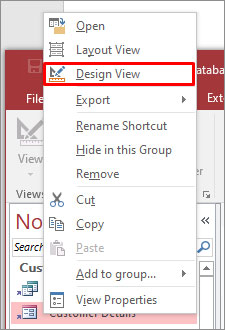
- Make a right-click on a table name in a navigation pane >> select Design View.
Step 3- Select Currency Field
- Find the field that uses a Currency data type.
- Then, click on it, and this will display the properties listed at the bottom.
Step 4- Change Format Property
Under the Field Properties section, locate the Format box. You will typically see it set as “Currency” by default. You need to change this to a exact format like:
- $#,##0.00 for US Dollars
- €#,##0.00 for Euros
- £#,##0.00 for British Pounds
Step 5- Save the Access Database Table
As soon as you change the format, press the CTRL+S keys together to click Save. Next, close the Design View & return to Datasheet View to see the updated format.
Also Read: How to Unhide Hidden Objects in Access Database? – (2025 Guide)
How to Change System-Wide Currency Settings
Sometimes, Access uses your system’s regional settings. If your currency format doesn’t update, try this method:
- Go to the Settings menu from the Start Menu.
- Select Time & Language or Region and Language, depending on your Windows version.
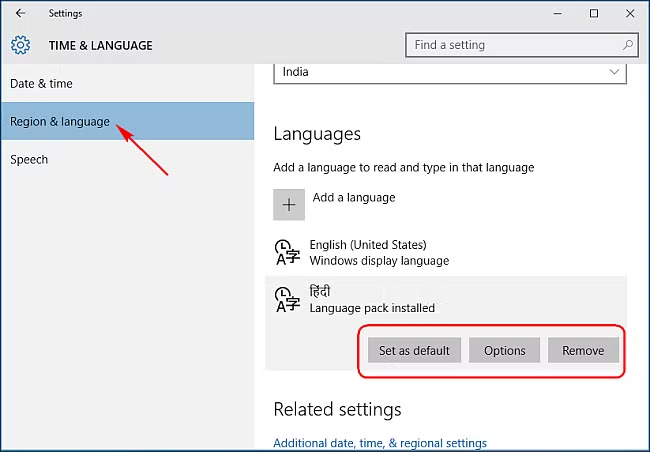
- Choose the Additional Date, Time, & Regional Settings.
- After this, simply click on the Change date, time, or number formats in the Region.
- Now, you have to click on Additional settings >> click Currency There, you have to change the currency symbol to your favourite one.
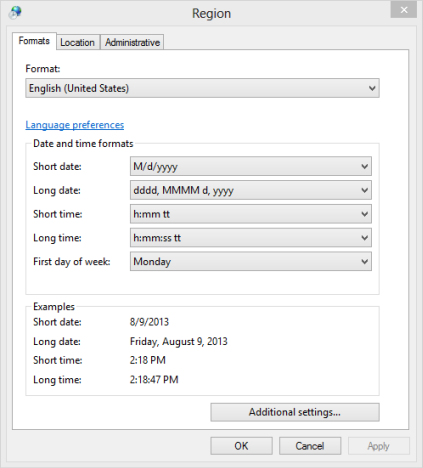
- Click on Apply, then OK.
- Finally, restart Access to check the effect.
How to Use Expressions for Currency Formatting?
You can also format currencies directly in queries or reports using expressions.
Example Query Expression
sql
CopyEdit
Format([Amount],”€#,##0.00″)
This formula displays the value with the Euro symbol. Replace the symbol to fit your preferred currency.
Example in Reports
Open your report in Design View. Select the currency control, then open Property Sheet. Under Format, use the same custom format string.
Important Things to Note:
- Currency settings disturb calculations and exports.
- Formatting doesn’t change the saved data, only its appearance.
- Always preserve consistency across forms, reports, and queries.
Frequently Asked Questions:
How Do I Change My Microsoft Currency?
To change the default Microsoft currency settings, open the Control Panel, click on the Clock and Region >> Region. After this, click on Additional Settings. Go to the Currency tab, under the Currency symbol box, select a currency symbol.
How Do I Add Different Currencies in Access?
To add different currencies to the Access field in Datasheet view
- Open the database table in the Datasheet View.
- If needed, scroll horizontally to the first blank field.
- After that, double-click on the header row >> then type a name for a new field.
- Choose Add >> select Number, Large Number, or Currency from the list.
Which Data Type Is Currency?
MONEY(p,s) data type is the currency.
Final Thoughts
So, this is all about how to change currency in Microsoft Access.
Changing the currency type in Access is straightforward. Whether you are adjusting the single table or altering the entire database, following the steps mentioned above ensures your financial data reflects the correct regional values.
I hope you enjoyed reading this blog!
References:
 Still having issues? Fix them with this Access repair tool:
 This software repairs & restores all ACCDB/MDB objects including tables, reports, queries, records, forms, and indexes along with modules, macros, and other stuffs effectively.
- Download Stellar Repair for Access rated Great on Cnet (download starts on this page).
- Click Browse and Search option to locate corrupt Access database.
- Click Repair button to repair & preview the database objects.
Pearson Willey

Pearson Willey is a website content writer and long-form content planner. Besides this, he is also an avid reader. Thus he knows very well how to write an engaging content for readers. Writing is like a growing edge for him. He loves exploring his knowledge on MS Access & sharing tech blogs.