With organizations’ vast growth, it’s common for them to maintain their data in an Excel spreadsheet. But sometimes, administrators need to import their Excel sheet data into an Access database. Thus, if you have data in a spreadsheet and want to know how to import data from Excel to Access with simple steps, just check out this post.
Here, you will learn the complete data importing, and surely this process will make your database accessing much better, Accessible.
Free MS Access Database Repair Tool
Repair corrupt MDB and ACCDB database files and recover deleted database tables, queries, indexes and records easily. Try Now!
By clicking the button above and installing Stellar Repair for Access (14.8 MB), I acknowledge that I have read and agree to the End User License Agreement and Privacy Policy of this site.
Understand Importing Data From Excel
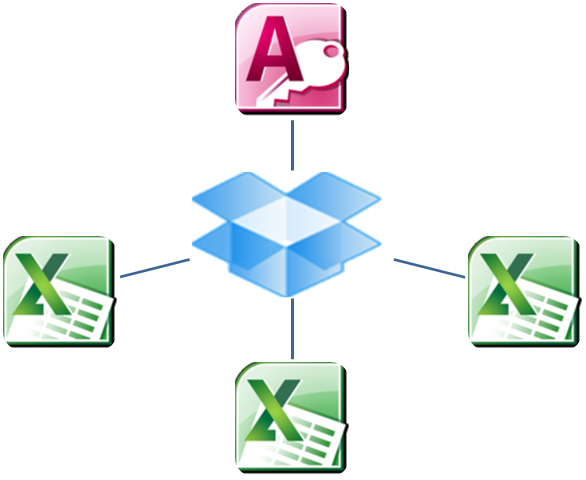
If you want to store some of your data from one or more Excel spreadsheet in access then you should import the content of worksheet into a new or existing Access database. When you import data Access creates a copy of data in a new or existing table without making any changes to the source Excel worksheet.
Important Note:
- There is no way to save an Excel workbook as an Access database. Excel doesn’t have such options to create an Access database from Excel data.
- When you open an Excel workbook in Access (in the File Open dialog box, change the Files of Type list box to Microsoft Office Excel Files and select the file you want), Access only creates a link to the workbook, not imports its data. Linking to a workbook is fundamentally different from importing a worksheet into a database.
Why Should I Import Data from Excel to Access Database?
As we all know, Microsoft Excel works great for small datasets and quick calculations. But when data grows, it becomes harder to manage and keep data wisely. Microsoft Access helps organize, filter, and query large volumes of data with ease. That is why you should tend to convert Excel data into Access, you gain better control and flexibility.
What to do in Excel File Before Converting the Data?
Well, it is very important that your Excel file is in well-structured manner before importing. Here are the things to do:
- Remove empty rows & columns.
- Verify each column has a header.
- Use consistent formatting for dates, numbers, and text.
- Save the file in a supported format like .xlsx or .xls.
Also Read: How to Import Outlook Email Into Access Database 2016 & 2019?
How To Import Data From Excel To Access?
If you don’t have any idea regarding Import Excel Into Access then don’t get worried. Just follow the complete steps to know How To Import Excel Data Into Access.
Step 1: Begin the Excel Import Process
- First of all open the access database that will hold the imported data and click the External Data tab on the Ribbon.
- The Import And Link Group of buttons appear on the ribbon. Each buttons is connected to a wizard that walks you through the process:
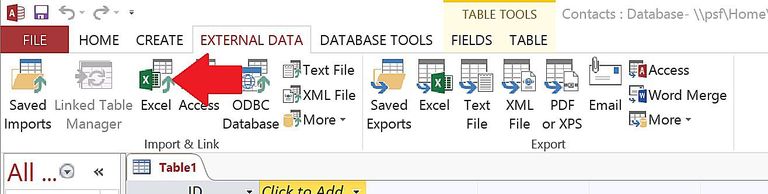
File format such as Excel, Access , ODBC database etc. have their own specific button; you can also find other common file format using the more button.
- Double click the Excel button icon from that Import And Link Group ribbon to begin the excel import process.
Step 2: Select the Source and Destination
- Get External Data dialog box specific to the selected file format appears onscreen.
- Here click to the browse option to search for the file you would like to import. Once you have located the correct file, click the Open button.
- On the bottom half of your screen, you will get the option of an import destination.
- We need to import an existing Excel spreadsheet to a new Access database so we will choose “Import the source data into a new table in the current database.” Option.
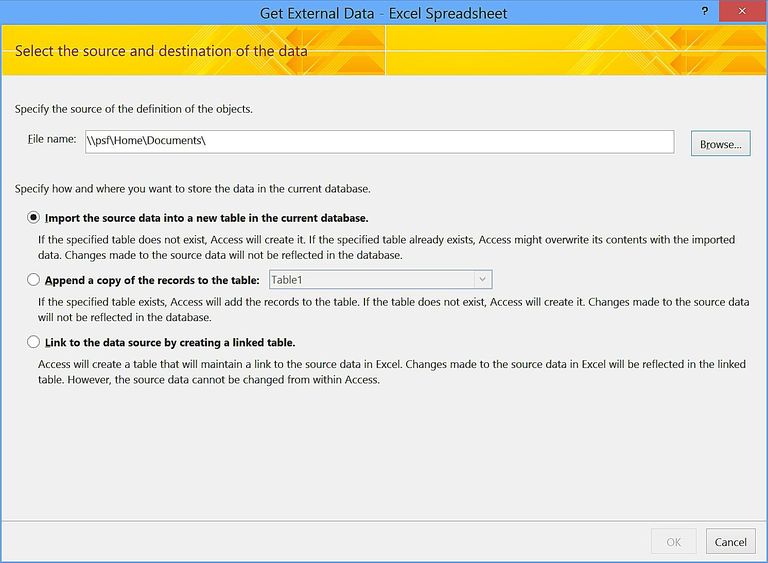
Other options are also there in this Get External Data dialog box that allows you to:
- Link your database to an Excel so that any changes in the source sheet will also reflect in both database.
- Import data into an existing database table.
After selecting the correct file and option, click the OK option to continue.
Step 3: Selection for the data storage
In this section, you need to select the method of data storage. In this way, you are telling the access whether to import or link the data.
Step 4: Complete the Remaining steps
Follow the prompts carefully and complete the remaining steps in the Get External Data dialog box, at last click to the Finish option. The worst that happen is that you get an imported table full of gibberish. If you do then check the format of the source file.
Step 5: Name Your Table

You need to provide access with a name to reference your table. Enter this into the appropriate field and click on the Finish button.
Step 6: Save the import
To save the import click Save Import as clicking to this option will complete the import process and save the import for future use.

The checkbox will be located on the last screen of the wizard. After you check the box, you will be prompted for a name for your import. If you import this data on a regular basis, click the Create Outlook Task check box. Access will set up an Outlook task for you that includes a button to run the task from Outlook. Access will set up an Outlook task for you that includes a button to run the task from Outlook.
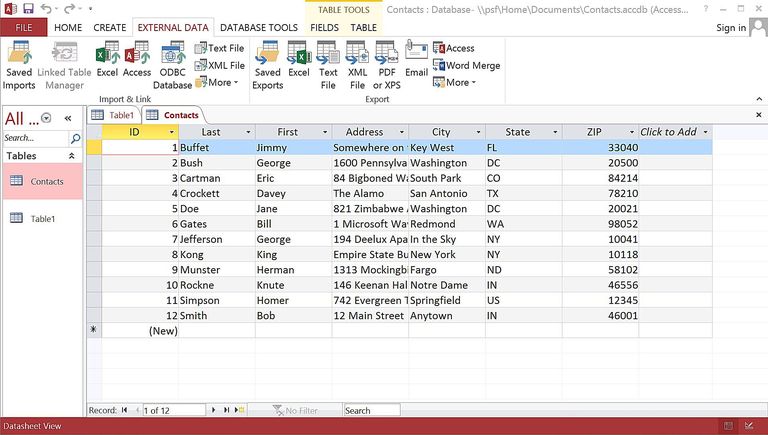
You will then go back to the main database screen, where you can view your data by simply double-clicking on the table name in the left panel. Congratulations now you must have get the idea on how to import your data from Excel into Access!
Also Read: How to Convert Access Report to PDF File?
Link Access Database To Excel Spreadsheet
Linking an Access database to data in another program, you can make use of the querying and reporting tools that Access provides without maintaining a copy of the Excel data in your database. So when you link Access Database to Excel worksheet, it creates a new table that is linked to source cells.
If any modification is made to the source cell of Excel then it will appear in linked table. Though you can’t edit the content of the corresponding table in Access. In order to do any modifications in data, you need to make changes in the source file.
How To Link Access Database To Excel Spreadsheet?

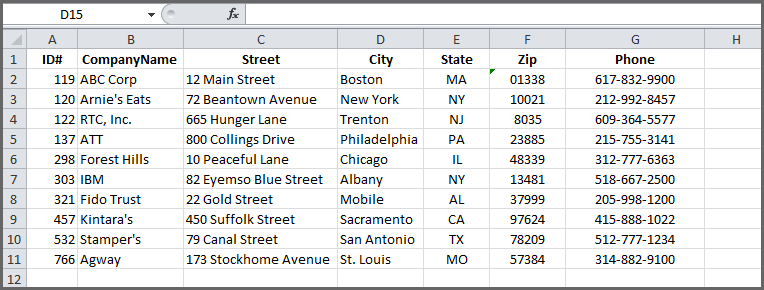
If you are having a data in Excel, then you can easily bring that Excel spreadsheet data into your Access table. It is possible by linking Access Database To Excel Spreadsheet. Suppose, you have a small database like this in Excel as shown in figure:
1. At first open your Access Database and look for the import/link wizard in your respective Access Database. And the location of this wizard in each of the Access version may differ.
-
- In latest version of office 365 subscription version of Access, on external data tab, import and link group, tap to the New Data Source> From File > Excel.
- If you are an Access 2016, Access 2013, or Access 2010 user then, on the External Data tab, in the Import & Link group, tap to the Excel option.
-
- For Access 2007 user, go to the External Data tab, in the Import group, tap to the Excel option.
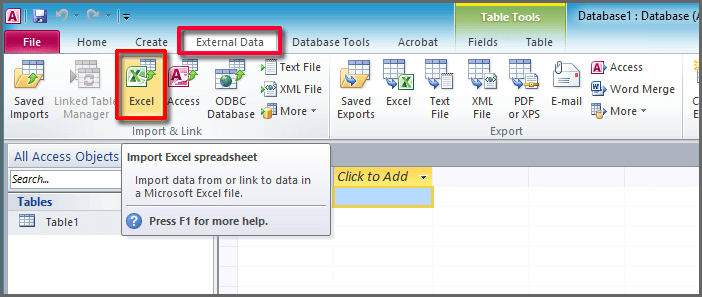
2. Now on the Get External Data – Excel Spreadsheet dialog box, in the File name box, don’t forget to specify the name of the Excel source file.
3. Choose the Link to the data source by creating a linked table, after then click OK.

The Link Spreadsheet Wizard starts and helps you throughout the linking process.
4. In the opened page of wizard, make selection of the worksheet or a named range and tap to the Next option.
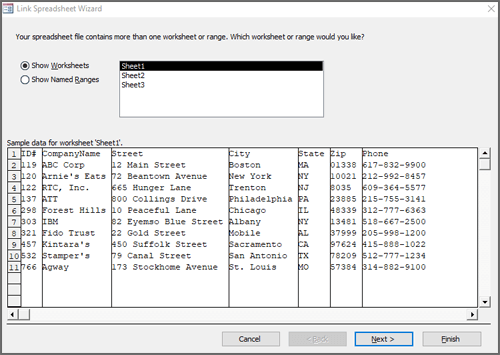
5. If first row of source worksheet or range contains field names, choose First row contains column headings. Access uses these column headings to name fields in table, if column name include certain special characters, it can’t be used as field name in access. In such case error message is displayed that tells you access will assign a valid name for fields. Hit Ok to continue further.

6. At last, assign name for the linked tables and click to the Finish If the table name already exists, you are asked to overwrite the existing table or query. You can tap to the overwrite option if you want to overwrite the existing table or query. Hit the Yes option, to overwrite the table or query, or else press the No option and assign some different option.

7. Access creates the linked table. If the operation succeeds, Access displays the finished linking table message. Open the liked table and review the fields and data to ensure you see the correct data in all fields.

If in case you are encountering some error values or incorrect data, you must troubleshoot the source data.
Also Read: How to Convert MS Access To Web Application?
Frequently Asked Questions:
What Is the Best Way to Use Access and Excel Data Together?
Linking an Excel worksheet to an Access table is the best way to use Access and Excel data together.
Can I Link an Excel Spreadsheet to an Access Database?
Yes, you can definitely link an Excel spreadsheet to an Access database by navigating to the External Data tab >> in the Import & Link group >> click New Data Source option > From File > choose Excel.
Which Is Better for Databases, Excel or Access?
MS Excel is best for data visualization, complex calculations, and analysis of smaller, easy data sets, whereas MS helps to manage and store large amounts of structured data, enabling multiple users to access & maintain the integrity of data through its relational database forms and reports.
How to Insert Data from Excel to Access Database Using VBA?
To insert data from Excel to an Access database using VBA, follow the steps below:
- Create & open a connection to an Access database.
- Then, create & open a recordset that contains the table data.
- Loop through Excel spreadsheet data & add them to the recordset (row by row).
- Then open the VBA editor and update the recordset (row by row).
- Close both recordset and connection.
Time to Wrap Up
Importing data from Excel to Access is simple and highly beneficial. However, by following the steps mentioned above, you can import Excel into Access database and streamline your workflow. MS Access enhances the data management & makes analysis more efficient.
Important- Use both tools together to get the best of spreadsheets and databases.
References:
 Still having issues? Fix them with this Access repair tool:
 This software repairs & restores all ACCDB/MDB objects including tables, reports, queries, records, forms, and indexes along with modules, macros, and other stuffs effectively.
- Download Stellar Repair for Access rated Great on Cnet (download starts on this page).
- Click Browse and Search option to locate corrupt Access database.
- Click Repair button to repair & preview the database objects.
Pearson Willey

Pearson Willey is a website content writer and long-form content planner. Besides this, he is also an avid reader. Thus he knows very well how to write an engaging content for readers. Writing is like a growing edge for him. He loves exploring his knowledge on MS Access & sharing tech blogs.