You may encounter an Access won’t close or can’t close Access database issue. This problem usually appears after editing forms or running queries. It can occur in any MS Access version and can be frustrating, as it refuses to close the application normally.
This blog explains the major factors behind this issue and provides effective workarounds to fix it in no time with less effort.
Free MS Access Database Repair Tool
Repair corrupt MDB and ACCDB database files and recover deleted database tables, queries, indexes and records easily. Try Now!
By clicking the button above and installing Stellar Repair for Access (14.8 MB), I acknowledge that I have read and agree to the End User License Agreement and Privacy Policy of this site.
Quick Fixes:
- Use Task Manager to Force Close
- Prevent Conflict of Anti-Virus Programs
- Decompile And Recompile Access Database
- Disable the Faulty Add-ins in Access
- Unhide The Hidden Close Button
- Check Your System’s Memory Usage
- Remove OLE Object Fields
- Repair Access Database
- Check the Trust Center Macro Settings
But have you ever thought about why such things happen? Why all of a sudden does your Access database not shut down even when everything is going perfectly fine?
Let’s find the answer to this question first…!
Why Won’t Access Close?
Some most common reasons for the problem include:
- Unsaved records may lock the database session.
- Corruption of the Access database ACCDB or MDB file.
- Running too many applications in the background.
- Improper network connections.
- Active macros can interrupt the closing process.
- Faulty add-ins are installed in Access.
- Over time, large databases become unstable.
Now, catch the effective ways in the next section to solve the problem.
How to Fix the Microsoft Can’t Close Access Database Problem?
Here I have listed down some of the best applicable fixes to fix cannot close Access database issue. Let’s start with the simplest one….!
Fix 1- Use Task Manager to Force Close
Since you are unable to close the Access app so, once try to force close it by using the Task Manager.
Steps to be followed:
- Press Ctrl + Shift + Esc to open the Task Manager.
- Find Microsoft Access in the process list.
- Next, click End Task to stop it immediately.

This method works when the window becomes frozen.
Fix 2- Prevent Confliction of Anti-Virus Program

Sometimes, it happens that the enabled antivirus software on the PC conflicts with other programs and causes various unexpected issues, including the Access database not being shut down.
Therefore, ensure to disable the anti-virus program before you work in the Access database. But after finishing up all the work in the database, don’t forget to turn on the anti-virus.
Fix 3- Decompile And Recompile Access Database
In this method, you have to first decompile your Access database and after that recompile it again. Follow the steps to perform this task:
- Create the shortcut that will load your Access database with “/decompile” switch.
- After making a double tap on the shortcut, press the Shift button. This will skip the auto-run process and will take you directly to the navigation window.
- Once your Access database gets loaded tap to the button “Compact and Repair”.
- Keep the shift button pressed as the database gets reloaded.
- It’s time to compile the code and then save it
After performing these steps, check whether the problem persists or is resolved now.
Also Read: Fix Access Database Won’t Save Changes Issue
Fix 4- Disable the Faulty Add-ins in Access
Temporarily disabling add-ins one by one within Access can help you to solve the current problem while handling the database. To turn OFF the add-ins, you have to:
- Go to “File” menu >> Options.
- Under the ‘Access Options’ window, click Add-Ins.

- Select the COM Add-ins from a ‘Manage’ drop-down.
- Then, click Go and uncheck the faulty add-ins >> hit OK.
Fix 5- Unhide The Hidden Close Button
There is a huge possibility that your access database’s close button is disabled. Mainly, such a task is performed to prevent a user from closing up the Access database accidentally without saving. MS Access offers the creation of different types of events on the reports and forms for easy handling of the database.
If the tab is kept hidden, then on the Access application, you won’t get the Close button (X). In that case, you have to create your own “CLOSE” button for closing up the objects. Don’t forget to instruct your user to press the CTRL+F4 button to close the Access database.
If you want to close Access database form, but it’s not closing, then put the following ‘OnClick’ event in VBA:
myOKtoClose = MsgBox “Use the Form -> Close option to close this form” Me.Visible = True End If End Sub
After applying this event in VBA, when you tap to close the Access Applications before that the active form will get closed. If the Access database fails to close the form due to this technique, then Access won’t close by itself.
Fix 6- Check Your System’s Memory Usage
If you are experiencing this problem on a particular PC, the reason can be the low memory issue.
You can also use the memory usage checker app meanwhile your Access database usage. This kind of tool also helps you to establish stability in your PC by preventing unnecessary load in your PC.
Fix 7- Remove OLE Object Fields
Sometimes such types of problems are caused due to the presence of images or OLE object fields within the database. For storing the image data, it’s better to store the filename and then save your actual image onto the standard location.
After completing this, you need to rebuild the complete database from scratch level. Though it will consume lots of time at the same time, it will give your Access database a fresh start.
Fix 8- Repair Access Database
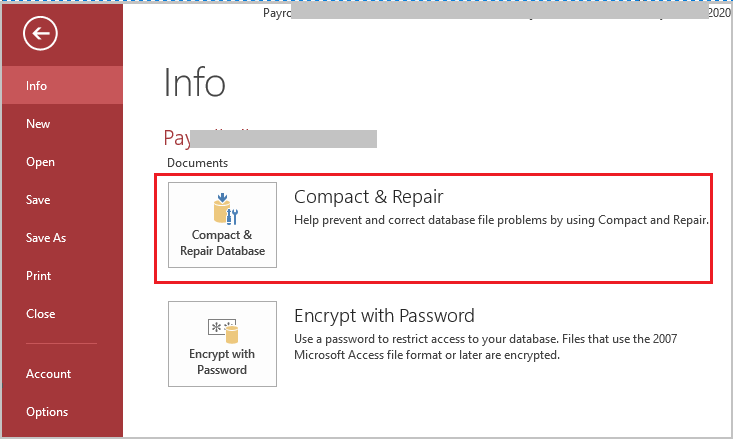
When it comes to repairing the corrupt Access DB file for free, the Compact and Repair utility is worth it. It can fix issues with corrupted database files and provides an uninterrupted database experience.
To run this tool, you have to:
- In the opened database, go to the File tab.
- Choose Info >> click on Compact and Repair Database option.
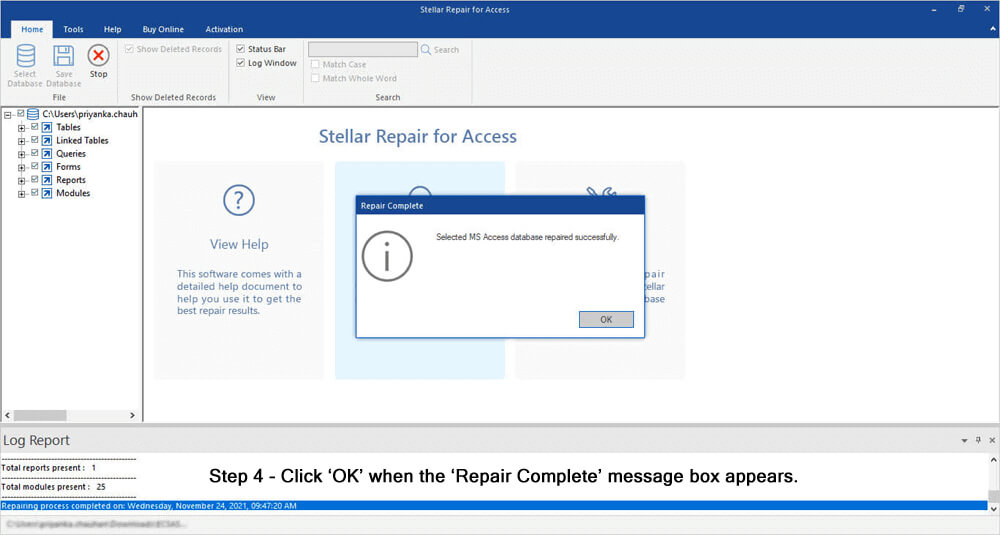
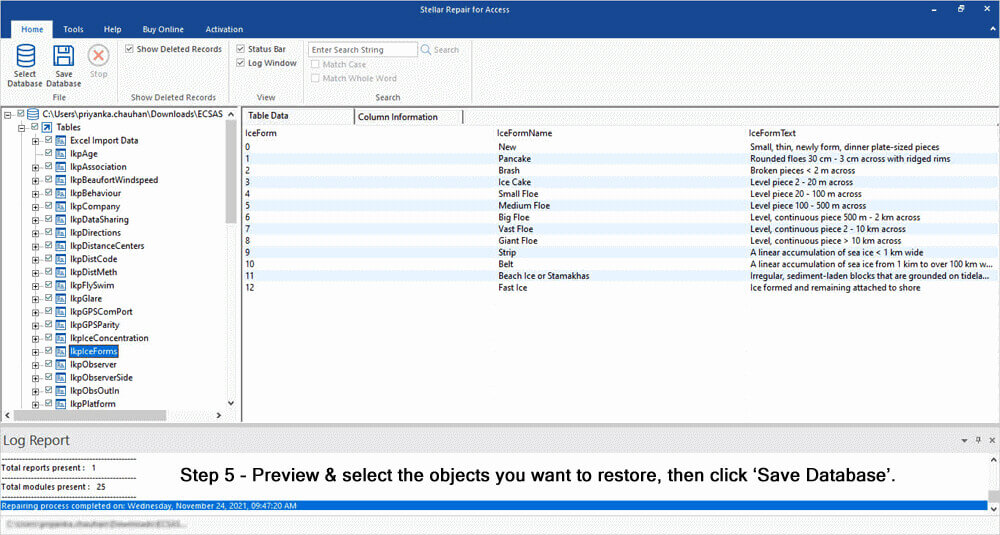
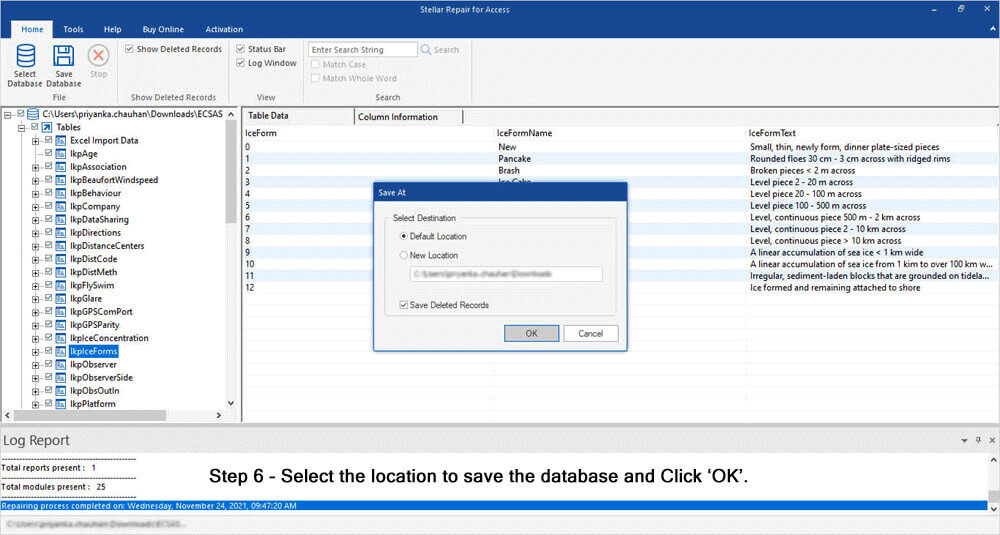
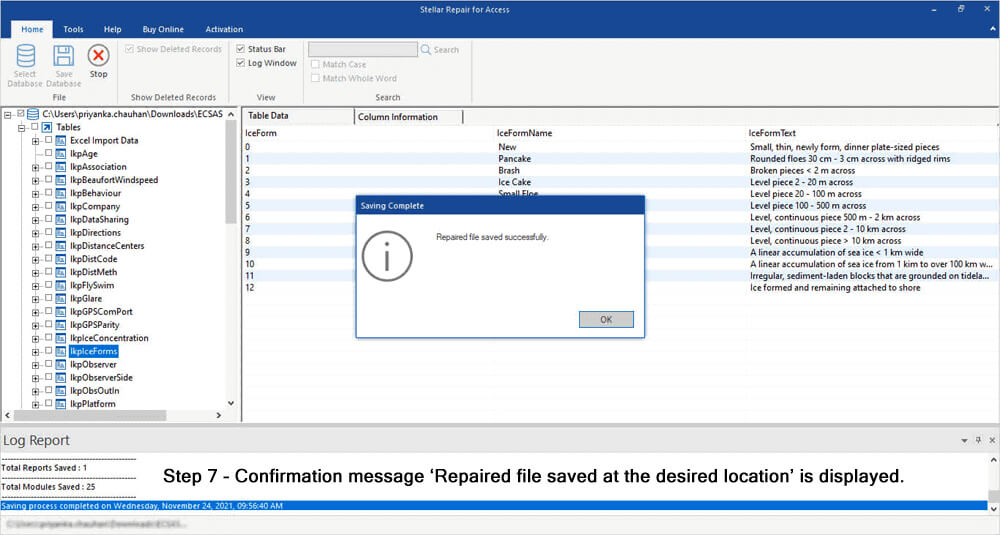
To repair severe corruption in the database that Compact and Repair can’t repair, using Access Repair N Recovery is a great option. You can completely rely on this software. Try the free trial version of this software before making a purchase. this tool very efficiently repairs and recover MDB/ACCDB files easily.

* By clicking the Download button above and installing Stellar Repair for Access (14.8 MB), I acknowledge that I have read and agree to the End User License Agreement and Privacy Policy of this site.
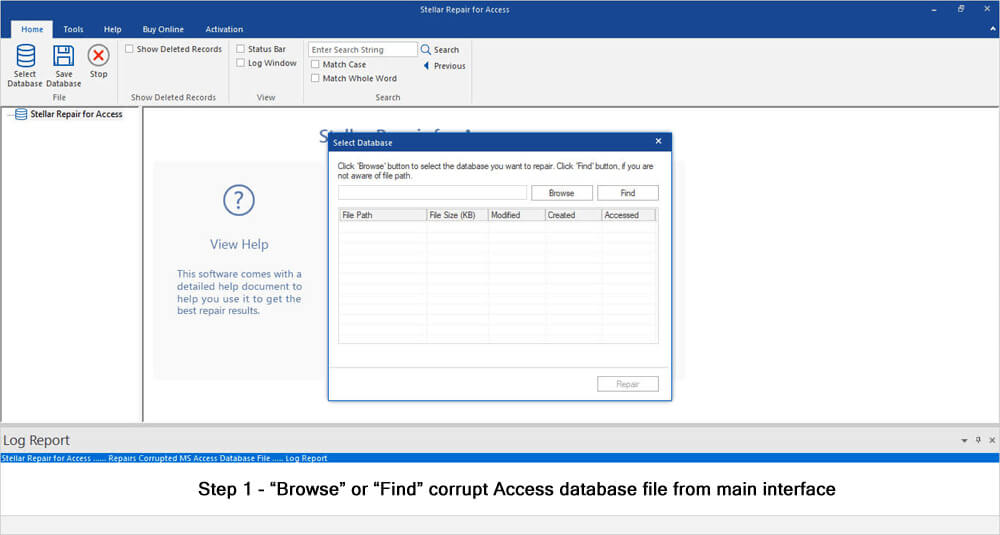
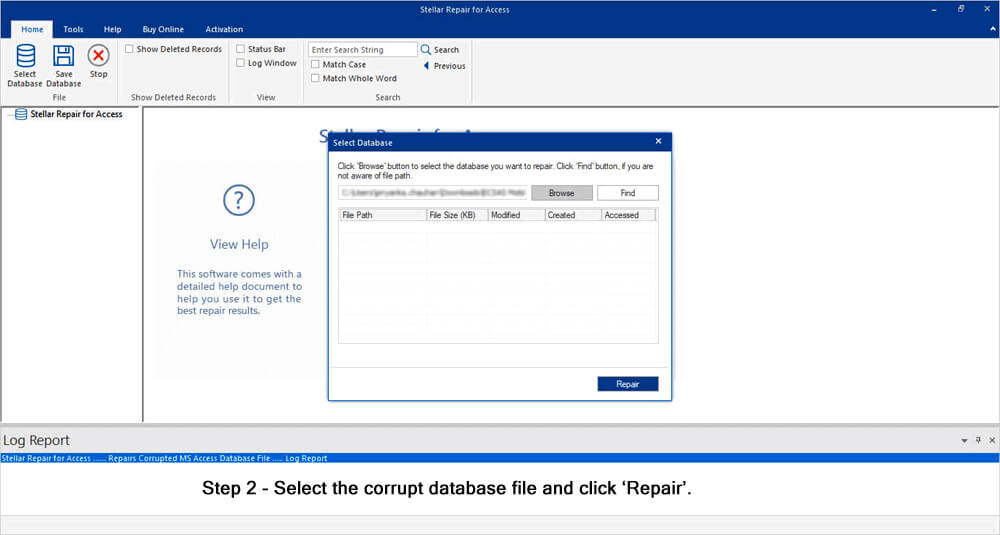
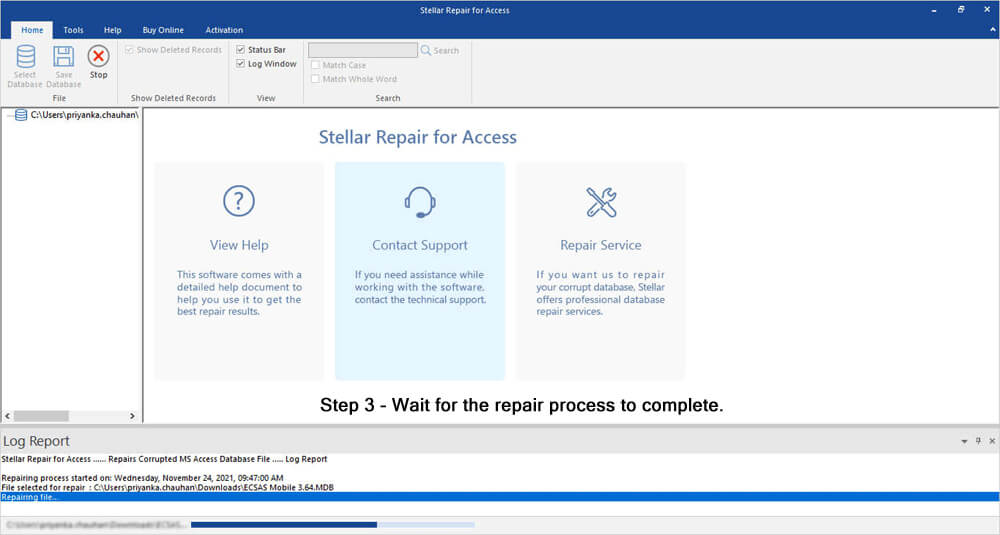
Steps To Use MS Access Repair Tool


Fix 9- Check the Trust Center Macro Settings
Activated macros in the Access can affect the database performance and lead to MS Access won’t close problem. You can solve it by checking these settings:
- Open Access >> click File >> Options >> Trust Center
- Next, click on the Trust Center Settings>> Macro Settings.

- After that, choose the Disable all macros(temporarily for testing).
Related FAQs:
How Do I Close the Database on Access?
To force close the Access database, follow these steps:
- Click the File
- Choose the Close option.
Which Key Is Used to Quit MS Access?
Alt+F4 shortcut can be used to quit MS Access.
Is There Any Way to Recover Data from A Corrupted Access Database File?
Yes, by using the most reliable Access Recovery Software, one can recover data from a corrupted database file.
Final Thoughts
Can’t close Access database issue disrupts productivity. However, the systematic troubleshooting methods specified above resolve it quickly. Start with simple fixes like Task Manager and end with disabling macros.
By following these steps, you restore normal functionality. Now, your Microsoft Access database will close smoothly and safely.
 Still having issues? Fix them with this Access repair tool:
 This software repairs & restores all ACCDB/MDB objects including tables, reports, queries, records, forms, and indexes along with modules, macros, and other stuffs effectively.
- Download Stellar Repair for Access rated Great on Cnet (download starts on this page).
- Click Browse and Search option to locate corrupt Access database.
- Click Repair button to repair & preview the database objects.
Pearson Willey

Pearson Willey is a website content writer and long-form content planner. Besides this, he is also an avid reader. Thus he knows very well how to write an engaging content for readers. Writing is like a growing edge for him. He loves exploring his knowledge on MS Access & sharing tech blogs.