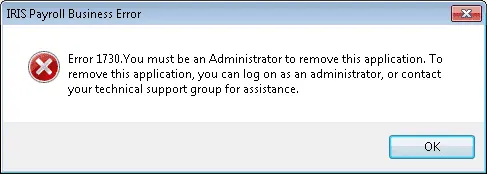
Encountering error messages while working with important databases can be frustrating. “Error 1730: You must be an administrator to remove this application” is one such warning message that occurs during Access installation, uninstallation, or repair actions. This happens when the user account wants the required administrative permissions to accomplish the essential system changes. In this blog, you will learn why MS Access runtime error 1730 occurs and how to fix it successfully to restore database stability.
Free MS Access Database Repair Tool
Repair corrupt MDB and ACCDB database files and recover deleted database tables, queries, indexes and records easily. Try Now!
By clicking the button above and installing Stellar Repair for Access (14.8 MB), I acknowledge that I have read and agree to the End User License Agreement and Privacy Policy of this site.
What Causes Microsoft Access Runtime Error 1730?
Insufficient administrative permissions are one of the primary reasons for error code 1730. However, it can also arise due to other reasons, such as:
- Running an outdated version of Windows OS.
- User account lacks the essential administrative privileges.
- Missing or corrupted DLL files
- Incomplete Office installations
- Missing/Broken References
- Problematic add-ins in Access.
These are the major factors that worsen system behavior and cause this error message.
How to Solve Access “Error 1730: You Must Be an Administrator to Remove This Application”?
Let’s see how to resolve this Access error.
Quick Methods:
- Restart Access App
- Check & Change the DB Permissions
- Verify & Fix Broken References
- Updating Windows OS
- Re-register the Windows DLL
- Boot Access in Safe Mode
- Ensure Windows Installer Service is Running
- Repair MS Office Installation
Fix 1- Restart Access App
Restarting the Access application may fix minor glitches that might be triggering the runtime error 1730. So, restart your Microsoft Access software and see if it aids. If this doesn’t work, then follow the next approaches.
Also Read: 8 Ways: Fix Microsoft Access Object Already Exists Error 3012!
Fix 2- Check & Change the DB Permissions
You may come across the Access error 1730: you must be an administrator to remove this application if you don’t have permission to uninstall the Access program.
You can check & change permissions of a database. Steps to be followed:
- Open File Explorer>> search for an Access database file.
- Then, right-click on a file >> click Properties.

- After that, click a Security option >> ensure to enable the Full control option in the Permissions window by clicking on Edit.
- Click OK.
Fix 3- Verify & Fix Broken References
Another quick method you can try is to check for missing or broken library references. It is usually seen that the runtime errors generally appear when the chosen database file depends on external libraries.
Here are the steps to do so:
- Open Access software & press the Alt+F11. This will open the VBA editor.
- Under Access VBA Editor, you have to click Tools >> References.
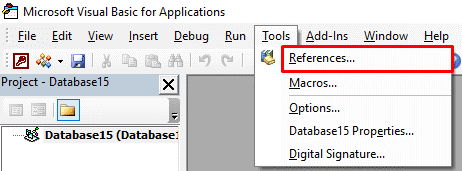
- Under the open dialog box, in the “Available References” option, ensure to check the listed References boxes.
Fix 4- Resolve MS Access Runtime Error 1730 by Updating Windows OS
Many Access users have reported that they encountered this error due to running an outdated version of Windows OS. If this is also the case with you, then consider updating the operating system by following the steps below:
- Go to the Searchoption then type Settings and hit the Enter
- Under Windows Settings, you have to click on Update & Security
- Go to Windows Update, click on “Check for Updates”, and install the available updates.

Fix 5- Re-register the Windows DLL
Re-registering the DLL files is a working solution that can assist you in solving Microsoft Office-related problems, including error 1730: You must be an administrator to remove this application.
For this follow the below steps:
- Press Windows + R keys to open Run box.
- Type the command regsvr32 “path to the dll to be registered”.
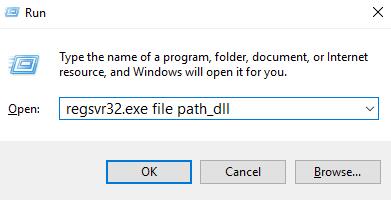
- Click Go.
Fix 6- Boot Access in Safe Mode
If you are suspicious that problematic add-ins are causing this error message, try booting the Access application in safe mode. This will eventually help you to disable all the faulty add-ins and plugins installed in the Access database and solve the current problem.
Also Read: Methods for Microsoft Access Error 1907 Could Not Register Font!
Fix 7- Ensure Windows Installer Service is Running
Sometimes, Windows installer services fail to run properly, causing this runtime error. To check this:
- Click Start >> type services.msc >> press Enter.
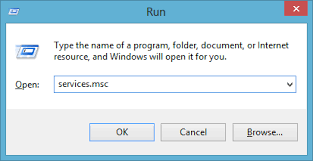
- Under the Services window, locate Windows Installer, right-click it >> select Properties.
- Now, set a Startup type to Manual >> click OK >> right-click on the service >> select Start.
Fix 8- Repair MS Office Installation
Last but not least, if none of the above tricks work, try repairing Office to fix internal inconsistencies. Damaged Office files trigger Access runtime errors.
To do so:
- Open Control Panel >> select Programs.
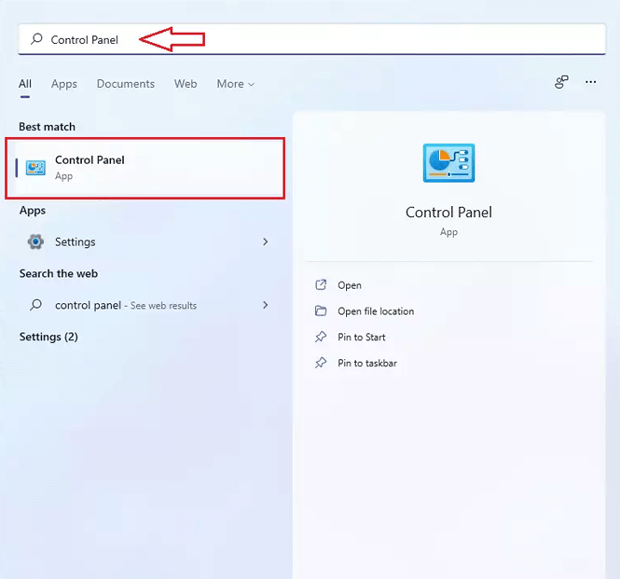
- Next, choose Microsoft Office and click Repair.
- Meanwhile, follow on-screen instructions carefully.
- Eventually, Access regains full functionality.
And you are done!
Related FAQs:
What Is Error 1730 On Microsoft 2007?
The error 1730 on the Microsoft application 2007 or in other versions specifies that your user account doesn’t have the necessary permissions to do changes required by the update.
How to Get Rid of an Administrator Has Blocked You from Running This App?
To get rid of an administrator who has blocked you from running this application, follow the steps below:
- Go to Computer Configuration, then Windows Settings.
- After this, click on Security Settings, then Local Policies >> Security Options.
- Go to the User Account Control: Run all administrators in Admin Approval Mode policy.
- Then, double-click on it >> select Disabled. Click Apply, then OK.
How Do I Fix Error 1730?
To fix error 1730, you can log on as an Administrator or contact your technical support for assistance.
Conclusion: Choose the Correct Solution Depending on the Cause!
MS Access runtime error 1730 can disturb database operations, yet with proper methods, it can be successfully solved. Above, I have discussed the working solutions. By implementing them, you can troubleshoot this error & ensure smooth functioning of the database.
Likewise, you can contact us on our Facebook or Twitter for further queries & doubts.
References:
 Still having issues? Fix them with this Access repair tool:
 This software repairs & restores all ACCDB/MDB objects including tables, reports, queries, records, forms, and indexes along with modules, macros, and other stuffs effectively.
- Download Stellar Repair for Access rated Great on Cnet (download starts on this page).
- Click Browse and Search option to locate corrupt Access database.
- Click Repair button to repair & preview the database objects.
Pearson Willey

Pearson Willey is a website content writer and long-form content planner. Besides this, he is also an avid reader. Thus he knows very well how to write an engaging content for readers. Writing is like a growing edge for him. He loves exploring his knowledge on MS Access & sharing tech blogs.