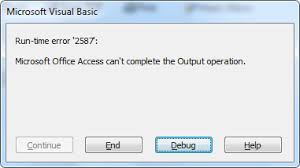
Microsoft Office Access can’t complete the Output operation error, which typically occurs while generating reports, exporting data from MS Access, or running queries. However, it occurs due to using an outdated version of Access, corrupt installation files, or a syntax error in VBA code. Regardless of the reason, this error can be easily fixed by applying the solutions mentioned here.
So, without wasting any further time, let’s proceed.
Free MS Access Database Repair Tool
Repair corrupt MDB and ACCDB database files and recover deleted database tables, queries, indexes and records easily. Try Now!
By clicking the button above and installing Stellar Repair for Access (14.8 MB), I acknowledge that I have read and agree to the End User License Agreement and Privacy Policy of this site.
What Causes Access Runtime Error 2587?
When the error code 2587 occurs while handling database records, it simply means that Access fails to complete operations. Though it happens due to various reasons, like:
- Insufficient DB file permissions block output actions
- Corrupted database file
- Invalid file name or path
- Incompatible data types cause conflicts.
- Damaged database structure
- Outdated MS Access versions.
After knowing the major factors, now it’s time to fix this error with the possible ways.
Methods to Fix Microsoft Access Can’t Complete the Output Operation Error Code 2587
Follow the step-wise tricks below to troubleshoot this runtime error in the Access database.
Quick Fixes:
- Try the Basis Methods
- Check the DB File Path and Name
- Repair your Corrupted Access Database
- Update Microsoft Access to Latest Version
- Checking Query & Report Data
- Get the Required Permissions
- Disable Conflicting Add-ins
- Create a New Access Database
Fix 1- Try the Basis Methods
Before trying any complex solutions, you should first try some basic tricks like:
- Restart your Access app & PC.
- Ensure to close the open database tables, reports, and forms that are open.
Fix 2- Check the DB File Path and Name
Sometimes, an incorrect file name and path can also trigger Access runtime error 2587. Simply, go to the file location & verify the file name. If special characters are existing the file name, remove them or rename it.
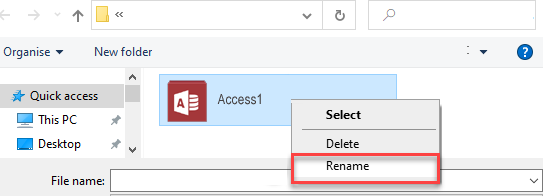
Also, avoid saving your file under long folders or paths during exports. After that, retry the output operation again.
Fix 3- Repair your Corrupted Access Database
Most of the errors and issues take place in the Access database due to file corruption. In such a case, it is worth trying the Compact & Repair tool of Access to repair the corrupted database.
Here are the steps to be followed:
- Open Access >> click on Blank Database under Templates
- Click on the File >> Close.
- After that, click on the Database Tools >> Compact and Repair Database.

- In a “Database to Compact from” window, you have to choose the database file you want to compact & repair.
- Finally, hit on Compact. This will save a new compacted & repaired file to the exact location where your original file was stored.
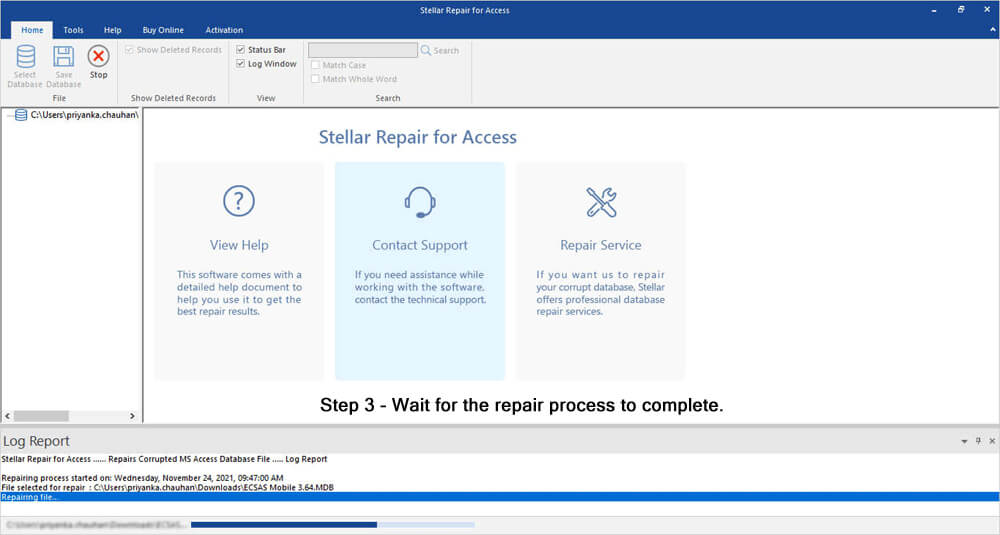
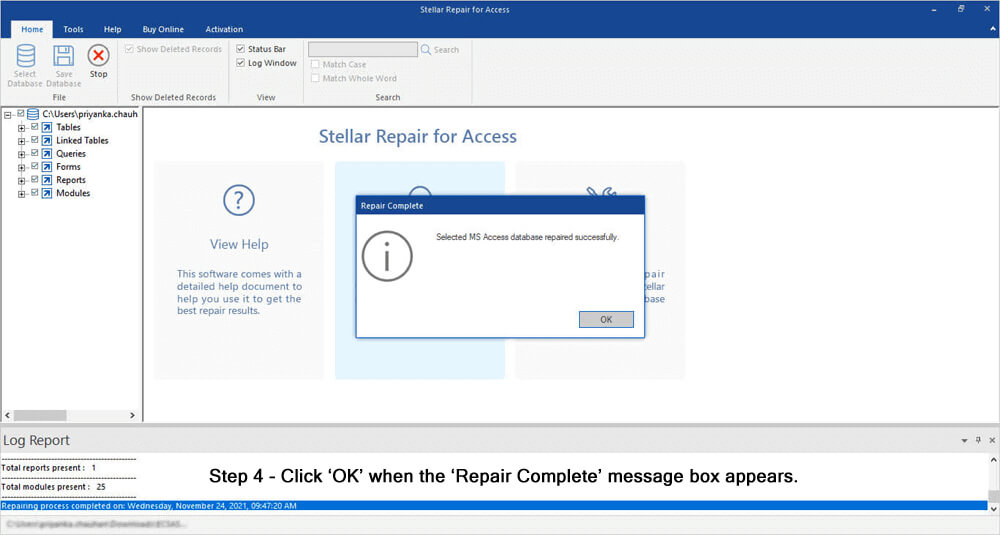
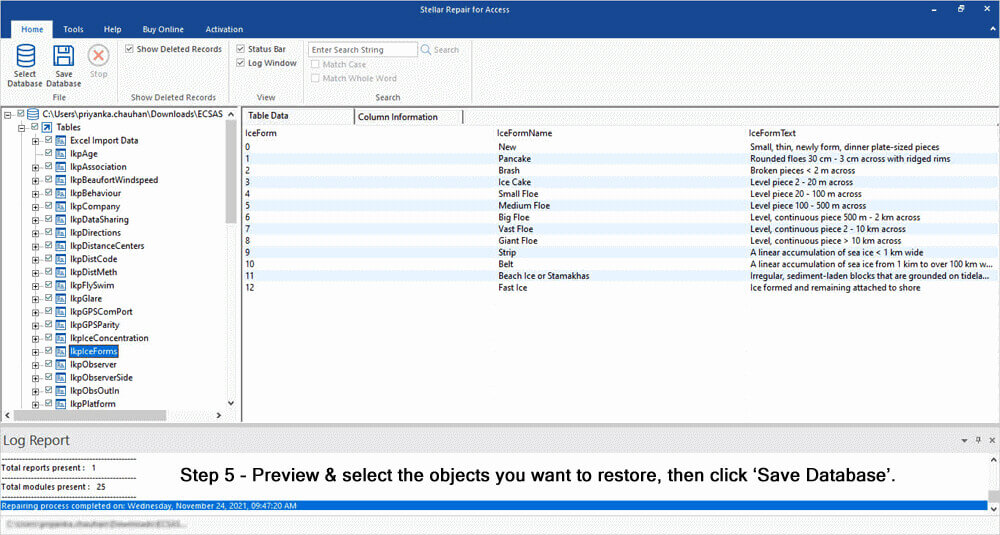
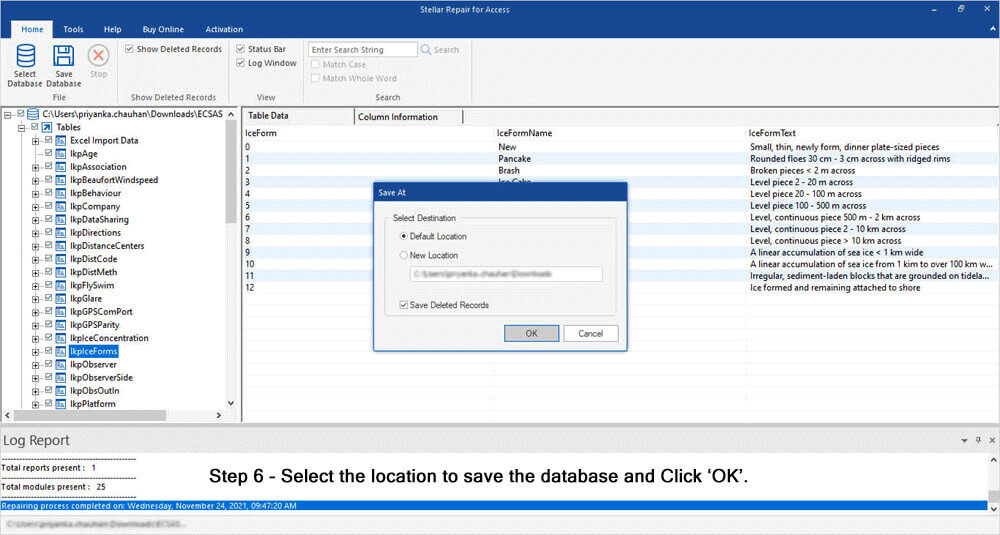
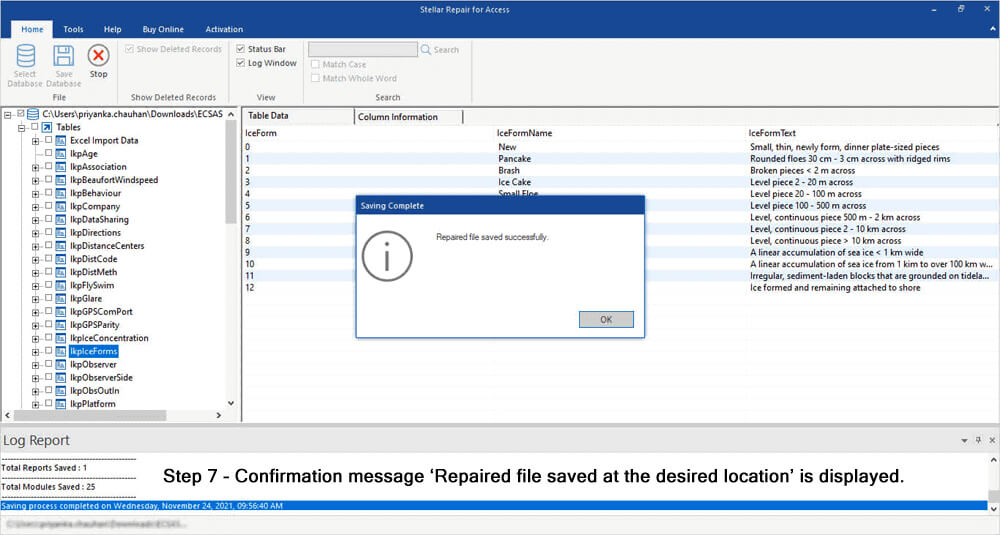
In case the Compact and Repair tool fails, you should go with the most reliable and trustworthy Access Repair Tool. It can easily repair the severely damaged .accdb & .mdb database file and restore all the components stored with it.

* By clicking the Download button above and installing Stellar Repair for Access (14.8 MB), I acknowledge that I have read and agree to the End User License Agreement and Privacy Policy of this site.
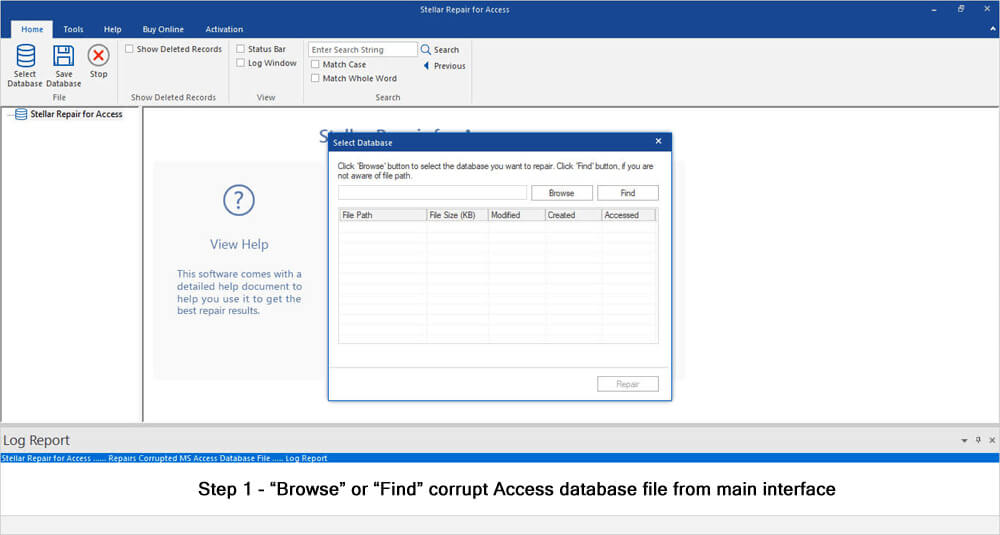
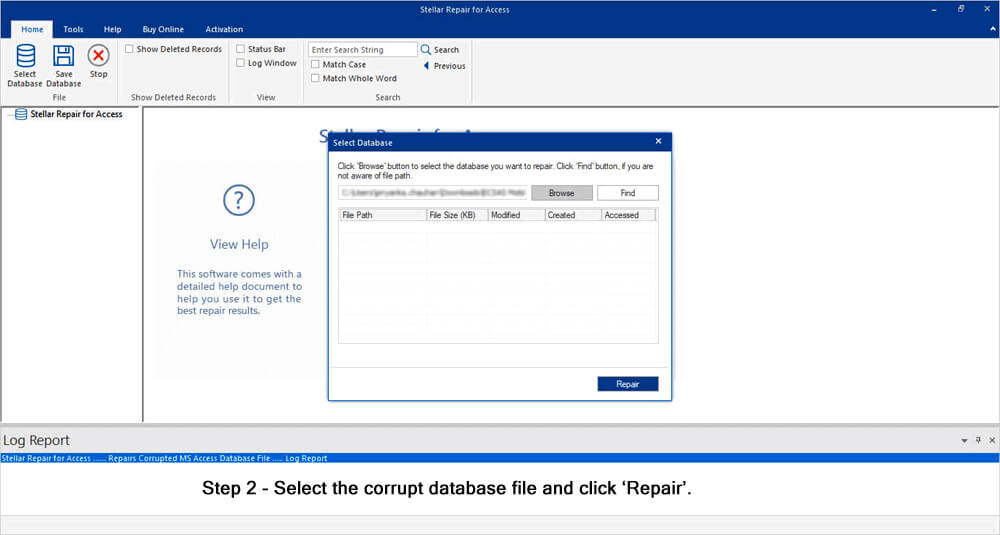
Steps to Use Access Repair Tool


Also Read: Fix ‘Cannot Open or Run Macro’ (Error 32002) in Access
Fix 4- Update Microsoft Access to the latest version
As already mentioned in the causes section, outdated software causes compatibility problems and runtime errors too, in Access. Therefore, always keep MS Access updated. For this, follow these steps:
- Open Microsoft Office Account
- Next, check for available updates.

- Then, restart the PC.
- As a result, many bugs get resolved instantly.
Fix 5- Solve Microsoft Access Can’t Complete the Output Operation Error by Checking Query & Report Data
Incorrect queries and report data often trigger output errors while handling MS Access databases. So, review the query fields and check for missing tables or fields.
Besides that, remove calculated fields with invalid expressions. Hence, Access processes outputs smoothly.
Fix 6- Get the Required Permissions
The next method you can try is to grant all the necessary permissions, like read & write to modify the stored database.
Steps to be followed to check & allow the permissions:
- Go to the location where the DB file is stored >> right-click on that folder to select the Properties.

- Navigate to Security Tab >> Advanced >> Change Permissions.
- After this, click on Administrators > Edit button.
- Now, change “Apply to drop-down” option to “This Folder, Subfolder, and Files.”
- Lastly, choose Full Control >> OK >> Apply.
And you are done.
Fix 7- Disable Conflicting Add-ins
Third-party add-ins can even lead to Microsoft Office Access can’t complete the output operation error and block operations. Temporarily disabling unnecessary add-ins can solve this problem.
Here is how you can do so
- Click on the File tab >> Options.
- In the Options dialog box, you have to click on Add-ins
- Find the Manage dropdown, select COM Add-ins >> click Go.

- Under the COM Add-ins dialog, simply uncheck the add-in you want to disable >> click OK.
- Close and reopen Access to confirm the add-ins are properly disabled.
Also Read: Fix MS Access Error 3259- “Invalid Field Data Type” And It’s Related Issues…!
Fix 8- Create a New Access Database
Sometimes, a corrupted or damaged database structure can even trigger Access runtime error 2587. In such a situation, creating a new blank database and importing all the objects from an old file can help you to overcome it. Then, test the output operation again.
This method often resolves persistent errors.
People Also Ask
What is the MS Access Output?
The Microsoft Access Output helps you to generate a new Access DB file as an output in a pipeline.
Can I Convert ACCDB to MDB?
Yes, you can convert .accdb to a .mdb file easily. Open the Microsoft Access application >> click on Open. After that, open File Explorer & select the DB for conversion. When the file opens, you have to click on File and select Save Database As. Choose the file type as an MDB file and save it.
How to Fix a Microsoft Access File?
To fix MS Access file, go to the File > Info > Compact & Repair Database option. Now, Access creates a new copy of the compacted & repaired database in the same folder.
Closure
The Microsoft Access can’t complete the output operation (2587) error is avoidable. Nevertheless, by following the methods mentioned above, you can solve this warning easily. But query optimization and updating the Access software are key. As a result, Access performs smoothly and reliably.
Stick to best practices and monitor system performance regularly.
Furthermore, if you have any queries related to this topic, ask us on FACEBOOK or TWITTER.
References:
 Still having issues? Fix them with this Access repair tool:
 This software repairs & restores all ACCDB/MDB objects including tables, reports, queries, records, forms, and indexes along with modules, macros, and other stuffs effectively.
- Download Stellar Repair for Access rated Great on Cnet (download starts on this page).
- Click Browse and Search option to locate corrupt Access database.
- Click Repair button to repair & preview the database objects.
Pearson Willey

Pearson Willey is a website content writer and long-form content planner. Besides this, he is also an avid reader. Thus he knows very well how to write an engaging content for readers. Writing is like a growing edge for him. He loves exploring his knowledge on MS Access & sharing tech blogs.