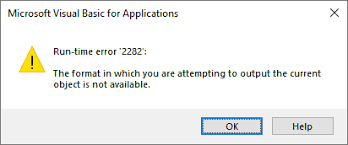
Are you facing Access runtime error 2282 “The format in which you are attempting to output the current object is not available” while accessing the database? Well, this warning message typically occurs when using a “DoCmd.OutputTo” function. This error simply means that there is an issue with a definite output format or destination.
Not only you, but many users have also encountered & reported the same problem. So, I have decided to write an article on this topic. In this blog, you will learn various methods to fix the Access error code 2282 in no time.
Free MS Access Database Repair Tool
Repair corrupt MDB and ACCDB database files and recover deleted database tables, queries, indexes and records easily. Try Now!
By clicking the button above and installing Stellar Repair for Access (14.8 MB), I acknowledge that I have read and agree to the End User License Agreement and Privacy Policy of this site.
What Causes Microsoft Access Runtime Error 2282?
There are a variety of causes that may lead to this annoying message. Here, I have listed the major reasons. Let’s have a look:
- Missing software components
- Corrupted Database file or objects (tables or queries)
- Incompatible Access versions
- File path issues
- Incorrect macro security settings
- Insufficient user permissions
- Missing/invalid references.
Therefore, identifying the trigger becomes essential for accurate resolution.
How to Fix Access Error “The Format in Which You Are Attempting to Output the Current Object Is Not Available”?
The following are the proven solutions to resolve error code 2282 efficiently. All you need to do is apply each fix carefully for consistent results.
Quick Fixes:
- Check & Eliminate the Missing References
- Check & Update User Permissions
- Verify Macro Security Settings in Access
- Update Access Software
- Repair Damaged Database File
- Check the File Name & Path
- Rebuilding the Problematic Tables/Queries
Solution 1- Check & Eliminate the Missing References
Broken and missing references are one of the major reasons for this error. All you need to do is remove the missing references and tackle the situation. For this, follow the steps below:
- Open the MS Access database.
- Next, press ALT + F11 keys to open the VBA (Visual Basic Editor).
- Click Tools >> then References.
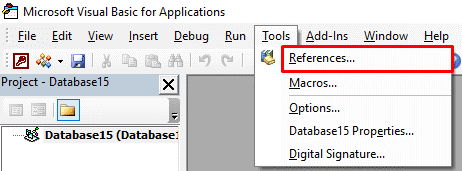
- Lastly, uncheck the boxes that are marked as- MISSING: <referencename>.

Solution 2- Check & Update User Permissions
Lack of user permissions to access the database file and execute the formula and function is the major factor for Access runtime error 2282. Therefore, open the database with administrative privileges and review table permissions for all users.
Additionally, assign full control where necessary and save the changes you have made.
Also Read: Resolving “Microsoft Access Can’t Complete the Output Operation” Error (2587)
Solution 3- Verify Macro Security Settings in Access
As already mentioned in the causes section, improper Macro Security Settings within Microsoft Access can disturb the performance of the macro & causing such runtime errors. In such cases, checking & enabling the settings can fix the issue.
Here are the steps to be followed:
- Open the Access >> click File > Options.

- Then, navigate to Trust Center >> Trust Center Settings.
- Choose the Macro Settings >> “Enable all macros” option >> tap OK.

If this procedure fails, try the next one.
Solution 4- Update Access Software
Updating the software is typically a straightforward process to solve errors in Access, including run-time error 2282. Follow the instructions below carefully to update the Access application:
- Open an Access application.
- Go to the “File” tab >> Account
- After that, look for “Update Options” or “Office Updates.”
- Lastly, select the “Update Now” to check & install updates.

Solutions 5- Repair Damaged Database File
If the Access error “The format in which you are attempting to output the current object is not available” has occurred due to database corruption, try the Access free tool “Compact and Repair”. This feature will eventually help you to repair the corrupted file and solve the problem.
Here’s how you can do so:
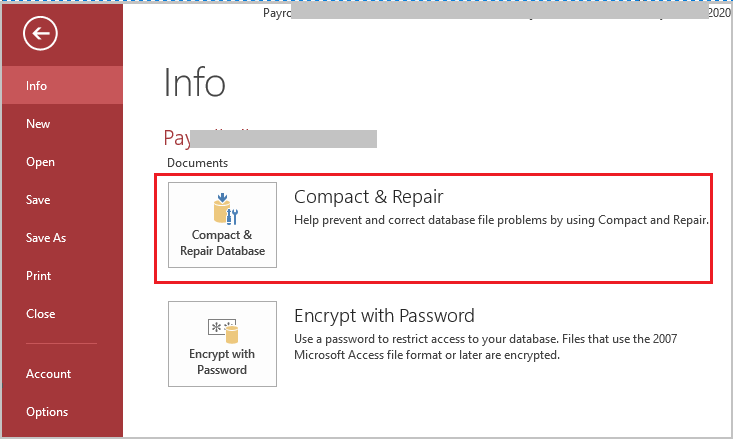
- Open the faulty Access database file.
- Click File >> Info option.
- Now, click on Compact & Repair Database.
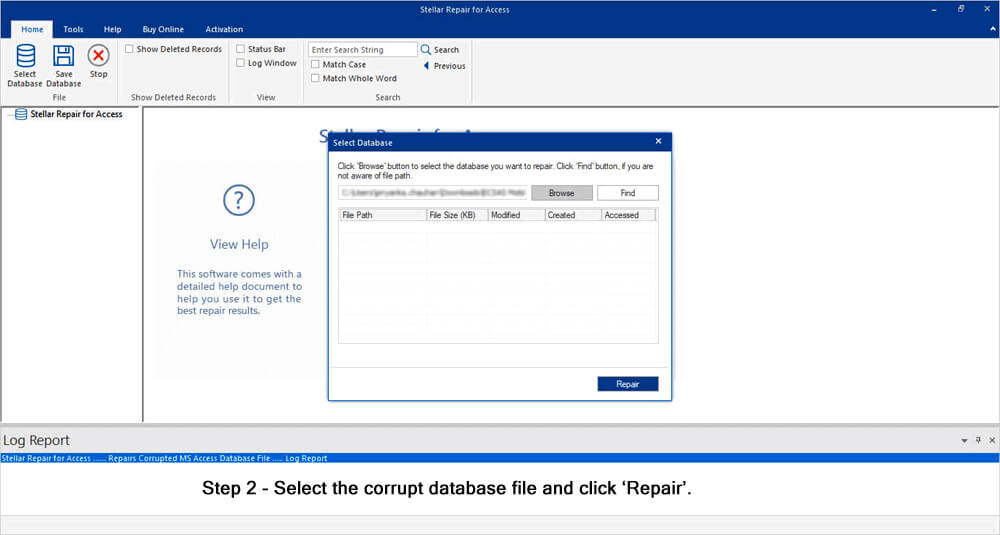
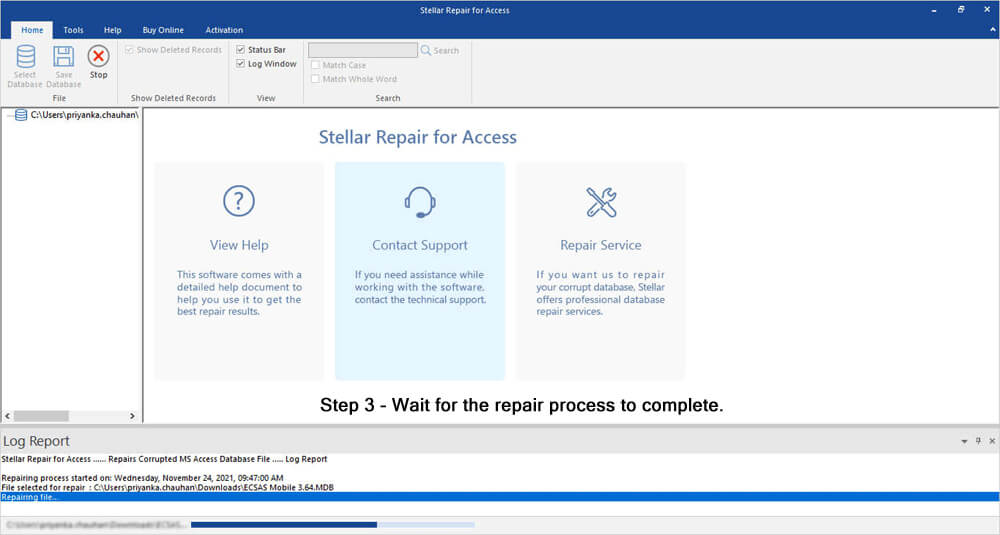
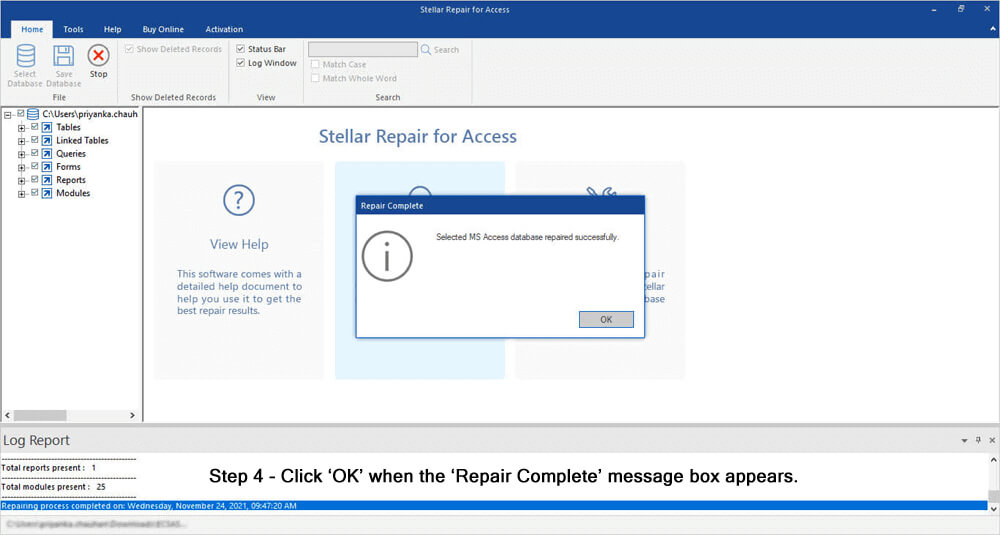
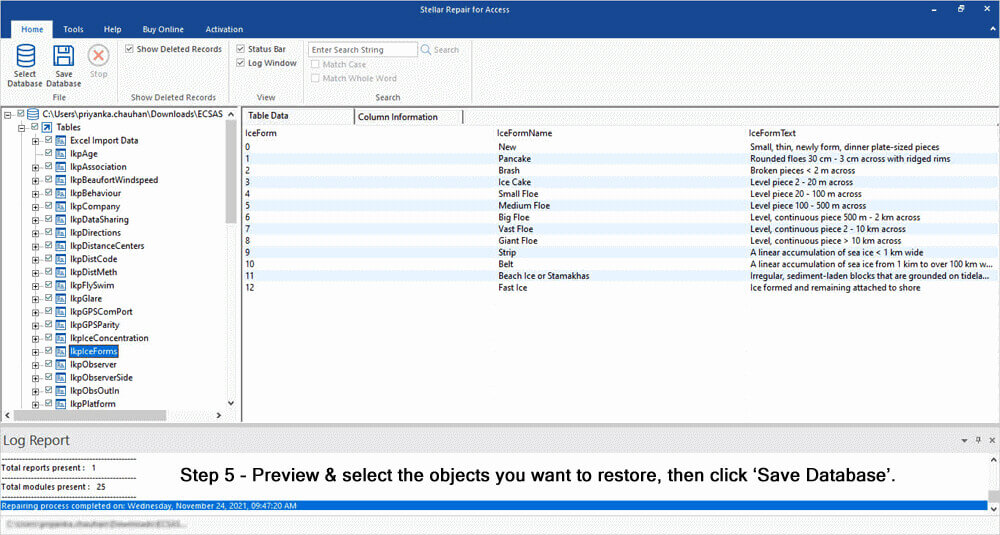
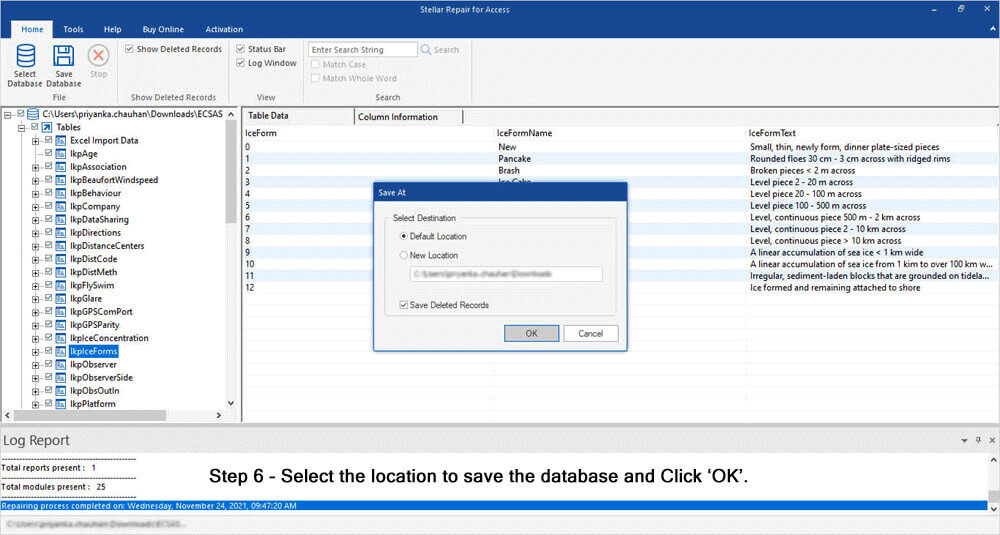
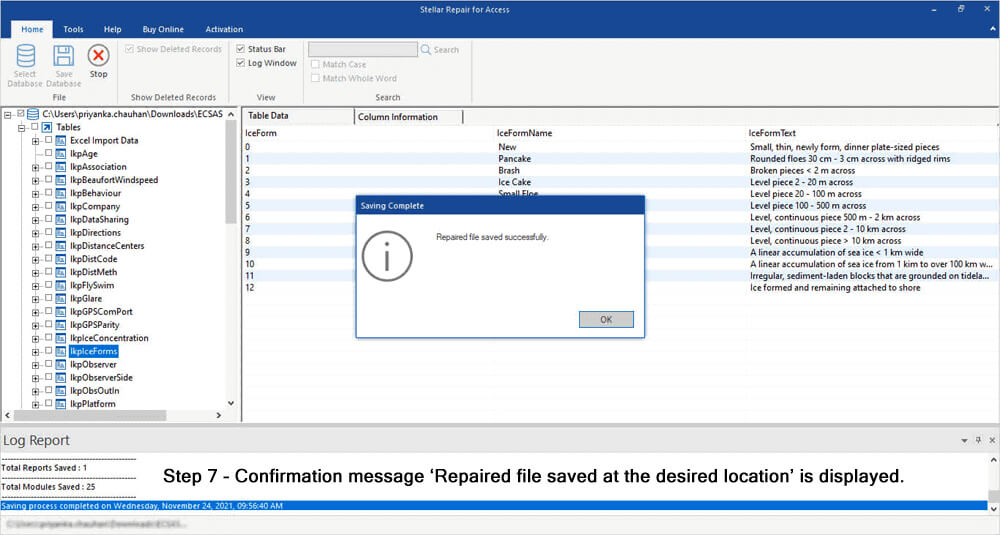
Sometimes, the Compact and Repair fail to fix the file corruption. In such cases, it is worth trying the Access Repair Tool. It can solve severe corruption in the Access database (.accdb or .mdb) and restore all the components from it with 100% integrity.

* By clicking the Download button above and installing Stellar Repair for Access (14.8 MB), I acknowledge that I have read and agree to the End User License Agreement and Privacy Policy of this site.
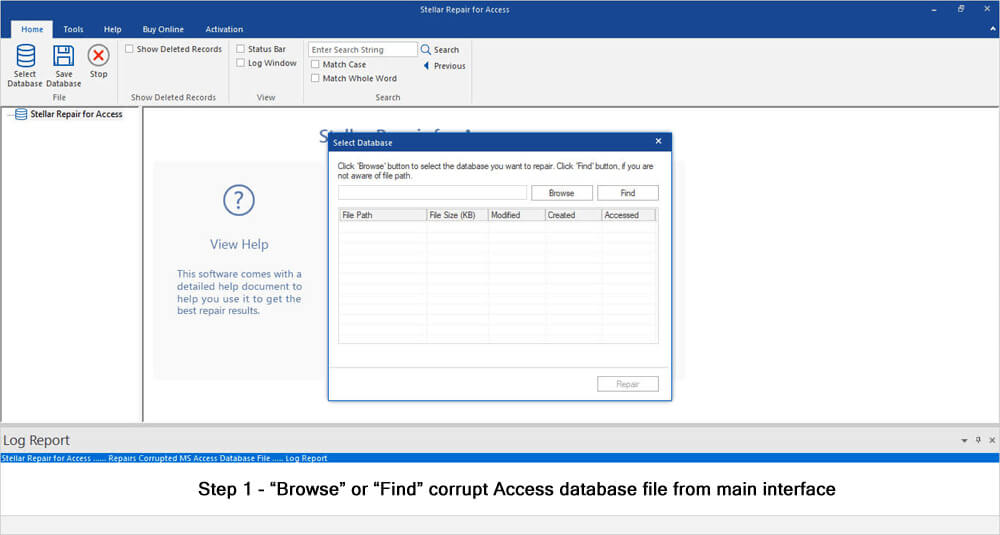
Steps to Use Access Repair Tool


Solutions 6- Check the File Name & Path
Another working solution you can try is to ensure that the file name you’re attempting to execute a “DoCmd.OutputTo” function is precise and correct (no special characters included).
Also, check that the file is saved in a short path to avoid such runtime errors.
Solutions 7- Fix Access Runtime Error 2282 by Rebuilding the Problematic Tables/Queries
Damaged objects often cause recurring errors. Therefore, create new tables using the same structure and import all data from the old tables carefully.
Similarly, rebuild queries manually to ensure accuracy. As a result, Access eliminates hidden corruption.
Also Read: Fixing Microsoft Access Can’t Save The Output Data to The File You’ve Selected. (Error 2302)
Frequently Asked Questions About Error 2282
What Does This Object Was Saved in an Invalid Format and Cannot Be Read?
When the Access error “The object was saved in an invalid format and cannot be read” occurs, it simply means that a file you’re trying to open isn’t compatible with your MS Access version.
How Do I Change the Data Format in Access?
To change the data format in Access, open the table in Datasheet view. Choose a field (the column) you need to change. On the Table Fields menu, under the Properties group, you have to click an arrow in the dropdown list next to a Data Type >> select a data type, and save your changes.
Where is the Format button in Access?
To find the “Format” button in Access, follow the steps:
- Open the DB report in ‘Design View’.
- Choose the control that you want to format.
- Then, right-click on the control & select ‘Properties’.
- Adjust properties under the tabs. There you will see ‘Format’, where you can change the appearance settings.
How to Fix a Corrupted Microsoft Access Database?
You can fix a corrupted or damaged Access DB file by using the Compact and Repair utility of Access. Navigate to File >> Info >> Compact & Repair Database. Now, Access will create a copy of the new compacted & repaired file in the same location.
How to Set the Format Property in Access?
The Format property uses various settings for different data types. For a control, set this property in the control’s property sheet. To get a field, simply set this property in a table Design view or in Design view of the Query window.
Summing Up
Well, I have tried my best to provide comprehensive information regarding the Access error “The format in which you are attempting to output the current object is not available”. The aforesaid fixes are easy to accomplish, so you can implement them on your own without any professional help.
Apart from that, if anyone knows more fixes to this error, do share them with us. Also, you can visit our social media Facebook & Twitter pages to share your experience.
Thank you.!!!
References:
 Still having issues? Fix them with this Access repair tool:
 This software repairs & restores all ACCDB/MDB objects including tables, reports, queries, records, forms, and indexes along with modules, macros, and other stuffs effectively.
- Download Stellar Repair for Access rated Great on Cnet (download starts on this page).
- Click Browse and Search option to locate corrupt Access database.
- Click Repair button to repair & preview the database objects.
Pearson Willey

Pearson Willey is a website content writer and long-form content planner. Besides this, he is also an avid reader. Thus he knows very well how to write an engaging content for readers. Writing is like a growing edge for him. He loves exploring his knowledge on MS Access & sharing tech blogs.