Is your MS Access update query not working? This occurs when you attempt to update data in an Access table, query, form, record, or other object. However, facing this issue can be frustrating, and it can be fixed easily with some proven solutions. In this exclusive guide, you will learn various ways to resolve the Microsoft Access database not updating issue quickly and with minimal effort.
Free MS Access Database Repair Tool
Repair corrupt MDB and ACCDB database files and recover deleted database tables, queries, indexes and records easily. Try Now!
By clicking the button above and installing Stellar Repair for Access (14.8 MB), I acknowledge that I have read and agree to the End User License Agreement and Privacy Policy of this site.
Why Is My Access Database Not Updating?
Before taking any action to solve this problem, it’s vital to know the root causes behind it. Let’s find out the major factors for the Access database failing to update:
- Due to missing primary keys
- Incorrect field names and data types
- Locked or opened records
- Corrupted database file
- Insufficient permissions to access the database records or other data.
What Error Occurs When Access Database Not Updating?
When your database query, form, table, record denies updating data then it will throw the following error message:
Operation must use an updatable query
-or-
This Recordset is not updateable
Or
Access linked table not updating
Or
cannot update ‘(expression)’; field not updatable access
How To Fix Access Database Not Updating Issue?
There is not any specific section where you get this Access database not updating issue. That’s why I have listed down some best applicable solutions on how to fix the update problem that occurred in the Access table, form, query, record, etc.
Let’s discuss about each of them in brief…!
1# Access Query Not Updating
Here are the reasons along with the fixes to resolve the problem that occurs meanwhile updating data in the query.
- If the query is based on multiple tables and all these tables are connected using a many-to-one or one-to-many relationship.
In that case, you are not allowed to update query data directly.
Whereas you can update form data or the data present on the access page. This is possible based on the query when the form’s RecordsetType property is set to Dynaset (Inconsistent Updates).

- When you are working with the crosstab query, you can’t update the data present in the query.
- If you are using the Microsoft SQL pass-through query, you are unable to update query data.
- When a query evaluates sum, count, average, and other types of functions on the field value, you can’t update query data.
- You can’t update a query that references to field present in the Update To row from crosstab, select query, subquery having aggregate or totals functions.
To fix this issue, just use the Domain Aggregate function within the Update To row of the update query.
Well by using the select query, crosstab query, and subquery that has the aggregate or total function, you can easily reference the fields.
- If you are using a Union query, then you can’t update the query data.
- When in a query the unique value property is set with yes option, then you can’t update query data.
To fix this issue, you need to set the query’s Unique Values property to No option.
- If the query contains a linked ODBC table having no unique index or a table with a missing primary key, then in that case, you also can’t update the query data. To fix this issue, just add a unique index or primary key in the linked table.
- If you don’t have the Update Data permissions for any table or query, then you can’t update the data.
To fix this problematic situation, you need to allow permission for updating data.
- When the field that you want to update is a calculated field, you can’t update data in the query.
- When the database field which you are trying to update is in read-only mode. Or chances are also that the database is located within the read-only drive. In both of these cases, you can’t update query data.
To fix this issue, don’t avoid opening the database in read-only mode. Or if the database is present on the read-only drive, then immediately remove the read-only attribute from the drive. Or just move the drive which is not read-only.
- When the record field you are trying to update is locked or deleted by any other user then also you are restricted to update data in the query.
To update a Locked record, you need to simply unlock the record.
2# Access Form Not Updating
- If your Access database form is based on a stored procedure having more than one table, then you can’t update form data.
- Besides this, you can’t update form data that is based on the ActiveX Data Objects (ADO) recordset.
- Access form allows you to edit data from the ADO recordset. But only when the ADO recordset is made with the composition of SQL Server OLEDB providers and MSDataShape.
3# Access Table Not Updating
To update the linked table in Access, you can use the Linked Table Manager feature of Access.
So you can make use of the Linked Table Manager for re-establishing the links right from the linked tables, mainly while the backend database is been shifted.
If your tables are linked with the backend access database and you shift the backend database, in that case, the front-end database stops working correctly. This problem won’t get resolved until the linked table gets updated in the front-end. After that only it will get pointed to some other location.
Follow the steps to update linked tables:
- First of all, open your frontend database.
- When the frontend database gets open after the shifting of the backend database at that time you will receive the following error message: “Access could not find the backend database file”.
- Hit the ok button.
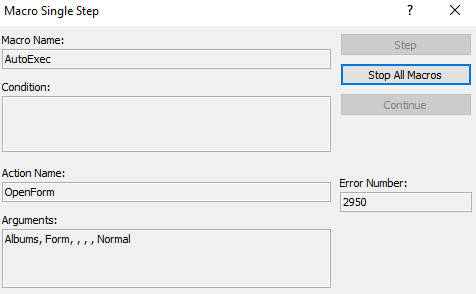
- You will also get warning messages regarding the AutoExec macro which fails to execute.

- In this situation, you need to hit the Stop All Macros.
- Go to the External Data tab and hit the Linked Table Manager option from the Import & Link group.

- Make a right-click over the linked table. After that from the contextual menu choose the Linked Table Manager.

- Make a selection for the table you want to update and hit the OK button.

- Now search for the backend database file and tap to the Open option.
- Access will show the message that the entire linked table is now successfully refreshed.
- Hit the OK button.

- Now your linked table manager will show you the new location assigned for each linked table in the backend database.
- Hit the Close option.
- Linked tables will now get updated.

How To Update Data From One Table To Another?
For updating data from one table to another, make sure that the data type of the destination or source field is compatible with or matches the other.
Follow the steps below to update data from one table to another:
- Make an update query first, and then add the destination and source tables to that query.
- Join the tables present over the fields that have the related information.
- Assign names in the destination Field row of the query design grid.
- Assign a name for the source Update To row of the query design grid with this syntax: [source_table].[source_field].
4# Access Records Not Updating
You need to set the RecordLocks property of the form to the edited record. To perform this, just try the following steps:
1. First of all, you need to open the MS Access form in Design View.
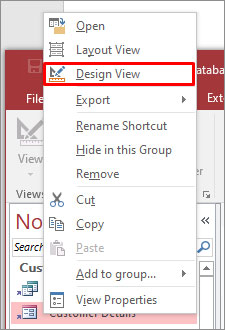
Note: In Access 2007, go to step 3.
2. From the View menu, tap the Properties option.
3. On the Data tab, change the Record Locks property to Edited Record.
Frequently Asked Questions:
How to Update Database in Access?
To update the database in Access:
- Open the Access database that you want to update.
- Click on Create tab, under the Queries group, you have to click Query Design.
- Next, click on the Tables tab >> choose the table(s) that hold the records that you want to update, then click Close.
Which Command Is Used to UPDATE Data in a Database?
An update statement is used to UPDATE data in the database.
How Do I Repair a Microsoft Access Database?
To repair an MS Access database, you have to:
- Open MS Access on your desktop.
- On the templates page, you have to double-click on the Blank Database.
- Navigate to File > Close.
- Choose Database Tools > Compact and Repair Database.
How to UPDATE Database Without Downtime?
You can use replication & synchronization to generate a copy of your Access database on a different server, apply upgrade to it, and then sync the data back to your original database.
Packing Up
So, these are the solutions to fix the MS Access update query not working issue. However, this problem mainly arises due to the corruption of the database. In that situation, always choose a reliable recovery tool like Access Repair & Recovery. Otherwise, your complete database will get compromised.
After applying the fixes of this post, I don’t think you will get this can’t update Access database data problem anymore.
Also, stay tuned with us on Facebook or Twitter for more articles & recent posts.
References:
 Still having issues? Fix them with this Access repair tool:
 This software repairs & restores all ACCDB/MDB objects including tables, reports, queries, records, forms, and indexes along with modules, macros, and other stuffs effectively.
- Download Stellar Repair for Access rated Great on Cnet (download starts on this page).
- Click Browse and Search option to locate corrupt Access database.
- Click Repair button to repair & preview the database objects.
Pearson Willey

Pearson Willey is a website content writer and long-form content planner. Besides this, he is also an avid reader. Thus he knows very well how to write an engaging content for readers. Writing is like a growing edge for him. He loves exploring his knowledge on MS Access & sharing tech blogs.