When the error message “the Microsoft Access runtime is installed on this machine you must start Microsoft Access by double-clicking…” occurs, it simply means you have an exact, limited version of Access intended to run existing databases, not create/edit them. However, it appears when opening a DB file, it disrupts productivity and confuses many users. Fortunately, this error can be resolved using the provided methods.
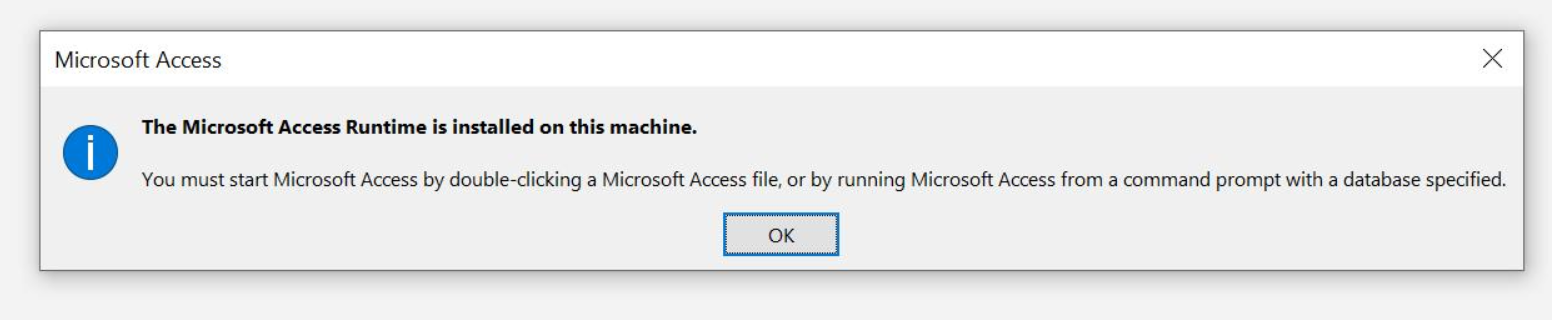
Well, this blog explains reliable tricks to fix this warning and let the Access applications run smoothly again.
Free MS Access Database Repair Tool
Repair corrupt MDB and ACCDB database files and recover deleted database tables, queries, indexes and records easily. Try Now!
By clicking the button above and installing Stellar Repair for Access (14.8 MB), I acknowledge that I have read and agree to the End User License Agreement and Privacy Policy of this site.
Why Runtime Is Installed on This Machine Error Occurs?
Before employing the methods to address this issue, it’s vital to identify the roots for better resolution.
- Version conflicts create serious problems.
- Damaged or corrupted database file.
- Broken registry entries.
- Improper installation.
- Conflicting third-party applications.
- Running an outdated version of the Access software.
- Insufficient permissions to access a DB.
How to Solve the Microsoft Access Runtime Is Installed on This Machine Error?
Follow the steps to get rid of it.
Method 1- Check & Install Correct Access Runtime Version
Since the error is associated with a mismatched Access Runtime version. So, it is vital to match the database architecture. Simply download & install the accurate version from Microsoft, allow administrator privileges, and finally reboot your PC.
For example:
- 32-bit databases need 32-bit runtime.
- 64-bit databases need 64-bit runtime.
As a result, the error usually disappears.
Method 2- Re-register the Access Runtime Files
Another possible reason for the Microsoft Access runtime is installed on this machine you must start Microsoft Access by double-clicking error is broken or corrupted Windows registry. To overcome this situation, try re-registering them and restoring functionality.
- Press Windows + R to open the Run box.
- Next, enter the Access executable path (msaccess.exe /regserver).

- Add the /regserver command afterward.
Also Read: Fix It Fast: Access Denied to Installation Source Error Code 30015-4 (5)!
Method 3- Repair the Corrupted Access Database
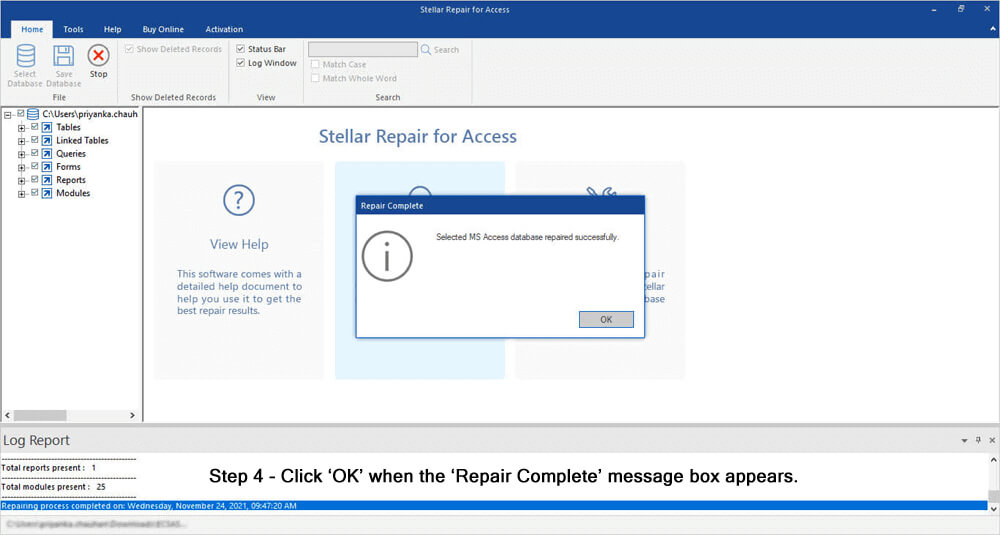
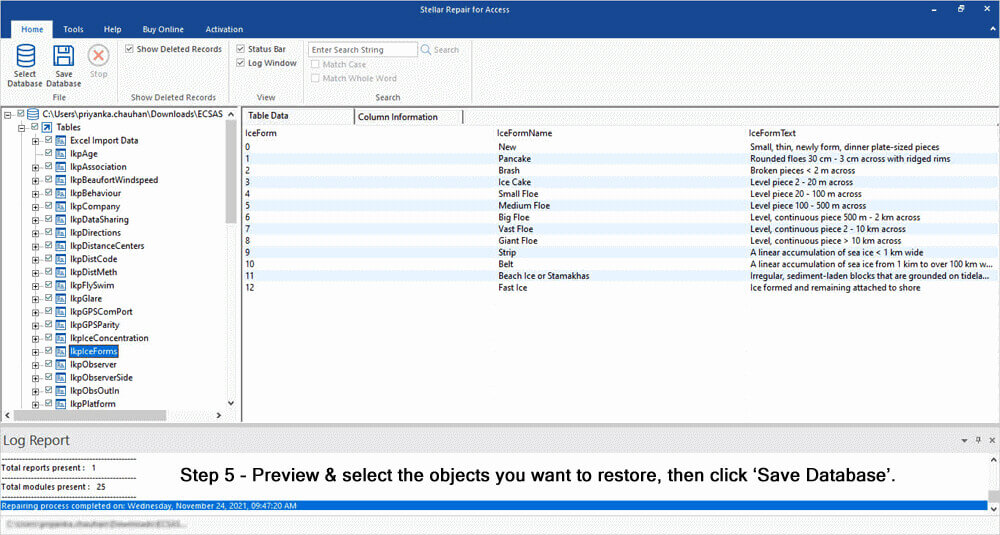
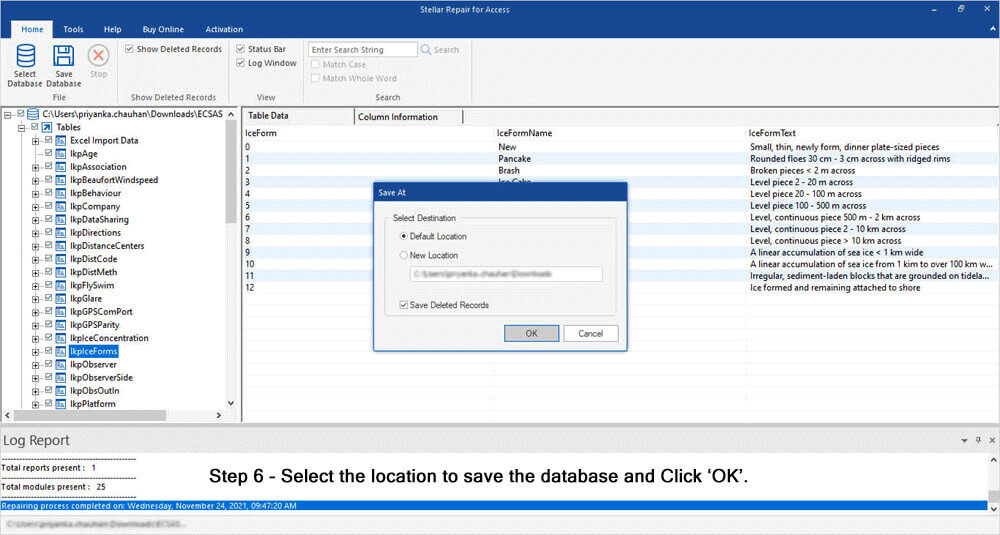
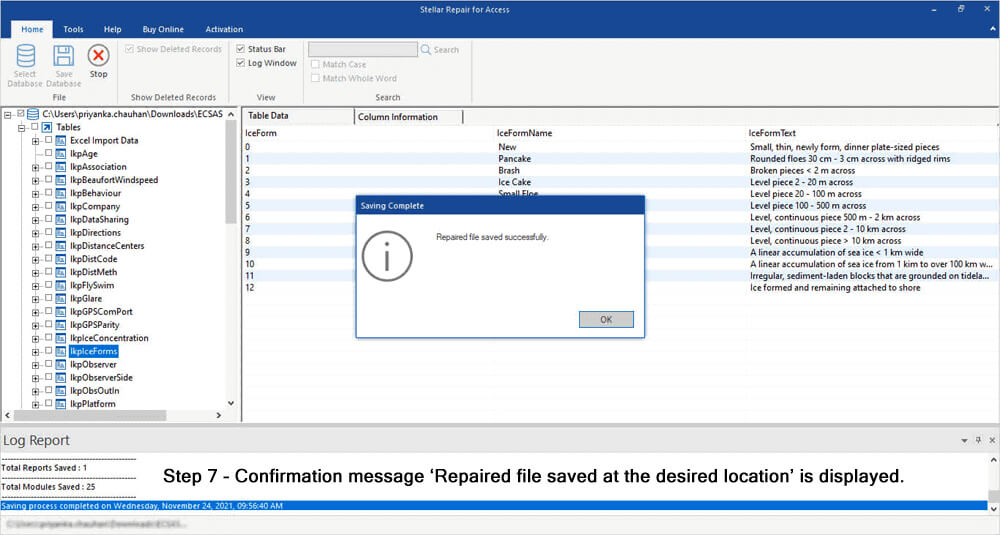
The DB file corruption can also lead to this warning message. In such a case, opt for the Access built-in Compact and Repair utility. This feature can eventually compact & repair the database.
Here is how to use it:
- Close all the DB files >> Open Access.
- On a Templates page,>> click Blank Database.
- After that, click File >>Close.
- Next, go to Database Tools option >> click Compact and Repair Database.

- Now, choose a corrupted DB file to compact & repair. Click Compact.

A compacted and repaired file will be saved at the same location where the previous file is saved. If it fails, try the Access Repair and Recovery Tool.
* By clicking the Download button above and installing Stellar Repair for Access (14.8 MB), I acknowledge that I have read and agree to the End User License Agreement and Privacy Policy of this site.
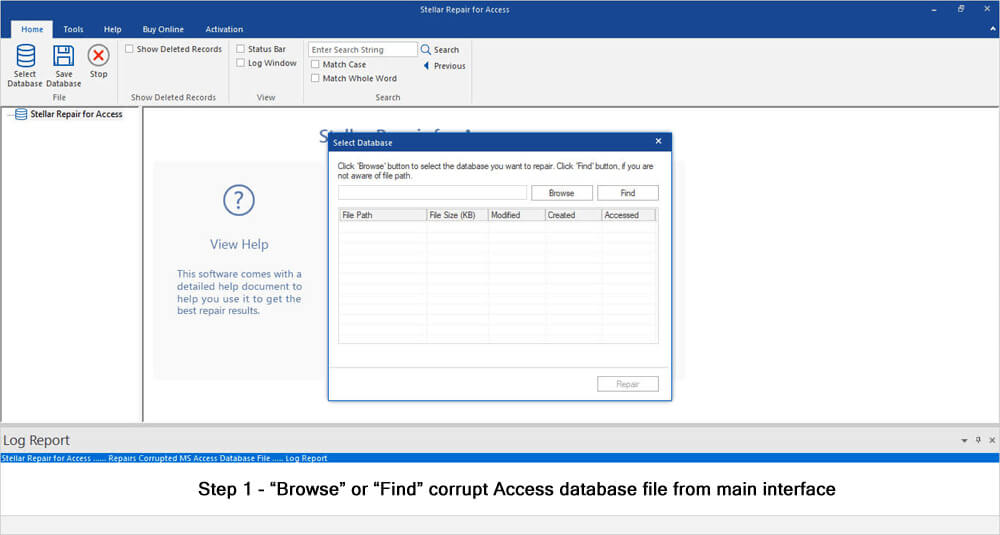
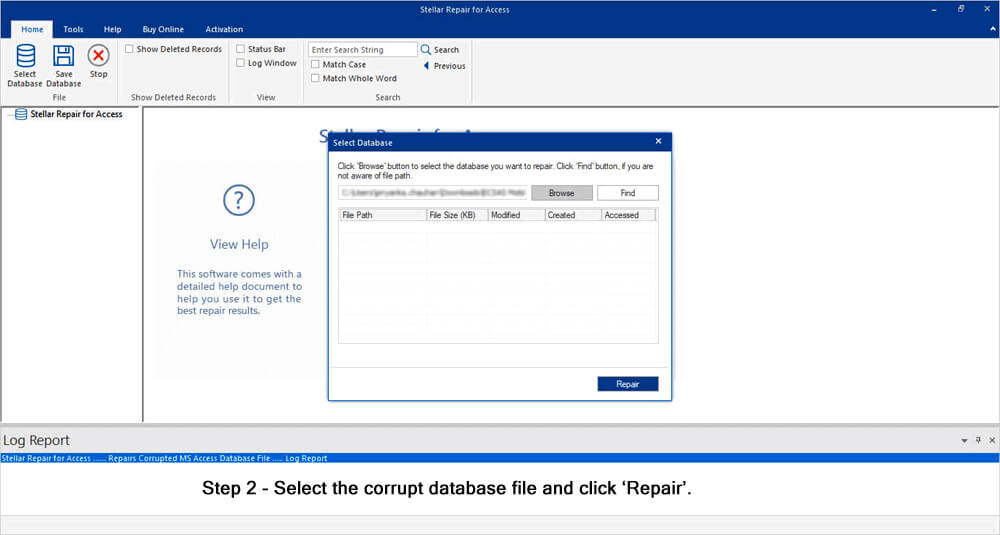
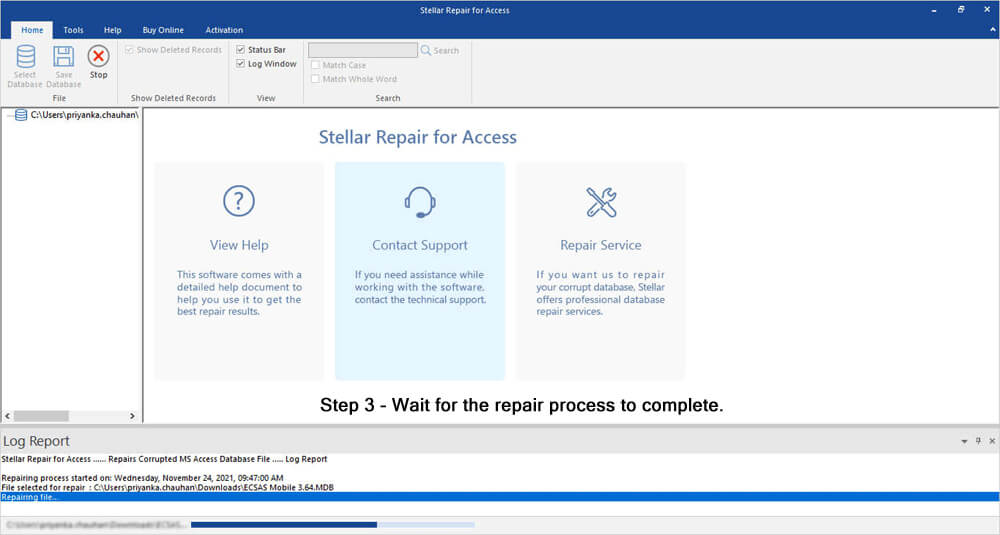
Here are the complete steps to use this program:


Method 4- Grant Permissions
Inadequate file permissions to access the database can also cause this Access runtime error. So, check & allow the required permissions & access privileges to the DB file. To know the comprehensive steps, Click Here.
Method 5- Update Windows and Microsoft Access
As already mentioned in the causes section, running an outdated Windows and Access software version can trigger compatibility issues. So, try updating the Windows & Access software to improve stability.
To update Windows version:
- Go to Start > Settings > Windows Update.
- Then, click “Check for updates,” & “Download & install” any available updates.

To update Access version:
- Open Access >> click “File” >> Account
- Find and click on “Update Options” or “Office Updates.”
- Choose the “Update Now” to install the available updates.

Consequently, runtime errors have reduced significantly.
Method 6- Repair MS Office to Fix the Microsoft Access Runtime Is Installed on This Machine
If you’re suspicious that the Access installed on this machine error is occurring due to a missing/corrupted Microsoft Office installation component, try fixing the Office.
Here’s how you can do so:
- Press the Windows + R keys to open Run.
- Type appwiz.cpl >> hit Enter.

- In the opened Programs and Features window, find Microsoft 365 & right-click on 3 vertical dots of it.
- Click Change/Modify.
- Now, click on Yes in a UAC prompt to continue.
- Then, you’ll see– How would you like to repair your Office programs?
- Simply choose Quick Repair >> Repair.

Related FAQs:
Where Is Microsoft Access Runtime Installed?
The Microsoft Access Runtime is installed in the following location:
- 64-bit C:\Program Files\Microsoft Office\OfficeNN.
- 32-bit C:\Program Files (x86)\Microsoft Office\OfficeNN.
How to Check If MS Access Is Installed?
To check if Microsoft Access is installed on your PC:
- Go to the Start button >> search for ‘odbc’.
- Select Set up data sources (ODBC) >> click Drivers
- Locate the ‘Microsoft Access Driver (*. mdb, *)
- If the MS Access Driver has a version of 12.
Can I Uninstall Microsoft Runtime?
To uninstall the Microsoft runtime, open the Control Panel,>> find & uninstall all the current versions of the following 3 software:
Microsoft. NET Runtime – <version> (x64)
Time to Closure!
The Microsoft Access runtime is installed on this machine error can be triumphed over with a handful of precise resolutions mentioned in this post. In case you fail to troubleshoot this error with the aforesaid tips, seek expert help from the Microsoft Support Team.
Additionally, you can contact us through Facebook or Twitter for further assistance.
 Still having issues? Fix them with this Access repair tool:
 This software repairs & restores all ACCDB/MDB objects including tables, reports, queries, records, forms, and indexes along with modules, macros, and other stuffs effectively.
- Download Stellar Repair for Access rated Great on Cnet (download starts on this page).
- Click Browse and Search option to locate corrupt Access database.
- Click Repair button to repair & preview the database objects.
Pearson Willey

Pearson Willey is a website content writer and long-form content planner. Besides this, he is also an avid reader. Thus he knows very well how to write an engaging content for readers. Writing is like a growing edge for him. He loves exploring his knowledge on MS Access & sharing tech blogs.