While handling the Access database, you may encounter “Microsoft Access the active content in this file is blocked review your trust center…” This warning message occurs because Microsoft prioritizes security. Blocking active content prevents potentially harmful code from executing. In this blog, you will learn why Microsoft Access the active content in this file is blocked error takes place and how to troubleshoot it with less effort.

Free MS Access Database Repair Tool
Repair corrupt MDB and ACCDB database files and recover deleted database tables, queries, indexes and records easily. Try Now!
By clicking the button above and installing Stellar Repair for Access (14.8 MB), I acknowledge that I have read and agree to the End User License Agreement and Privacy Policy of this site.
What Causes Error Active Content in This File Is Blocked MS Access?
Before taking any action to tackle this situation, it is important to know the root causes behind it. Let’s have a look at the major factors for active content in this file is blocked error:
- Running too many applications.
- Disabled trusted Access.
- Faulty Access add-ins.
- Corrupted Access database or Microsoft Office.
How to Fix the Active Content in This File Is Blocked Microsoft Access?
Try these effective tricks to tackle the active content error.
Way 1- Close the Conflicting Programs
If too many apps are running in the background, then it may cause conflicting programs, just stop them. For this, follow these steps:
- Press Ctrl + Alt + Del keys on your keyboard then click Task Manager.
- After that, the programs list that are currently running will be opened.
- Now, go to the Processes tab >> Stop each program by clicking the End Process.

Way 2- Restore a Backup File
Most of the users tend to create extra copies of the file as a backup. Thus, if you’ve also taken a backup of your database file, consider restoring it. Backups are often helpful in recovering from corruption problems or errors.
Also Read: Access Doesn’t Support the Format of The File- Here’s How to Fix It!
Way 3- Enable Trusted Access to Macros
Many users have reported in the community websites that they received Microsoft Access the active content in this file is blocked error due to disabled trusted Access. All you need to do is to enable trusted Access.
To do so, follow these steps carefully:
- In the Access, open the blank database.
- Once the blank database is opened, click on the File>> Options.

- Choose ‘Trust Center’tab from a dialog box of ‘Access Options’.
- Next, click on the button ‘Trust Center Settings’.
- Select “Enable all macros” from the dialog box, and click on ‘OK’ to save the changes.

Way 4- Disable Add-ins Within Access
Sometimes, disabling the faulty Access add-ins often fixes major problems in the database. Therefore, let’s disable them one by one to deal with your current situation:
- Open MS Access database.
- Go to the File tab >> Options.
- After that, click on Add-ins >> click Manage list >>Access Add-ins >> Go.

- Finally, uncheck all the Add-ins there.
Way 5- Fix Microsoft Access the Active Content in This File Is Blocked by Repairing the Database
Active content in this file is blocked MS Access error can also result in database corruption. In such a case, you can try Compact & Repair tool.
Here are the steps to use this tool:
- Open Access >> Go to File > Info.
- Next, click on the Compact & Repair Database.
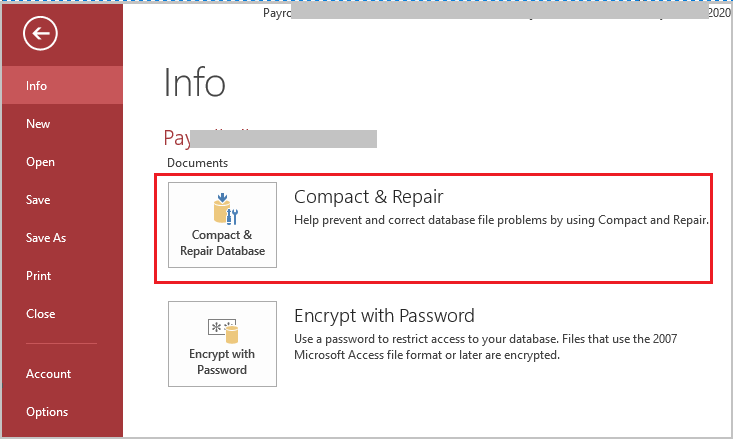
- Choose the corrupted Access DB file >> click OK.
Besides Compact and Repair, you can even try Access Repair Software. It is an influential tool that can repair database corruption and restore all the objects saved within it, such as tables, forms, reports, modules, etc.
Also Read: Fixing Microsoft Access Could Not Read Definitions Error!
Related FAQs:
What Is Active Content in Access?
Active content in Microsoft Access is extra functionality in a specific file, like macros, add-ins, or data connections.
How Do I Unblock Access Files?
To unblock Access file, you have to right-click on file >> select Properties. Choose ‘Unblock’ at the bottom-right of a General tab, >> select OK.
What Is the Purpose of Active Content?
Active content in Microsoft Office can be used to update the content on a webpage dynamically.
How Do You Enable the Active Content in This Workbook for Just This Session?
To enable the active content in this workbook for just this session, follow these steps:
- Open the database, and go to File >> “Security Warning” section.
- After this, click the “Enable Content” option to see a dropdown window.
- Choose “Advanced Options” in the dropdown menu.
- Now, click on the “Enable content for this session” option and then click “OK”.
Final Thoughts
Microsoft Access the active content in this file is blocked message can be a frustrating error for users, but it’s not insoluble. Nevertheless, by understanding the roots of this error & applying proper solutions, you can successfully get rid of this message and ensure the smooth functioning of your databases.
For further queries, follow us on Twitter and stay updated on our recent posts.
 Still having issues? Fix them with this Access repair tool:
 This software repairs & restores all ACCDB/MDB objects including tables, reports, queries, records, forms, and indexes along with modules, macros, and other stuffs effectively.
- Download Stellar Repair for Access rated Great on Cnet (download starts on this page).
- Click Browse and Search option to locate corrupt Access database.
- Click Repair button to repair & preview the database objects.
Pearson Willey

Pearson Willey is a website content writer and long-form content planner. Besides this, he is also an avid reader. Thus he knows very well how to write an engaging content for readers. Writing is like a growing edge for him. He loves exploring his knowledge on MS Access & sharing tech blogs.