In MS Access, Forms are an easier way to view or get the items for which you are searching. Forms are such objects through which you or another user can add, edit, or display stored data in an Access database. If your access database is going to be used on multiple users’ networks, designed forms are important for data entry accuracy. But to use this object, it is important to know how to create form in MS Access.
In this post, you will learn how to make form in Microsoft Access step-by-step.
Free MS Access Database Repair Tool
Repair corrupt MDB and ACCDB database files and recover deleted database tables, queries, indexes and records easily. Try Now!
By clicking the button above and installing Stellar Repair for Access (14.8 MB), I acknowledge that I have read and agree to the End User License Agreement and Privacy Policy of this site.
Types Of Forms In MS Access
Mainly, there are two types of forms in MS Access, here they are:
Bound Forms
- Bound forms are actually connected to some underlying data source, such as a table, a query, or an SQL statement.
- Forms are filled out or used to enter or edit data in a database.
- Bound form typically those types of forms that user uses to enter, view, or edit data in a database.
Unbound Forms
- These forms are not connected to any underlying record or data source.
- Unbound forms can be a dialog boxes, switchboards, or navigation forms.
- Unbound forms are mainly used to navigate or interact with the database at large, as opposed to the data itself.
Access allows you to create different types of form using the criteria of these two form types. So, learn what the different types of forms are that you can make in your Access database.
Having a clear idea of different types of forms in MS Access will surely gonna help you to choose the right type of form as per your need. so, let’s get started:
Data Entry Form
Data Entry Form comes under the bound form type. So, you can use a type of form if you want the changes done in the form to also change your Access database data. This form type allows you to have the end user type in some specific information, like a different name or address. It’s a great choice to allow your customers to feed their information or change it later.
Record Display Form
Record display form is also a bound form type that displays spreadsheet data as per the specified criteria.
Suppose in a doctor can use this record display form for extracting data about his patient just by entering the patient’s name or health issue etc., from their Access database.
You can also make a Record display form which will show several records.
Switchboards Form
switchboard form comes under the type of unbound form. So, when you make any changes in your data in switchboards form then it won’t appear in your Access database data. By using Switchboards Form type, you can make a create menus for your database. This form type is high in use because by using this form, you can quickly access data of any other form which is linked to your database.
Dialog Box Form
Just like the above form, the dialog box form is also an unbound form type. So, any changes in the dialog box form don’t get reflected in your database data. This type of form is used to show the results of searches performed by any end users. Sometimes it is also used by end users to choose a specific condition for data retrieval.
Well Dialog Box Form is a good choice when anyone wants to make a database form that is easy to access for end users. So that any end user can easily retrieve data from the database they want.
How To Create Form In Access Database?

In this section, we will discuss how to create different types of form in Access database.
1#Create a blank form in Access
2#Create A Form From An Existing Table Or Query In Access
3#Create A Split Form
4#Create A Multiple Items Form
5#Create A Navigation Form In Access
Let’s know how to create a form in Access by discussing each of these MS Access form styles briefly.
1# Create a blank form in Access
Learn how to create a blank form in Access Database 2007/2010/2013/2016::
- In order to create a form with no control or any pre-formatted elements. Go to the create tab, and hit Blank Form option.
- After then the access will open the blank form in layout view and display the field list pane.
- In the field list pane, tap to the plus sign (+) next to the table or table that contain the field which you want to place on your form.
- In order to add a field in the form, make a double tap or drag it onto the form. You can add several fields at once, for this just press and hold down the CTRL button and click several fields, and drag them to the form at the same time.
You can learn about Access application features following this link:
For Normal Access Course – http://shrsl.com/mts7
For Advanced Access Course – http://shrsl.com/mts8
Note:
You can make modification in the ordering of the tables in the field list pane as per the part of form currently been selected. If you are not able to add field to the form, select a different portion of the form and then try adding the field again.
- Make use of the control group on the form layout tools tab in order to add a logo, title, page numbers, or the date and time to the form.
- To add a wider variety of controls to the form, tap to the design and use the tools in the Controls group.
Also Read: Learn How To Export Access Data To Excel And Fix It’s Related Error
2# Create A Form From An Existing Table Or Query In Access:
In Access it’s quite easy to create a form from any table in your database. Any form that you make from a table will let you view the data that is already in that table and add new data. After creation of the form, you can easily edit by adding additional fields and design controls like combo boxes.

Steps To create a form:
- From the navigation pane, select the table of which you want to create the form. You don’t need to open the table.
- Make selection for the create tab, locate the form group and hit the Form command.
- This will create and open your form in layout view.
- Now it’s time o save the form. For this you just need to click save command button on the Quick Access Toolbar. Assign name for the form and click to the OK option.

3# Create A Split Form
Split form is a type of form with the help of which you can see the same data in two different views simultaneously. Out of which one part of the form is displayed in form view, while the other part displays in datasheet view. But the two views are actually synchronized, so when you select a field in one view, it will automatically get selected in the other view. You can make changes in any of the view.
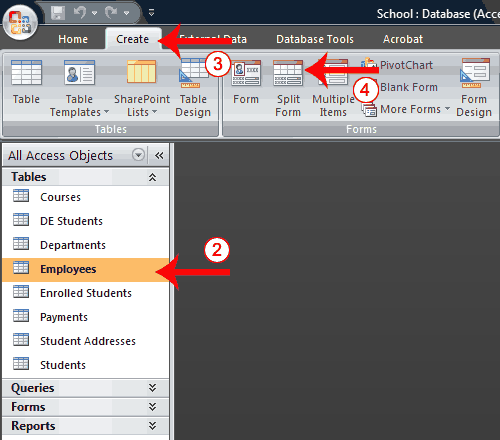
Using the split form you can enjoy the benefits of two forms in one. For example use the datasheet portion to locate records and form potion to edit records.
Steps To Create A Split Form:
- Go to the Navigation pane.
- Now tap to the table or query on which you wants to place your form.
- Click to the Create tab.
- Hit the Split Form option in the Forms group. This will create a split form in your access database.

4# Create A Multiple Items Form
Use the multiple item buttons on the form tab to create a form that displays multiple records.
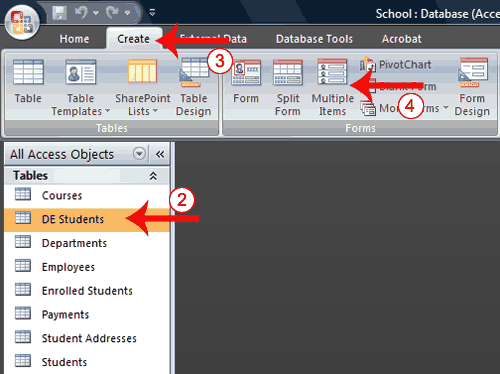
To create a multiple items form:
- Firstly you need to open up your Navigation pane.
- After then click the table or query on which you wants to place your form.
- Hit the Create tab option.
- Tap multiple items in the form group. As this will creates a multiple items form.

Tip: A view is a way through which nay user can take a look at an Access Object. A form has three views: Form view, Layout view, and Design view.
You can edit, view or enter data in any of the views whether it is layout view, form view or design view.
Also Read: Grab Complete Knowledge On – Microsoft Access Input Mask Feature
5# Create A Navigation Form In Access
In Access Navigation form is actually a type of form that contains a Navigation Control. It’s a great addition to any database, but creating navigation is very important if you want to publish your database to the web because Access Navigation is not displayed in a browser.
- Firstly, open the database in which you want to add a navigation form.
- Now, on the create tab, in the forms group, hit the navigation option and make a selection for the style of navigation form that you want to choose.
- This will create the Access form, and now you can add the Navigation Control to it and display the form in Layout view.
Related FAQs:
What Are the Two Types of Forms in MS Access?
The two types of forms are:
Detail form: An empty form in Access database that displays data about one record concurrently.
Split form: At the same time displays the information in the Form view & Datasheet view.
How to Create a Fillable Form Using Microsoft?
To create a fillable form in Microsoft: go to File >> New. Under the Search for online templates field, you have to type Forms >> press Enter. In the show results, make a right-click on any item >> select Create.
Where Is the Form Tool in Access?
You can find the form tool in Access by navigating to the Create tab, in the Forms group >> click Form. MS Access generates the form and displays it in Layout view.
Who Can Create MS Forms?
Forms is available to MS Office 365 Education customers, MS 365 Apps for business customers, and customers who have a Microsoft account.
How To Print A Form In MS Access?
By pressing the Ctrl+P keys together will help you to select your print options >> then click on the OK button. This will immediately print your database report & form.
Final Thoughts
Creating a form in MS Access doesn’t have to be complicated. By following the step-by-step instructions mentioned above in this blog, you can design professional, user-friendly forms that make data entry faster and more accurate. Whether you’re managing inventory, tracking customers, or recording sales, forms can transform how you interact with your data.
I hope you enjoyed reading this post!
References:
 Still having issues? Fix them with this Access repair tool:
 This software repairs & restores all ACCDB/MDB objects including tables, reports, queries, records, forms, and indexes along with modules, macros, and other stuffs effectively.
- Download Stellar Repair for Access rated Great on Cnet (download starts on this page).
- Click Browse and Search option to locate corrupt Access database.
- Click Repair button to repair & preview the database objects.
Pearson Willey

Pearson Willey is a website content writer and long-form content planner. Besides this, he is also an avid reader. Thus he knows very well how to write an engaging content for readers. Writing is like a growing edge for him. He loves exploring his knowledge on MS Access & sharing tech blogs.