As we all know. Microsoft Access databases contain sensitive business data. Without proper protection, unauthorized users can easily copy or misuse that information. Fortunately, there are some easy tips and tricks that you can use to safeguard your crucial data. All the possible ways are mentioned here. So, let’s check out this post and learn how to protect Access database from copying to maintain data privacy and integrity.
Free MS Access Database Repair Tool
Repair corrupt MDB and ACCDB database files and recover deleted database tables, queries, indexes and records easily. Try Now!
By clicking the button above and installing Stellar Repair for Access (14.8 MB), I acknowledge that I have read and agree to the End User License Agreement and Privacy Policy of this site.
Why Protecting an Access Database Is Important
Well, it is crucial to protect Access database data, as it contains financial data, client information, and internal business records. If someone copies it, your data could be exposed or altered. Although protecting the database ensures that only authorized individuals can access, modify, or duplicate your files.
How To Protect Access Database From Copying?
1. Change User Permission In Access Database
MS Access allows its users to assign or remove permissions for accessing databases including the existing reports, tables, macros, forms and queries for security purposes.
Anytime a user can make a selection for assigning permission to other groups or users. But it’s compulsory to have information about those groups or user accounts in the workgroup information file.
You can follow the steps below to assign permission.
Step 1
Tap to the ‘Tools’ option. After then from the security drop-down menu choose the ‘User and Group permission’.
Step 2
Now in the opened dialog box of ‘User and Group permission’ hit “permission” tab. Here you will see the option ‘Users or Groups’. Once you click this option, it will show entered users and groups present within the User/Group name box.
From the list of users and group, choose the one whom you want to assign the permission.

Step 3
Now from the Object Name box, choose the type of Object and its name to allow the permissions.
From this Object Name box either you can choose a single object or multiple numbers of objects. For choosing multiple objects keeps pressing the CTRL button while selecting the objects.
Step 4
Alter complete selection of the objects now you can assign or remove permission as per your need.
Now it’s time to choose the “permissions” option and from the opened list assign whatever permission you to apply.
You will see many permissions are there, like “Read data” or “Read Design” permission, etc. so choose whatever you want to assign to your group or any user.
Note:
The same procedure is also applied for changing user permission in the Access database.
Also Read: How to Run VBA Code in Access Without Errors?- (Quick Guide)
2. Monitor Your Database Activity
Always keep track of information when, how and by whom your database is been used. Keeping the whole history of database transaction help you in easy understanding of data access and changes patterns. Thus one can easily prevent fraudulent change in their database, avoid leakage of information, identify suspicious activity at the right time.
It’s the most important point of copy-protect Access database technique. You always have to follow this if you are sharing Access database on multi-user environment.
Another easy way to monitor your Access database users is by maintaining a list of all users name which are allowed to access the database.
In the beginning, retrieve the current username of the user’s current network and then match the name with your listed name. If it doesn’t match immediately close your application.
Note: when such a situation happens with me I immediately send a mail to the database admin.
3. Anonymize non-productive databases
There are many companies present that all invest their resources and time to safeguard their productive Access databases. But at the time of mounting a project or developing a test environment, what mistake they generally do is. They just make a simple copy of their original Access database and start using it in riskier environments which openly exposes all their sensitive data.
Anonymization or masking is a method through which an exact similar version of your database is been created, having the same structure as the original one. In this process, all your sensitive data is modified, so that it will stay protected.
All in all, through this technique, data values are being modified while preserving the format.
I recommend you to use this technique for such databases which you are going to use for testing and development. As it allows you to preserve the logical structure of the data. It also ensures that none of your sensitive client information will leak outside the production environment.
4. Password Protect Your Access Database Front-End
We all split the access database for convenient use and better performance. But do you know, after Access database splitting which part is the most vulnerable one?
The answer is, the front part of the Access database is the most vulnerable one. As it is not very secure and open sensitive information for hackers.
Just like your back-end database, always keep your front-end encrypted with a password. This will prevent prying eyes or any other third-party user from achieving complete control over the raw data of your database.
Also, try to set different passwords for the backend and front of your access database. Doing so will ultimately protect Access database from copying.
5. Distribute a Compiled FE to your End-Users
Another very important step you all should implement to prevent the database from being copied is distributing compiled versions of the database front-end to the end-users.
For doing this you need accdb/mdb files into accde/mde file format. This will lock down some of your objects within the database.
Users can’t open the report or form of your database in the design view nor can anyone access your VBA coding.
mde/accde format access database file don’t lock up your queries, macros or tables.
Since all the VBA coding is in hidden mode and completely locked for accessing. So if any unhandled errors occur, then your database application will crash automatically.
You can say distributing the compiled Front-end works like bulletproof protection throughout all of your VBA code.
Hence the crucial importance of bulletproof error handling throughout all of your VBA code.
So, by sharing the compile version of your Access database front-end you can easily minimize the mess around your database i.e. chances of being copied.
Also Read: How to Import Outlook Email Into Access Database 2016 & 2019?
6. Hide The Navigation Pane

Protecting VBA coding is just not enough, locking down macros, queries, and table of your Access database is equally important.
To take necessary steps regarding this, you have to limit user’s permissions in Access database. So, that any anonymous person can’t get into such sections of your database where they shouldn’t do any changes.
You can do this simply by hiding the Navigation Pane. In this way, you easily can remove the ability of user to access your database objects.
7. Hide Individual Database Objects
After taking important steps of hiding the Navigation Pane. Another very important task left to do is; hiding each individual object of your database.
For this, you need to change each individual MS Access object’s hidden attribute to TRUE. Doing this will make your database objects completely hidden. Users can’t make any changes in your database nor can they copy any of your database objects.
Steps to hide a group or an object
- For hiding up individual Access database object, make a right-click on the object which you want to hide.
- After then hit on the “Hide in this Group” option.
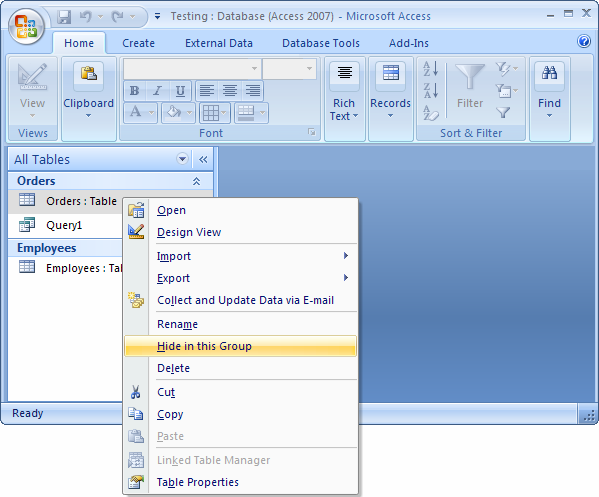
- If you want to hide the entire group of objects, then go to the main object group name.
Suppose within the table group you have created so many tables. Then, in that case, you have to click on the “Tables” for hiding the complete group item at once.
- Right-click on the main object group name and from the listed option choose the “Hide” option.
8. Encrypt The Database With Password
Yes, of course, a simple option of encrypt database with password also plays a very vital role when trying to protect Access database from copying.
As it is found that applying a password to restrict access to your database remove possibilities of the disaster up to much extent.
For more information, you can read my post on how to encrypt or decrypt an Access database.
9. Bypassing The Bypass Key
Last but not least thing that you all must try to secure is the designed functioning of Access database application. The only thing you need to do is to disable the shift bypass property. This will close the open backdoor for hackers or third-party users to steal your Access database.
You all must consider this technique, as a silly point but let me tell you the fact. If the shift key is clicked during database startup, execution of AutoExec macro and the startup form opening automatically get disabled.
You can catch more information regarding bypassing the bypass key by reading this helpful tutorial: How To Disable/Enable the Shift Bypass Key in Microsoft Access.
10. Lock Tables In An Access App
If you want to keep your Access database tables completely intact from being copied, edited, or deleted by anyone, then you can use lock tables in the Access web app. Locking the table helps greatly when you want to insert sample data in the Access web app which you give it to other app users.
I found this feature useful when I need to distribute an Access app in my app catalog.
- Open your web app in Access and then choose the table that you require to lock.
- Now go to the Table Selector present in the left pane.
- Tap to the Settings/Actions> Lock.

- You will see a lock icon will appear just next to the table’s name.

Tip: for unlocking the table again in the Access App, follow the same steps and tap to Unlock option.
Frequently Asked Questions:
How to Avoid Duplicate Data in Access?
To avoid duplicate data in MS Access, follow these steps:
- Go to the Navigation Pane & right-click on the table that contains the field.
- Next, click on Design View. Choose the field you want to ensure has unique values.
- Under the Field Properties pane, on a General tab, you have to set the Indexed property to ‘Yes (No duplicates)’.
Is There a Way to Prevent a File from Being Copied?
Yes, (ACLs) Access Control Lists on Windows is the best that can be used to restrict access to files. Otherwise, the user can easily copy the file stuff out of the file.
How to Protect an Access Database?
To protect your Access database info from unauthorized access, consider encrypting the database file by setting a strong password.
How Do I Send a Document That Can’t Be Copied?
To send a document that can’t be copied:
- Open Adobe Acrobat >> select Protect tool from the “Tools” menu.
- Select your protection settings.
- When you have protected your Access file, save it as a separate copy for safekeeping.
- Choose Share with Others from a top toolbar.
- Now, add the recipients’ email addresses >> choose “Send”.
Wrapping Up
So, it’s time to wrap up…. protecting the MS Access database from copying involves multiple layers of defense. Use passwords, encryption, and file permissions together for maximum protection. Although I have mentioned the best ways for how to protect Access database from copying. Just apply them to ensure your data stays secure and confidential.
References:
- https://support.microsoft.com/en-us/office/compact-and-repair-a-database-6ee60f16-aed0-40ac-bf22-85fa9f4005b2
- https://learn.microsoft.com/en-us/answers/questions/2672166/microsoft-access-cant-change-the-working-directory
 Still having issues? Fix them with this Access repair tool:
 This software repairs & restores all ACCDB/MDB objects including tables, reports, queries, records, forms, and indexes along with modules, macros, and other stuffs effectively.
- Download Stellar Repair for Access rated Great on Cnet (download starts on this page).
- Click Browse and Search option to locate corrupt Access database.
- Click Repair button to repair & preview the database objects.
Pearson Willey

Pearson Willey is a website content writer and long-form content planner. Besides this, he is also an avid reader. Thus he knows very well how to write an engaging content for readers. Writing is like a growing edge for him. He loves exploring his knowledge on MS Access & sharing tech blogs.