Microsoft Access errors often restrict or prevent users from accessing desired resources or executing intended actions. They’re notorious for interrupting tasks and triggering inconvenience to users. One such warning message that often leaves users perplexed is ” The changes you requested to the table were not successful…” Therefore, in this blog, I am going to talk about MS Access error 3022 in detail along with the reasons triggering it & providing working solutions to fix it.
Here’s the screenshot of the error:

Free MS Access Database Repair Tool
Repair corrupt MDB and ACCDB database files and recover deleted database tables, queries, indexes and records easily. Try Now!
By clicking the button above and installing Stellar Repair for Access (14.8 MB), I acknowledge that I have read and agree to the End User License Agreement and Privacy Policy of this site.
Quick Fixes:
What Does Access “The Change You Requested to The Table Were Not Successful Because” Mean?
The below error message typically appears when attempting to insert a new record in the DB table that has the Autonumber field. When it occurs, it simply means that there are duplicate values in the index, primary key, or relationship.
The changes you requested to the table were not successful because they would create duplicate values in the index, primary key, or relationship. Change the data in the field or fields that contain duplicate data, remove the index, or redefine the index to permit duplicate entries and try again.
However, it can be annoying to receive this error as it restricts performing activities on the database, hence, it should be addressed ASAP.
Common Causes of this Error
Here are the most common factors of Access error 3022:
- Access database corruption or poor DB design.
- The table contains Autonumber field which is not correctly reseeded.
- Issues in the Microsoft Jet Database Engine Service Pack.
- Maybe you have Appended the data from linked table 1 to linked table 2 by using the Current Database option in place of Another Database.
Solutions to Fix the Changes You Requested To the Table Were Not Successful
This section contains a bunch of workarounds to resolve MS Access error 3022.
Solution 1- Use a Data Definition query
The first method that you need to try is to use the data definition query to open the Access database.
For Access 2007 Users:
- Go to the Create tab; click Query Design in the Other
- In the Show Table dialog box, tap on the close option.
- Now go to the Design tab, click SQL view in the Results
- Type the following in the Query1 window:

ALTER TABLE TableNameALTER COLUMN AutoNumFieldNameCOUNTER(iMaxID,1);
Note:
TableName is a placeholder for the name of the table. AutoNumFieldName is a placeholder for the name of the Autonumber field. iMaxID is a placeholder for the current maximum value in the field plus 1.
- From the Design tab, tap on the Run option in Results
For Access 2003 Users:
- Click queries under objects in the database window.
- After that, click to the New, click to the Design View and then click OK.
- In the opened Show Table dialog box, click to the close option.
- From the query menu click SQL Specific, and then click Data Definition.

- From the Data Definition Query window, type the following command.ALTER TABLE TableNameALTER COLUMN AutoNumFieldNameCOUNTER(iMaxID,1); Note:
Here the TableName clearly signifies the name of the table. And AutoNumFieldName indicates the name of Autonumber field. Whereas, the iMaxID represents the current maximum value in the field plus 1.
- On the Query menu, click Run.
Also Read: Fix “You Do Not Have Exclusive Access to The Database at This Time” Error in Access
Solution 2- Run Visual Basic for Application code
Access 2007
- Go to the Create tab, click the down arrow under Macro, and then click Module.
Access 2003
- Go to the database window, click Modules under Objects, and then click New.
- After then in the Visual Basic Editor paste the following code.
Sub ResetAuto()
Dim iMaxID As Long
Dim sqlFixID As String
iMaxID = DMax(“<AutonumberFieldName>”, “<TableName>”) + 1
sqlFixID = “ALTER TABLE <TableName> ALTER COLUMN <AutonumberFieldName> COUNTER(” & <iMaxID> & “,1)”
DoCmd.RunSQL sqlFixID
End Sub
Note– The placeholder <AutonumberFieldName> represents the name of the Autonumber field. The placeholder <TableName> represents the name of the table.
- From the run menu, click Run Sub/UserForm.
Note:
Close the table before you use either of the methods. You don’t need to save the query or the module after you successfully use any of the above two methods.
Solution 3- Fix The Changes you Requested to the Table were not Successful By Removing the Current Primary Key
In order to resolve the Access Error ‘3022’: The Changes you Requested to the Table were not Successful in Access 2013/2016 database. The user needs to design the tables to eliminate the possibility of entering duplicate values in the primary key field or field that uses a unique index.
If the used primary key needs to support duplicate values, then you should remove the current primary key and add an AutoNumber field to your table which works as a primary key.
To remove the primary key
Removing the primary key won’t delete the fields or fields from your table. Rather it removes the primary key designation from those fields.
It also removes the index of the primary key that was created for the primary key.
- Before deleting the primary key, make sure that it doesn’t contain any table relationships. If you still try to remove the primary key that contains the relationships, Access warns you that you must delete the relation first.
- Now in the navigation pane, make a right-click to the table in which you want to remove the primary key and tap to the Design View option.
- Tap to the current row selector for the latest primary key.
- If the primary key contains a single field, click the row selector for that field.
- But if it consists of multiple fields, hit the row selector for any field in the primary key.
- Now go to the Design tab in the Tools group and click to the Primary Key option.

After doing this complete procedure you will see that the key indicator is removed from the field or fields that you previously specified as the primary key.
To Add An Autonumber Primary Key
When any user creates a new table in the datasheet view, Access by default creates a primary key for you and assigns it the AutoNumber data type.
If you have an existing table to which you want to add a primary key field then open it up in the design view:
- Go to the Navigation Pane, and make a right-click to the table to which you want to add the primary key after that hit the Design View.
- Now locate the first empty row in the table design grid.
- In the Field Name column, assign some name.
- In the Data Type column hit the drop-down arrow and tap to the AutoNumber option.

- Within the Field Properties, in New Values, click to the Increment option to use incremental numeric values for the primary key, or click Random to use random numbers.
You may want to see the indexes for the table to evaluate their impact on performance, or to ensure that particular fields are indexed.
Also Read: Fix “Your Microsoft Access Database Contains Missing Broken Reference” Error
Solution 4- Repair the Database File
You can even face ‘the changes you requested to the table were not successful because they would create duplicate value’ error due to corruption or large-sized db file. In such a case, using the Compact & Repair feature in Access, you can compact & repair corrupted database files.
Follow the below steps:
- Open Access application.
- Click Templates page >> Blank Database.
- Go to the File >> click on the Close.
- Next, navigate to the Database Tools >> click on the Compact and Repair Database.

- Choose the affected db in the opened windows.
- Choose a Compact option.
- Now, the compacted & repaired database file will be saved at the same location where the original file is saved.
Solution 5- What If Manuals Fail?
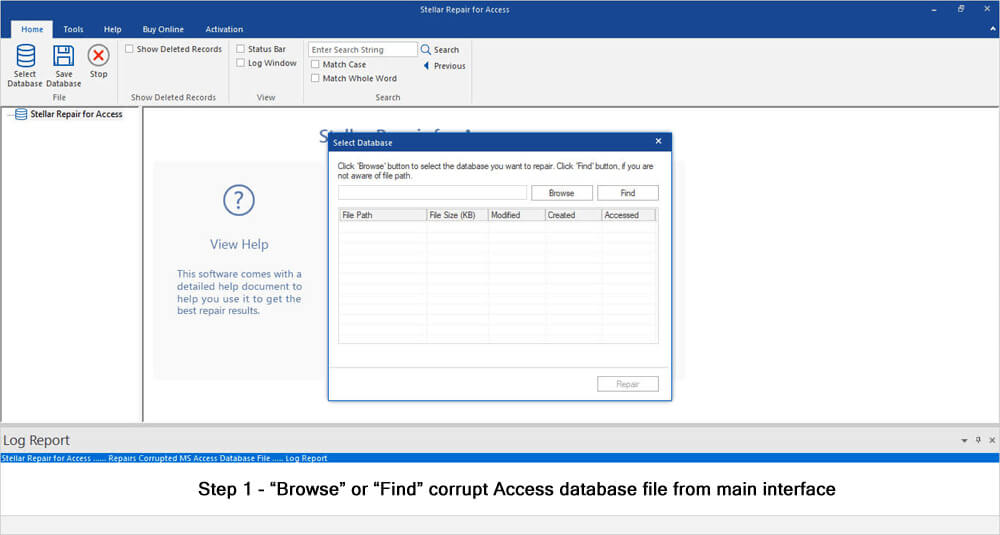
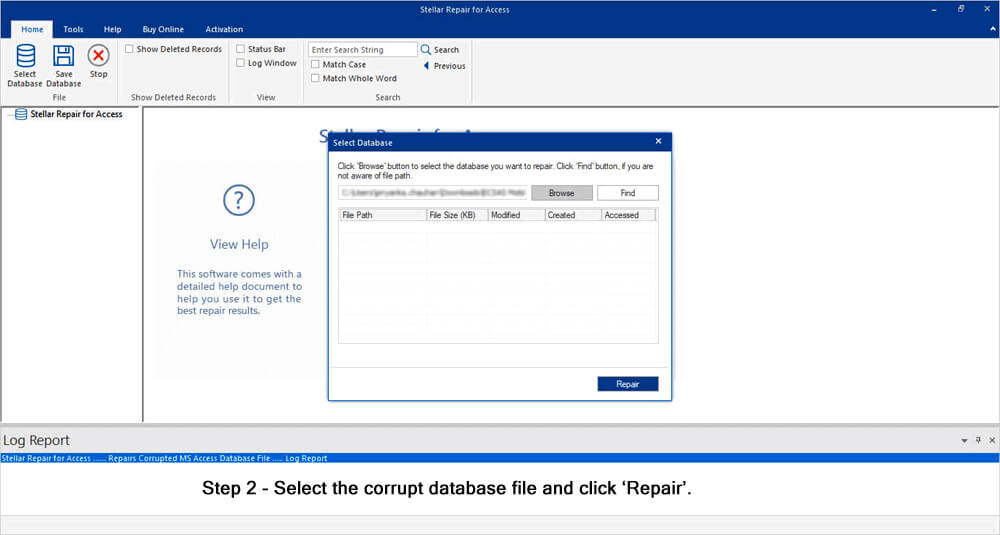
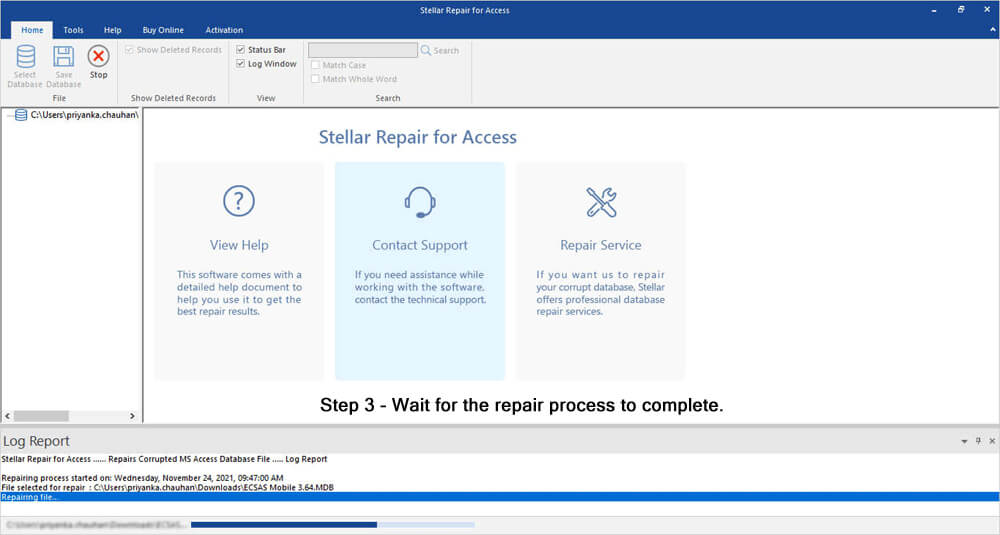
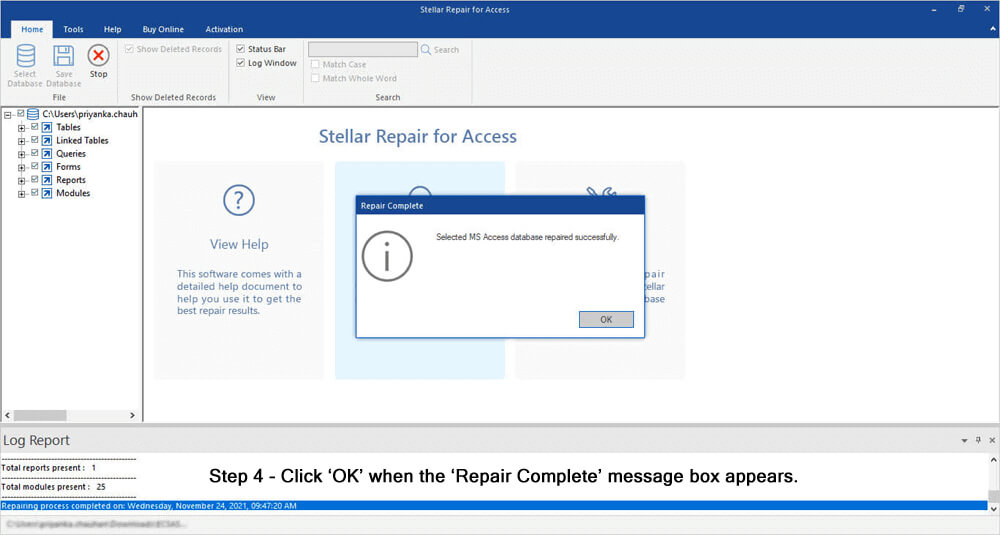
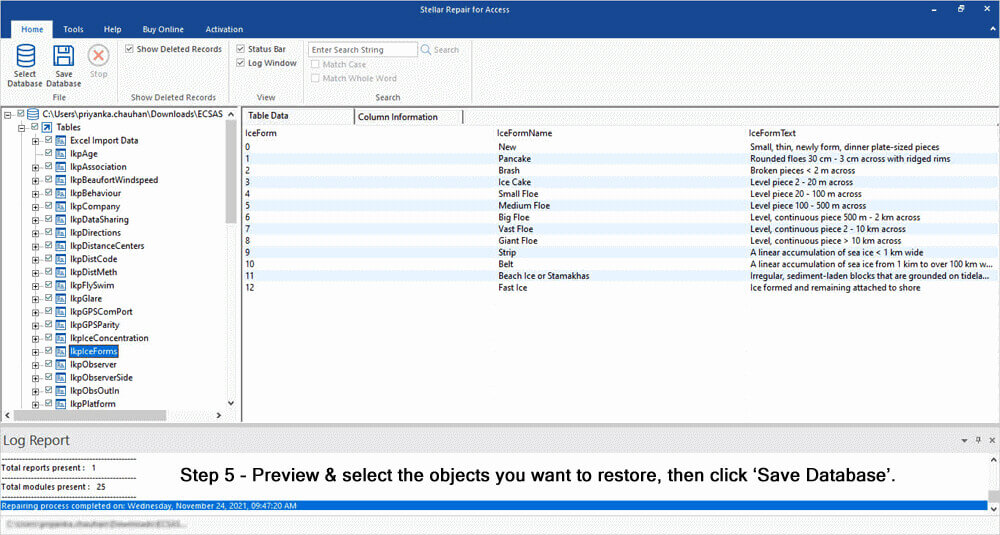
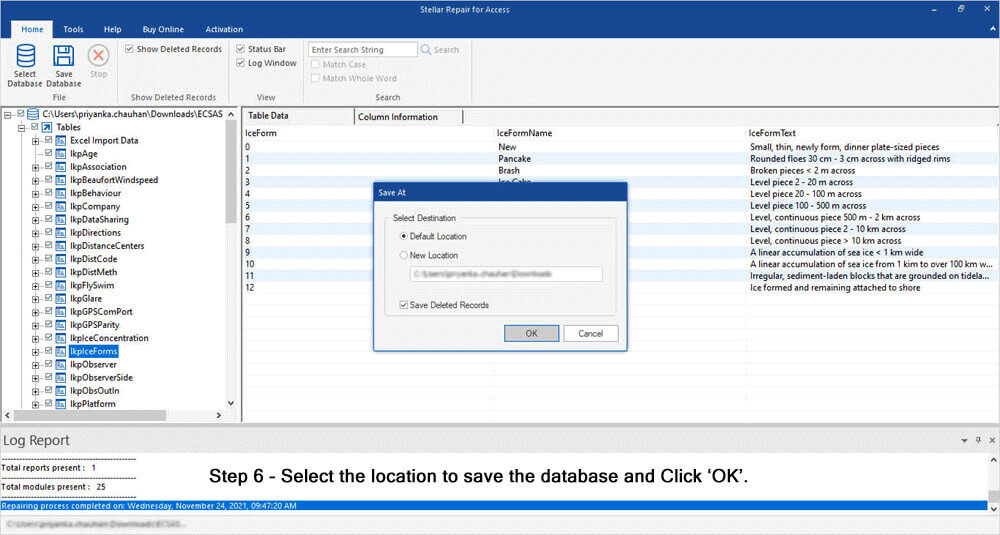
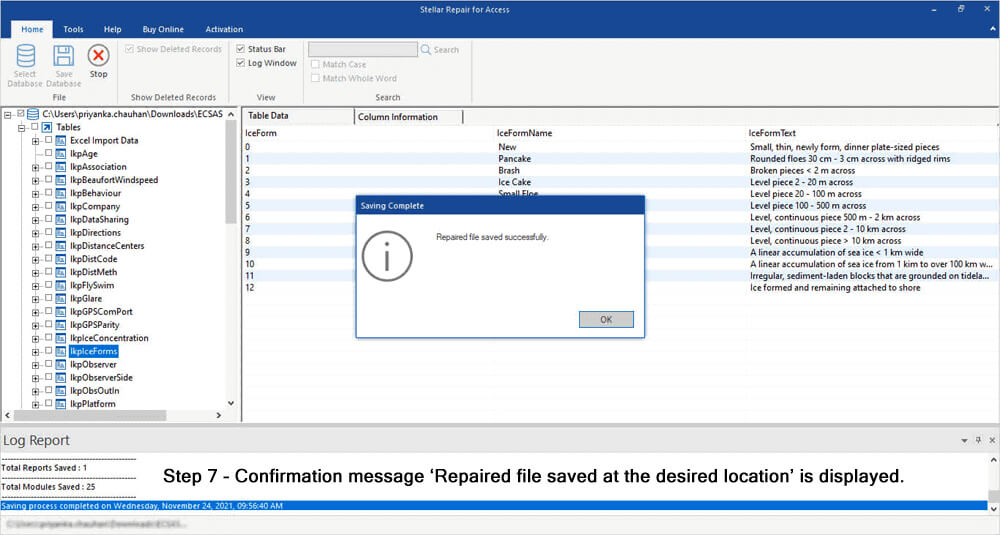
If the Access error 3022 has occurred due to severe corruption in the database, then opt for the Access Repair Tool. It is an influential program that is enough capable of fixing severely corrupted database (.ACCDB/.MDB) files. Moreover, you can even download the software’s free demo version to scan a corrupt file & preview the recoverable data.

* By clicking the Download button above and installing Stellar Repair for Access (14.8 MB), I acknowledge that I have read and agree to the End User License Agreement and Privacy Policy of this site.
Steps To Resolve Access DB Corruption


Unique FAQs:
What Is the Error for Duplicate Values in Access?
3022 is the error for duplicate values in Microsoft Access.
What Is the Potential Impact of Delayed Resolution of Access Error 3022?
Delayed resolution can cause data corruption or data loss from the database.
Can I Edit an Append Query?
Yes, you can always edit an append query in one or more than one table within the database.
Final Thoughts
MS Access run-time error 3022 is a familiar obstacle encountered by users. By understanding the primary causes and using the effective solutions specified in this blog, you can overcome this error and resume your tasks with minimal disruption. After using these fixes, do share your experiences and opinions on our Facebook account.
References:
- https://learn.microsoft.com/en-us/office/troubleshoot/access/error-inserting-table-record-autonumber
- https://answers.microsoft.com/en-us/msoffice/forum/all/access-2016-error-the-changes-you-requested-to-the/4e1cd815-a863-4102-a10f-0ecf781fed6d
- https://support.microsoft.com/en-au/office/compact-and-repair-a-database-6ee60f16-aed0-40ac-bf22-85fa9f4005b2
 Still having issues? Fix them with this Access repair tool:
 This software repairs & restores all ACCDB/MDB objects including tables, reports, queries, records, forms, and indexes along with modules, macros, and other stuffs effectively.
- Download Stellar Repair for Access rated Great on Cnet (download starts on this page).
- Click Browse and Search option to locate corrupt Access database.
- Click Repair button to repair & preview the database objects.
Pearson Willey

Pearson Willey is a website content writer and long-form content planner. Besides this, he is also an avid reader. Thus he knows very well how to write an engaging content for readers. Writing is like a growing edge for him. He loves exploring his knowledge on MS Access & sharing tech blogs.