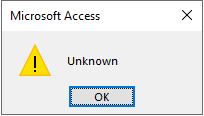
Microsoft Access users often encounter “Unknown” errors while handling the databases. This error usually arises from conflicting settings, corrupted files, or compatibility issues. However, it is important to extract the common reasons for better resolutions. Here, we’ll explore the major factors and practical steps to identify and resolve the MS Access unknown error.
Free MS Access Database Repair Tool
Repair corrupt MDB and ACCDB database files and recover deleted database tables, queries, indexes and records easily. Try Now!
By clicking the button above and installing Stellar Repair for Access (14.8 MB), I acknowledge that I have read and agree to the End User License Agreement and Privacy Policy of this site.
What Are the Common Reasons for MS Access Unknown Error?
A wide variety of reasons can lead to this Access error. Some of the common causes are listed here:
- Faulty or corrupted Access Add-ins or extensions.
- Corrupted Access database.
- Running an outdated Access software.
- Hardware glitches.
- Third-party apps conflicting.
As you have known the roots behind the “unknown” error, now its time to tackle this situation with ease.
How to Solve Microsoft Access Unknown Error?
Follow the below methods to deal with MS Access unknown access database engine error.
Method 1- Restoring from Backup
If you have created a backup copy of your database file, you can simply restore a specific .bak file without opting for any complicated solution to this problem.
Also Read: Fix MS Access Runtime Error 438: Ultimate Guide Revealed!
Method 2- Fix MS Access Unknown Error by Repairing your Corrupted Database
As stated in the causes section, corruption in an Access database can also lead to Microsoft Access: unknown error. However, you can use the “Compact and Repair” to repair your corrupted databases.
Here is how you can run this tool:
- Open Access application. Choose Templates page >> Blank Database.
- Navigate to File >> Close>> Database Tools.
- Click Compact and Repair Database.

- Now, the “Database to Compact from” dialog-box will open, choose the database you want to repair.
- Finally, click Compact.

Now, the compacted & repaired database will be automatically saved at a similar location where an actual database is stored.
If this built-in tool fails, you can try the best Access Repair Tool.

* By clicking the Download button above and installing Stellar Repair for Access (14.8 MB), I acknowledge that I have read and agree to the End User License Agreement and Privacy Policy of this site.
Method 3- Get the Required Permission
Insufficient required permission to access the database file can also trigger “unknown” error in Access. Therefore, ensure you have full permission to read and write the folder containing the database file.
To get all the permissions to access the file, Click Here.
Method 4- Update the Access Software
Updating the Microsoft Access software can also help you to solve this error in a hassle-free manner. To install the latest software updates, follow the below instructions carefully:
- Open Access, go to “File” >> Account
- Then, click on the “Update Options” or “Office Updates.”
- Choose “Update Now” option to install the available Access updates.

Method 5- Disable the Faulty Add-ins
Oftentimes, it has been seen that turning off the incompatible add-ins solves major problems & enhances the Access database experience.
So, let’s follow the below steps to find & disable the faulty add-ins:
- Open the Access database.
- Go to File tab >> Options.
- In the Access Options window, you have to click Add-ins.
- After that, locate & expand the Manage list >> click on Access Add-ins >> Go.

- Lastly, uncheck all the Add-ins there.
That’s it.
Also Read: Fix Access Compile Error Can’t Find Project or Library Like a Pro!
Frequently Asked Questions:
How Do I Fix an Access Database Error?
To fix an Access database error, you can run the Compact & Repair Database feature. Simply go to the File >> Info option. After that, click on the Compact & Repair Database. Now, MS Access creates a copy of a compacted & repaired DB file in the same location.
What Is the Microsoft Access Database Engine?
The Access Database Engine is a database engine that has been built on several Microsoft products.
How Do I Troubleshoot Microsoft Access?
You can troubleshoot Microsoft Access by trying the below steps:
- Restart Access Application & Databases.
- Backup your database before doing anything.
- Try Opening the File on Another PC.
- Check for Latest Updates.
What Is a Type Error in Access?
The type error in Access simply indicates that the application cannot match an input value to a data type it expects for the value.
Bottom Line
MS Access unknown access database engine error can be an annoying issue for users, but they’re not insurmountable. Nevertheless, by understanding the common causes and following the workarounds outlined in this blog, you can effectively identify and resolve this error to ensure the stability & reliability of the database.
I hope you enjoyed reading this post.
 Still having issues? Fix them with this Access repair tool:
 This software repairs & restores all ACCDB/MDB objects including tables, reports, queries, records, forms, and indexes along with modules, macros, and other stuffs effectively.
- Download Stellar Repair for Access rated Great on Cnet (download starts on this page).
- Click Browse and Search option to locate corrupt Access database.
- Click Repair button to repair & preview the database objects.
Pearson Willey

Pearson Willey is a website content writer and long-form content planner. Besides this, he is also an avid reader. Thus he knows very well how to write an engaging content for readers. Writing is like a growing edge for him. He loves exploring his knowledge on MS Access & sharing tech blogs.