Working on a complex and interconnected structure database can be hectic if you don’t do smart work. In that case, making use of MS Access’s significant features i.e. “Object Dependencies” is the smartest option. This feature helps you to keep track of all the interconnected objects present in your Access database. But sometimes, Access object dependencies not working due to some reasons. In this blog, I will mention the common causes and quick fixes to tackle this situation effectively.
Free MS Access Database Repair Tool
Repair corrupt MDB and ACCDB database files and recover deleted database tables, queries, indexes and records easily. Try Now!
By clicking the button above and installing Stellar Repair for Access (14.8 MB), I acknowledge that I have read and agree to the End User License Agreement and Privacy Policy of this site.
What Is The Use Of MS Access Object Dependencies?
Here are some of the most enhancing usage of MS Access Object Dependencies, discussed below:
- The access Object Dependencies pane helps in easy illustration of how database objects like tables, forms, queries, reports, etc. are interconnected with each other or dependent on any other objects.
- It’s a time-savvy feature of the Access database that allows viewing of the entire list of dependent objects in just a few simple clicks.
- It cut off the time wasted on manual checking of the object properties
- also minimizes the chances of errors by searching the details of related objects that might have to be miss during the manual search.
- Tasks like, modification in the dependent objects to delete query references or to delete dependent objects and query together are more conveniently performed.
- Also, very helpful in changing the design of database objects as looking at each object dependency is quite easy. So, the user must use the Object Dependencies pane if you plan to make major design changes.
Why Access Object Dependencies Not Working?
In this section, you will learn the major factors for this issue. So, let’s take a look:
- Misconfigured settings often interrupt object dependencies.
- Running an outdated Access software.
- Missing dependencies.
- Inadequate user permissions can block access to certain dependencies.
- Broken or incorrect references often lead to access issues.
Also Read: Access You Can’t Delete The Database Object Error!
How Do You Determine Object Dependency In Access 2016
Follow the steps to Determine or display Object Dependency in Access.
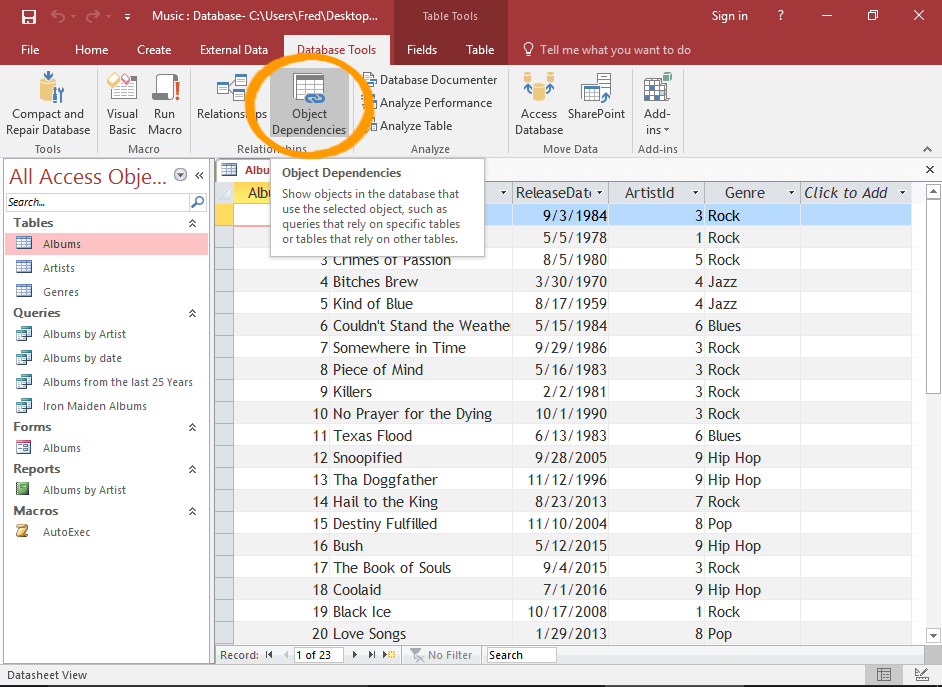
Step 1: starts the Object Dependencies Pane
First open the object, of which you want to check the dependency.
Now from the database tools tab, click on the Object Dependencies option.
Note: in the case of tables, you can also get this option from the Table tab in the ribbon.
Step 2: Object Dependencies are Displayed
Now you will see that the Object Dependencies pane is opened on your screen. This page contains all the information regarding all object types and their dependencies.
Mainly there are two types of options for viewing dependencies:
- Objects that depend on me
- Objects that I depend on
Whereas, the first option is the default one. It shows all the objects that depend on recently using objects (i.e. the one for which you’re viewing the dependencies)

Step 3: Switch Dependencies
If you choose the Objects that I depend on then it will show all objects on which the current object depends.

Step 4: Navigate through the Dependencies
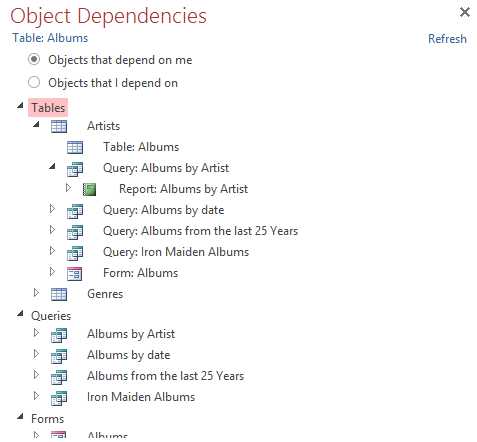
By expanding objects, you can check for the object’s complete dependency status. Access allows you to show up to 4 levels of dependencies for any object,
The text will be displayed as None if any object doesn’t have any dependencies.
To widen the pane, tap and drag the edge.
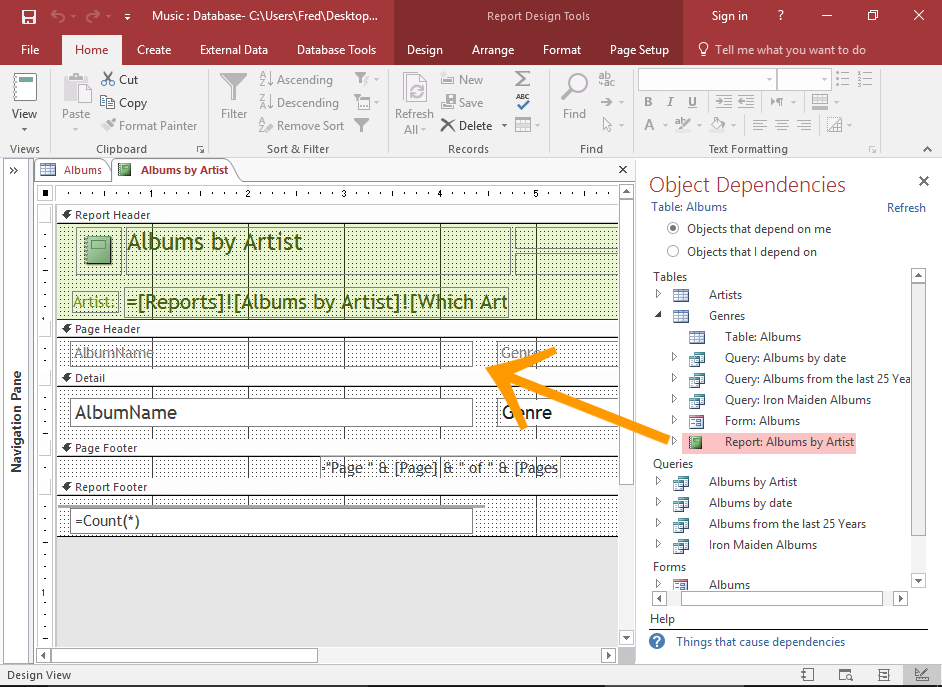
Step 5: View a Dependent Object
To a-dependent object, tap on a listed object present in the object Dependencies pane to view that object.
How To Fix MS Access Object Dependencies Missing Issue?
Sometimes the reason behind the occurrence of MS Access object dependencies missing issue is the limitations of Object Dependencies Feature. This handy tool has some important limitations that you need to follow otherwise you will encounter an issue like Access object dependencies not working, MS Access Object Dependencies Missing. So, all in all, you need to be a little aware while using this Access inbuilt feature.
- Information about dependency is specifically for objects in which you have permission to open it.
- This dependency info will not display:
- Action queries:
such as queries that are either insert, update, or delete data.
-
- SQL-specific queries:
Like union queries, pass-through queries, and data-definition queries
-
- Macros and code modules.
- For subqueries, however, dependency information is still available for the outer query but not in the case of a nested query.
To use the object dependency feature you need to enable the name Autocorrect feature. Because if it is kept disabled, you will get a notification to turn it on before viewing the dependency information.
Try The Recommended Option
Sometimes the MS Access objects go missing or won’t work either due to corruption issues encountered in any specific Access database object. or due to the entire Access database corruption. In that case, also you have the option to recover lost Access database objects using a professional MS Access Repair & Recovery Tool.

* By clicking the Download button above and installing Stellar Repair for Access (14.8 MB), I acknowledge that I have read and agree to the End User License Agreement and Privacy Policy of this site.
This recovery software successfully restores every database object like queries, forms, reports, macros, relations, referential integrity, modules, field properties, tables, relations, and absolutely all field types including Memo, and OLE from the corrupted MDB and ACCDB files.
Frequently Asked Questions:
How to View Object Dependencies in Access?
To view object dependencies in Microsoft Access, follow the below steps:
- Open the database you want to investigate.
- Under the Navigation Pane, choose or open the object (table, form, report, or query).
- On the Database Tools tab, under the Relationships group, you have to click on Object Dependencies.
- Once prompted, hit OK to update dependency information.
What Are The 4 MS Access Objects?
The four objects in MS Access are Tables, Queries, Forms, and Reports.
How Do I Show All Objects in Access?
To show all objects in Access, you have to:
- Right-click on the menu bar at a top of your Navigation Pane.
- Next, click Navigation Options, choose the Show Hidden Objects check box >> click OK.
Which Option Is Not a Database Object in MS Access?
A worksheet is not a database object in MS Access.
Also Read: Fix Microsoft Access Object Already Exists Error 3012
Final Verdict
Microsoft Access object dependencies not working can disrupt workflows and cause frustration. However, by understanding the common causes and applying the solutions specified in this post, you can fix this issue quickly. Always follow best practices to minimize future disruptions.
 Still having issues? Fix them with this Access repair tool:
 This software repairs & restores all ACCDB/MDB objects including tables, reports, queries, records, forms, and indexes along with modules, macros, and other stuffs effectively.
- Download Stellar Repair for Access rated Great on Cnet (download starts on this page).
- Click Browse and Search option to locate corrupt Access database.
- Click Repair button to repair & preview the database objects.
Pearson Willey

Pearson Willey is a website content writer and long-form content planner. Besides this, he is also an avid reader. Thus he knows very well how to write an engaging content for readers. Writing is like a growing edge for him. He loves exploring his knowledge on MS Access & sharing tech blogs.