Microsoft Office application users often encounter startup issues while trying to open their preferred program. One such error message that Access users face is- “Microsoft Access couldn’t start last time. Safe mode could help you troubleshoot the problem….” This warning can ruin your database experience & block urgent work. Here’s the screenshot of the error:
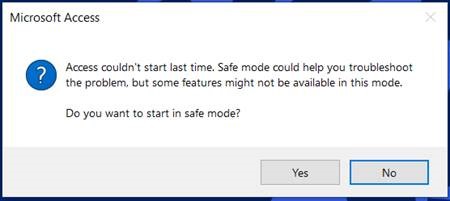
Well, this guide delivers clear resolutions with proven results, along with the major causes behind the problem. So, let’s begin…
Free MS Access Database Repair Tool
Repair corrupt MDB and ACCDB database files and recover deleted database tables, queries, indexes and records easily. Try Now!
By clicking the button above and installing Stellar Repair for Access (14.8 MB), I acknowledge that I have read and agree to the End User License Agreement and Privacy Policy of this site.
Brief Description of This Access Error
Microsoft Access couldn’t start last time error typically appears just after crashing Access unexpectedly. When it occurs, it simply means that the application detects unsafe shutdowns from previous sessions, and as a result, the Access blocks normal startup.
However, various triggers can cause this frustrating issue, including:
- Abrupt system shutdowns.
- Corrupted temp or Access files.
- Insufficient permissions.
- Faulty Access add-ins may crash Access during loading.
- Running an outdated version of the Access app
So, these are the major factors for causing this problem. Identifying the root cause speeds up recovery.
How To Solve Microsoft Access Couldn’t Start Last Time Error?
In this section, you’ll find numerous steps that can be taken to fix this error.
Quick Fixes:
- Try Starting Access App in Safe Mode
- Delete Access Cache & Temp Files
- Get the Latest Version of Access
- Repair Corrupt Database
- Disable Problematic Access Add-ins
- Repair MS Office Installation
- Seek Professional Help
Method 1- Try Starting Access App in Safe Mode
Booting the Access application in safe mode is the first method that you must try to overcome this situation. This will help you disable the add-ins and custom settings.
Here’s how you can start Access in safe mode:
- Press Windows + R keys to open a Run dialog.
- Next, type msaccess /safe >> press Enter.
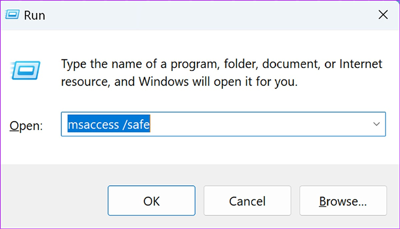
- This action will disable unnecessary add-ins from the Access options.
Also Read: Fix “The Microsoft Access Database Engine Could Not Find the Object” Error
Method 2- Delete Access Cache & Temp Files
Many users have reported in the community sites that they fixed Access could not start last time safe mode error by deleting the Access cache data or temp files.
All you need to do is follow the steps below to apply this method:
- Close all the Office apps before proceeding.
- Go to the AppData Local Temp folder by pressing %temp% in a search bar.

- Next, delete files related to MS Access.
- Lastly, restart Access normally & check for the error.
Method 3- Get the Latest Version of Access
Updating the program is a straightforward way to solve errors or issues in the Access database. Consequently, you have to do the same thing to troubleshoot this error.
Steps to be followed to update the app:
- Open Access, navigate to “File” >>
- Find & click on the “Update Options”.
- Finally, click “Update Now” to install the latest updates if available.

Method 4- Repair Corrupt Database
In Access, most of the issues, including Microsoft Access couldn’t start last time error occurs due to Access database corruption. In such a case, you can use the Compact and Repair utility to optimize the database file & repair it manually.
Follow the steps to use this tool:
- Open Access application.
- Click to File > Info.
- Now, click on Compact & Repair Database.
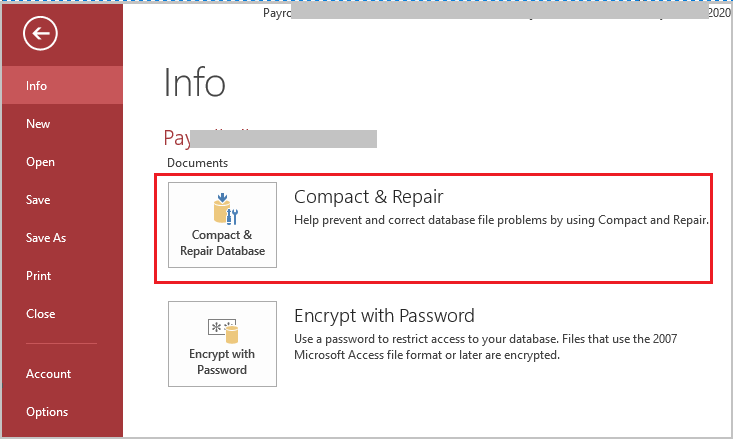
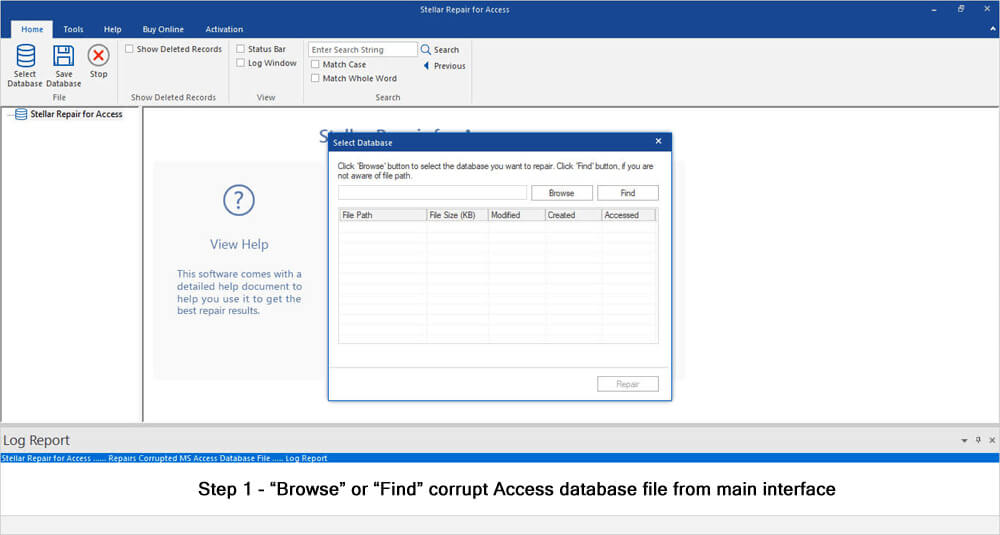
If this tool fails to fix the corruption problem, likely that your database file is severely damaged. Hence, it can only be fixed by using the Urban Access Repair & Recovery Tool. This program not only fixes the file corruption but also recovers all the components saved within it.
* By clicking the Download button above and installing Stellar Repair for Access (14.8 MB), I acknowledge that I have read and agree to the End User License Agreement and Privacy Policy of this site.
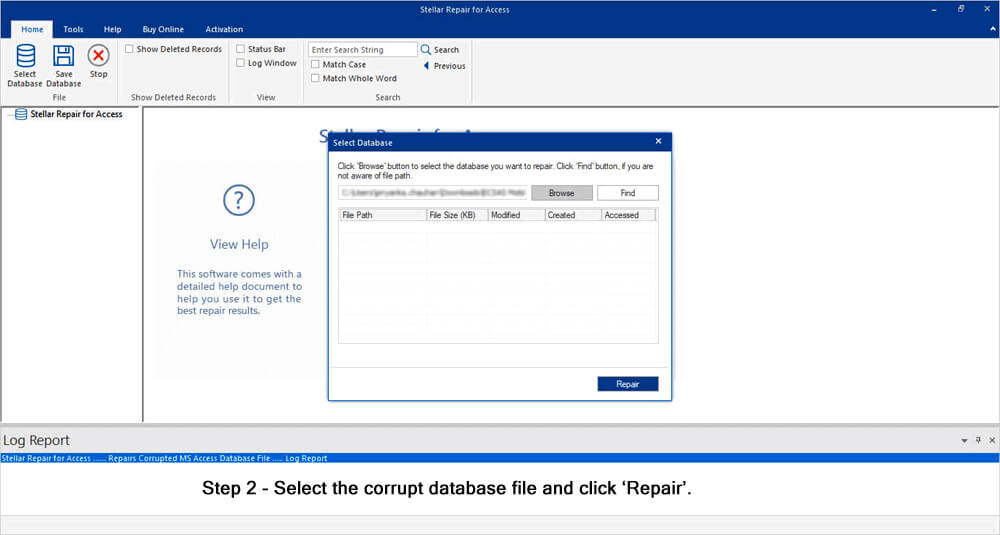
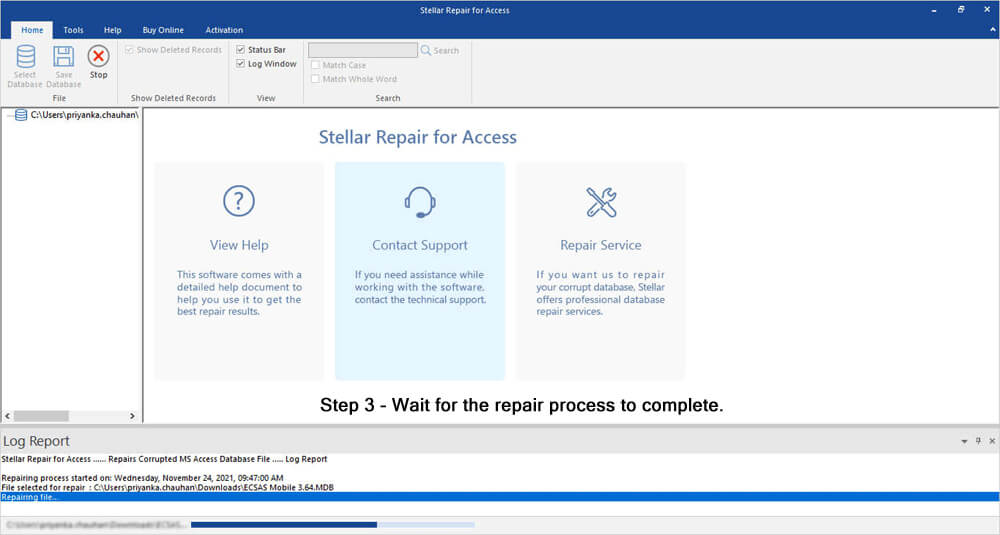
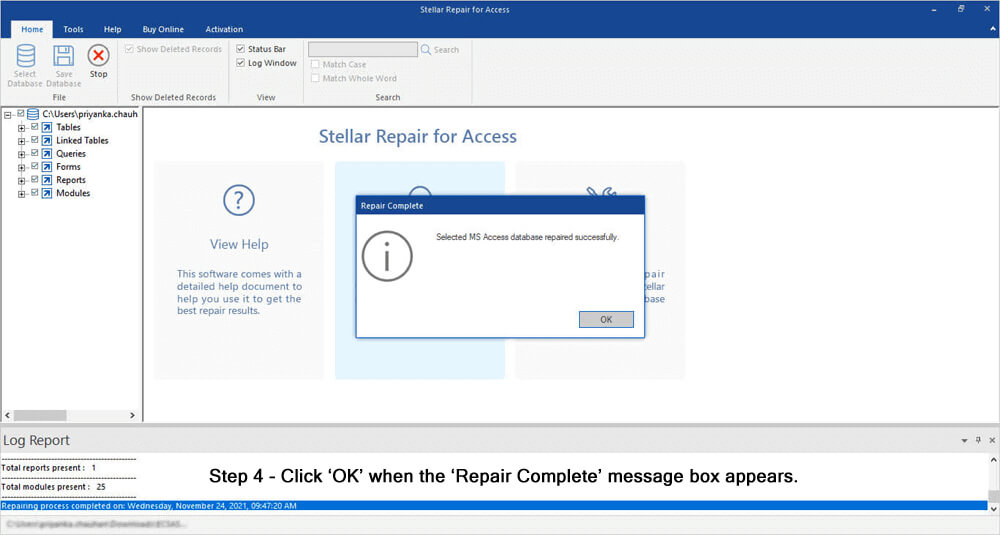
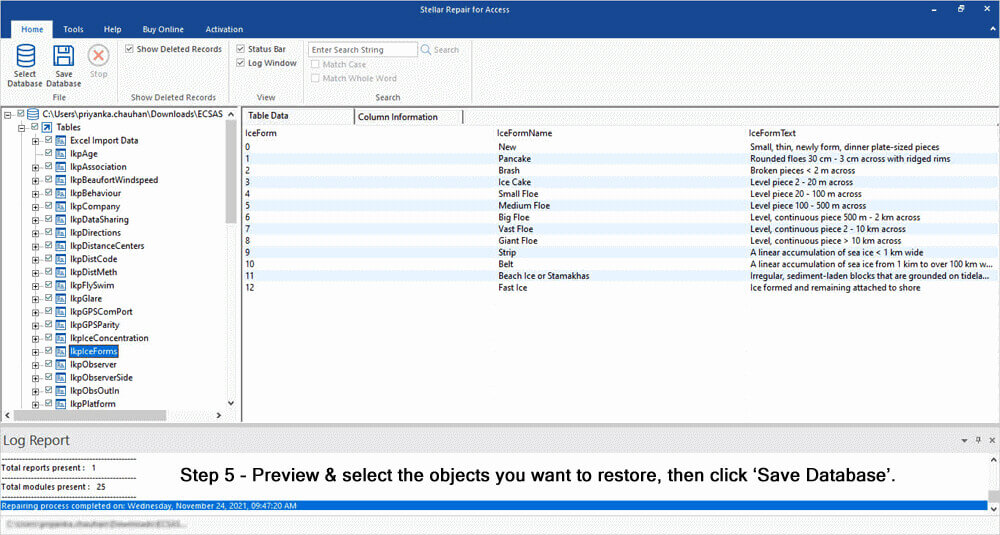
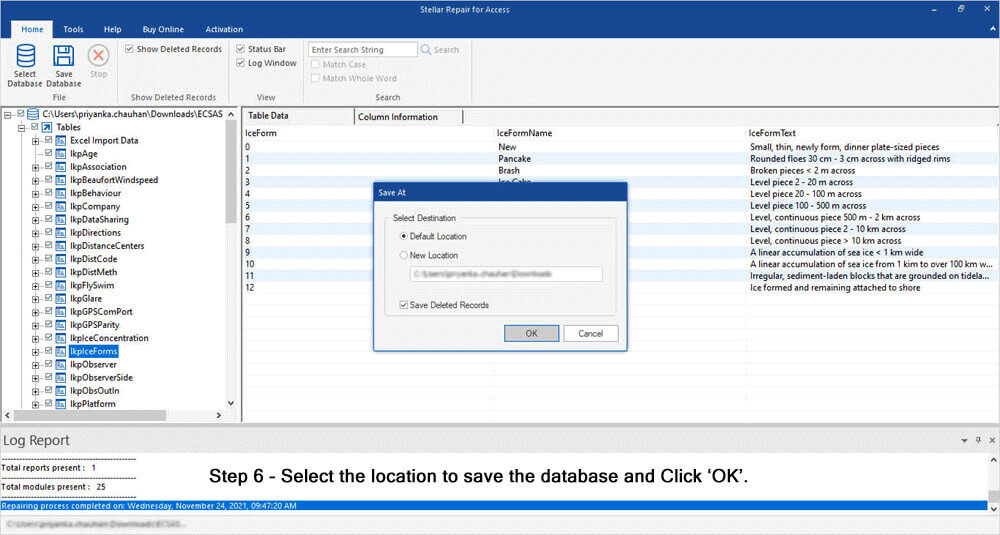
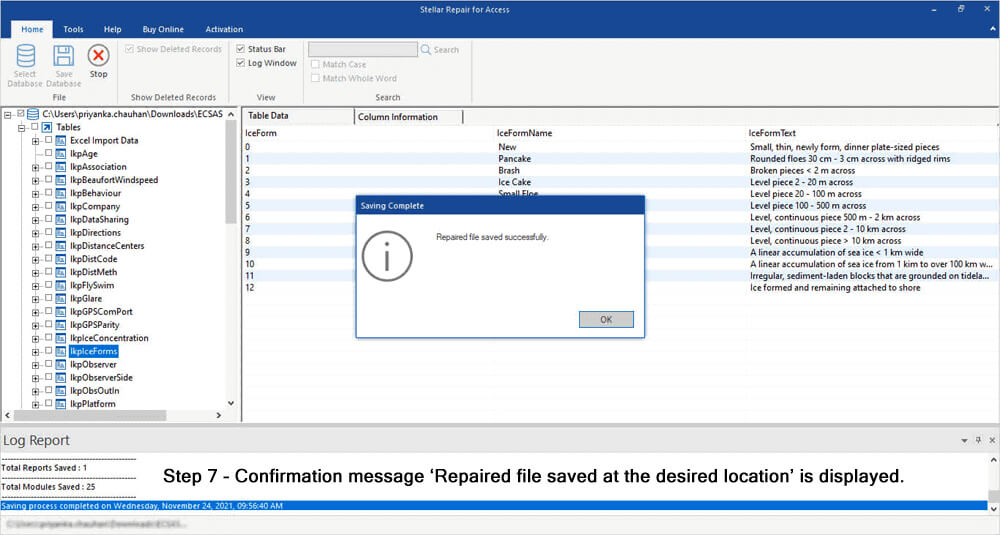
Here are the complete steps to use this program:


Method 5- Disable Problematic Access Add-ins
Added add-ins in Access enhance the app functionality, but sometimes they may cause crashes. Henceforth, disabling them improves startup reliability and tackles the current problem.
- Open MS Access in Safe Mode first.
- Go to File >> Options >> Add-ins.

- Choose the COM Add-ins & click Go.
- Uncheck all add-ins & restart Access.
- Re-enable add-ins one by one afterward.
Also Read: Ending the Nightmare: Microsoft Access Could Not Lock File Demystified!
Method 6- Repair MS Office Installation to Fix Microsoft Access Couldn’t Start Last Time
Another workable solution you can use is to repair the corrupted MS Office suite. Here’s how you can do so:
- Open Control Panel >> select Programs and Features.
- Choose Microsoft Office >> click Change.

- Then, select Quick Repair for faster results.

- If problems persist, choose Online Repair instead.
This process restores missing or corrupted files.
Method 7- Seek Professional Help
Even after trying the above fixes, if nothing worked for you to fix the could not start last time error in Access, it’s best to leave it to the professionals. Merely contact technical professionals for help & reliable support.
Frequently Asked Questions:
How to Start MS Access in Safe Mode?
To start Access in safe mode, follow the steps:
- Locate the shortcut icon for the Access application.
- Then, press & hold the CTRL key >> double-click on the application shortcut.
- Now, click Yes when a window appears asking if you want to start the application in Safe Mode.
Why is MS Access Not Opening?
Most probably, the Access application fails to open due to an insufficient permissions issue in the registry or a corrupted MS Office suite.
How to Repair a Microsoft Access Database?
You can repair the corrupted Access database file by using the Compact and Repair feature.
- Navigate to File tab >> Info >> Compact & Repair Database.
- Access produces a copy of a compacted & repaired DB file in the same location.
How Do I Refresh an Access Database?
To refresh the Access database records or forms from either Datasheet or Form view, go to the Home tab >> click Refresh All >Refresh.
To Wrap Up
Encountering startup errors in Access can be a frustrating obstacle, especially Microsoft Access could not start last time safe mode message. When this error occurs, it restricts you from opening the program.
However, by understanding its causes and applying the methods specified above, you can overcome this hectic situation & ensure smooth communication through Access.
Additionally, if you’ve any queries related to this topic, feel free to reach out to us via our Twitter or Facebook page.
That’s all…!
Pearson Willey

Pearson Willey is a website content writer and long-form content planner. Besides this, he is also an avid reader. Thus he knows very well how to write an engaging content for readers. Writing is like a growing edge for him. He loves exploring his knowledge on MS Access & sharing tech blogs.