Microsoft Access often uses events to control what happens when a form opens, loads, or closes. One common warning message users face is: “The expression On Load you entered as the event property setting produced the following error.” This error generally appears when the macro is missing, the event procedure is misconfigured, or the function name is invalid. However, solving it quickly ensures your forms run smoothly.

Free MS Access Database Repair Tool
Repair corrupt MDB and ACCDB database files and recover deleted database tables, queries, indexes and records easily. Try Now!
By clicking the button above and installing Stellar Repair for Access (14.8 MB), I acknowledge that I have read and agree to the End User License Agreement and Privacy Policy of this site.
What Causes the Expression on Load You Entered Error in Access?
It can be confusing, but this error states that there’s a missing macro or module. However, it happens due to numerous reasons, including:
- Non-existent or misspelled procedure
- VBA code or module has been deleted or moved
- If the macro is missing or renamed, the form cannot execute it.
- Due to a corrupted Access database
- Broken references in the VBA editor.
- The file is saved in an untrusted location.
After knowing the common causes, let’s know if expert assistance is required to solve this error.
Is Professional Help Essential to Fix MS Access The Expression on Load You Entered as the Event Property?
No, before contacting the professional, you should implement the step-by-step resolutions mentioned in the next section to fix the event property error in Access. Therefore, there’s no need for professional help if the manuals fix the problem. Professional assistance is only essential for complex Access errors or issues.
Easy Solutions to Fix the Error:
Follow these step-by-step methods to overcome this hectic situation:
Quick Navigation:
- Check the Form’s Event Property
- Authenticate All the Macro Names
- Import Corrupted DB File Data into A New One
- Examine the VBA Code
- Check for Missing References
- Adding New Trusted Location
- Try Advanced Access Repair
Solution 1- Check the Form’s Event Property
The very first trick you can try to solve this warning message is to check the event property of a form. Here are the complete steps to do so:
- Initially, open the form in the Design View.
- Next, click on the form selector (top-left side corner of a form).
- Click on Property Sheet >> Event tab.
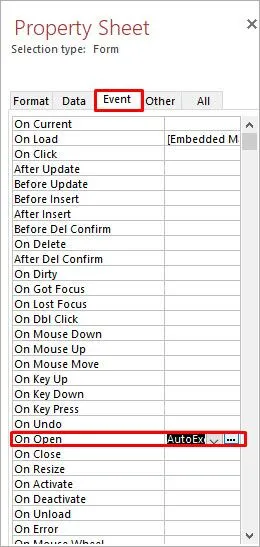
- After that, check the “On Load” field and ensure it declares [Event Procedure] if you’re using the VBA.
Also Read: Microsoft Access This Expression is Typed Incorrectly Error: Top 6 Solutions
Solution 2- Authenticate All the Macro Names
Many Access users use macros instead of VBA to perform their events. In such a case, it is common to display “the expression on load you entered as the event property setting produced the following error”. Validating the macro can help tackle the situation.
- Go to the Navigation Pane >> Macros.
- After that, check if your macro name used in “On Load” is correct & exists there.
Solution 3- Import Corrupted DB File Data into A New One
By importing the corrupted database data to a new DB file, you can troubleshoot this error message. Follow the steps below to import your data:
- Start Access >> click on the Blank Database>> OK.
- Then, provide a name to your new file & choose a location to save it.
- Now, click on the Create option >> go to the File.
- Click on the Get External Data and then Import.

- Here, you have to click on the Access to import the database.
- Now, you’ll see “external data access database”
- Finally, click on Tables tab of the Import Object Window >> click Select All >> OK.
Solution 4- Examine the VBA Code
Another workable solution that can be tried to deal with this problem is inspecting the VBA code:
- Launch the VBA editor by pressing the ALT + F11 keys together.
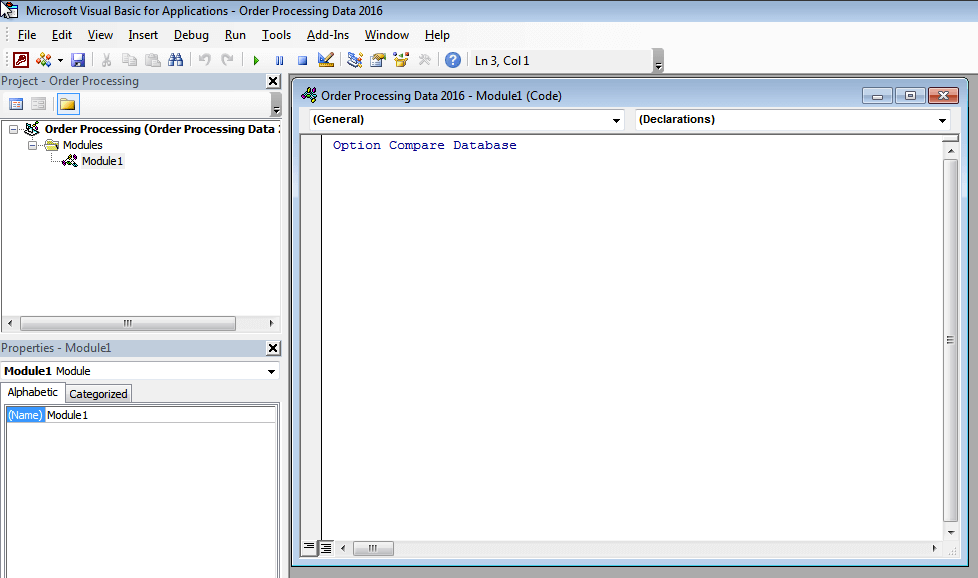
- Make sure there’s a valid function like this:
vba
CopyEdit
Private Sub Form_Load()
‘ Your code here
End Sub
Solution 5- Check for Missing References
Sometimes, broken or missing references in the form’s property sheet can cause this annoying error when using events to control forms. To solve this, verify & delete the missing references.
For this:
- Open the faulty Access database.
- Click on Database Tools >> Visual Basic.

- Under the Visual Basic Editor, you have to click on Tools >> References.
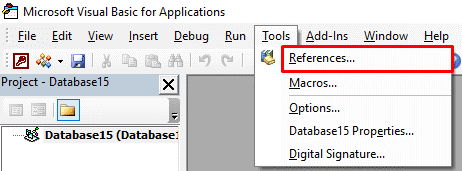
- Now, check for an object library, or you can enter library: MISSING:<referencename>.
- If there is any missing reference found, deselect a checkbox next to it >> hit OK.

Also Read: Resolving “Type Mismatch in Expression” Access Error (3615)
Solution 6- Fix MS Access the Expression on Load You Entered as the Event Property by Adding New Trusted Location
Many Access users have conveyed in the community sites that adding a new trusted location helps them to fix this error. To do so, follow these steps:
- Open Access >> click Options.
- Next, click on the Trust Center >> Trust Center Settings.

- After that, go to the Trusted Locations, then click on Add new location.

- When you add the new location, you can check for the error.
Solution 7- Try Advanced Access Repair
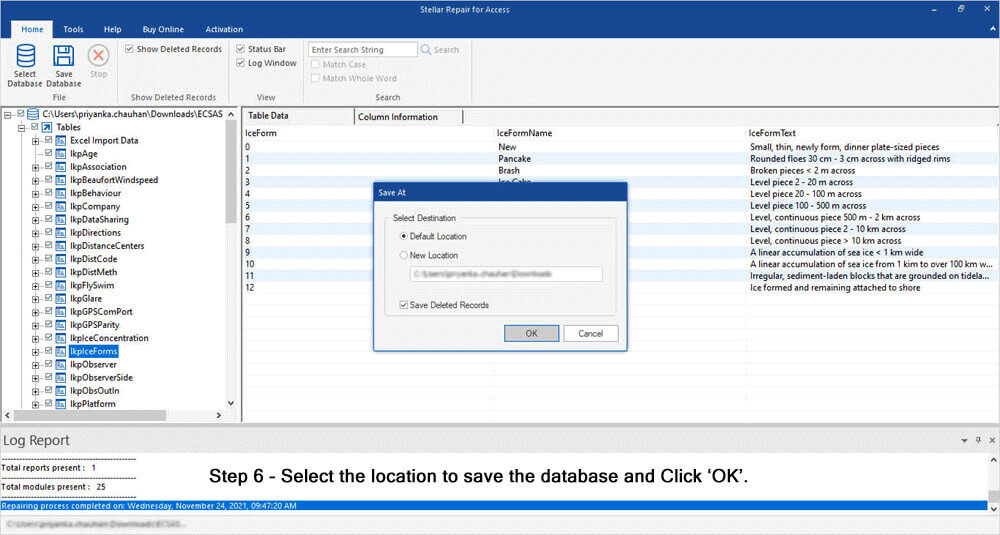
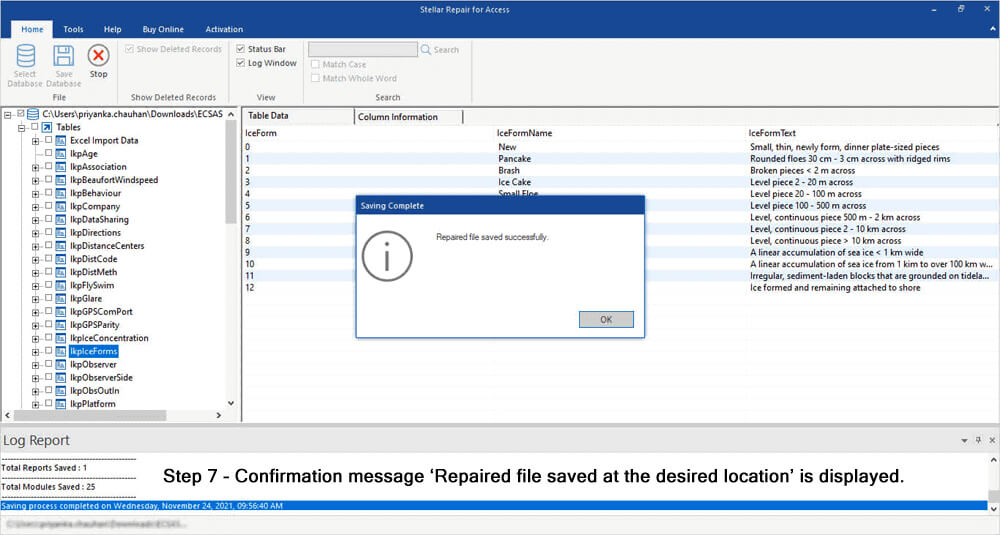
If all the aforesaid fixes failed to tackle this error, it is likely that your database file is itself corrupted. All you need to do is repair your corrupt Access DB file & restore its objects by using the Access Repair Tool.
This program is intended to deal with any Access database problems or errors, whether it’s encountered due to corruption or any other reason.

* By clicking the Download button above and installing Stellar Repair for Access (14.8 MB), I acknowledge that I have read and agree to the End User License Agreement and Privacy Policy of this site.
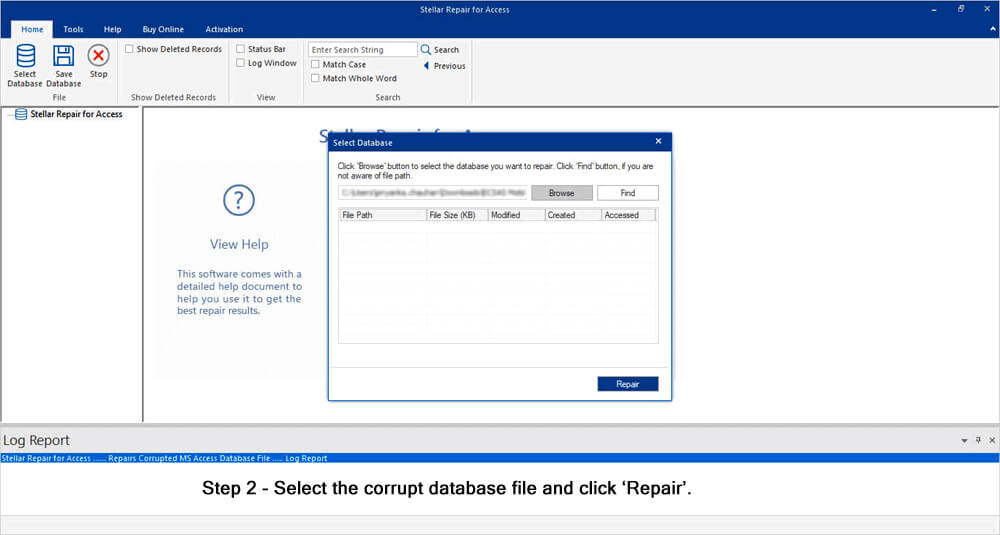
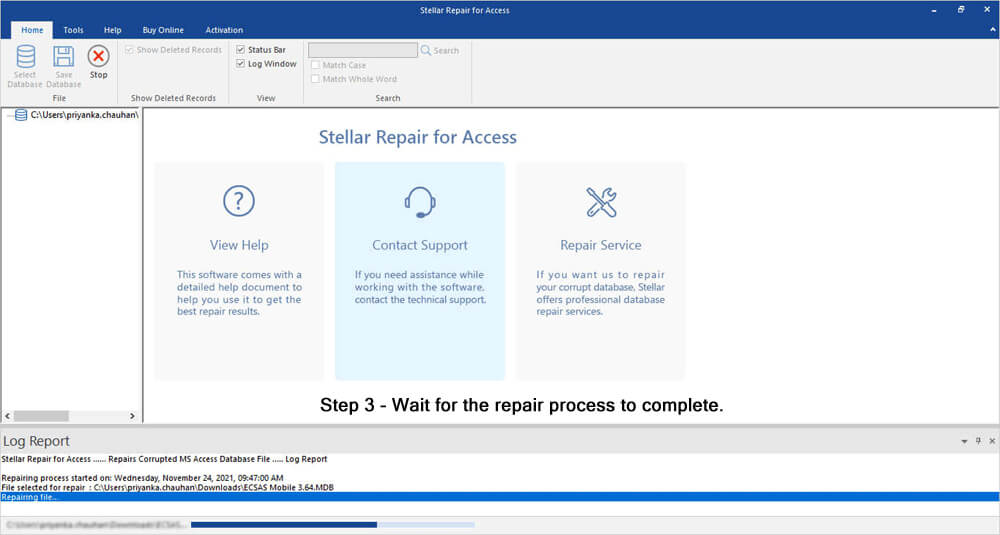
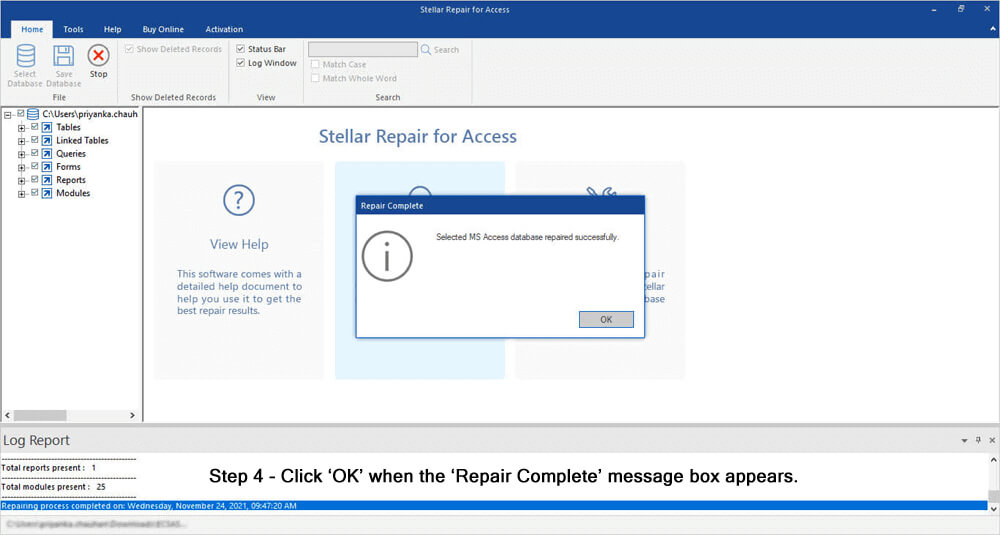
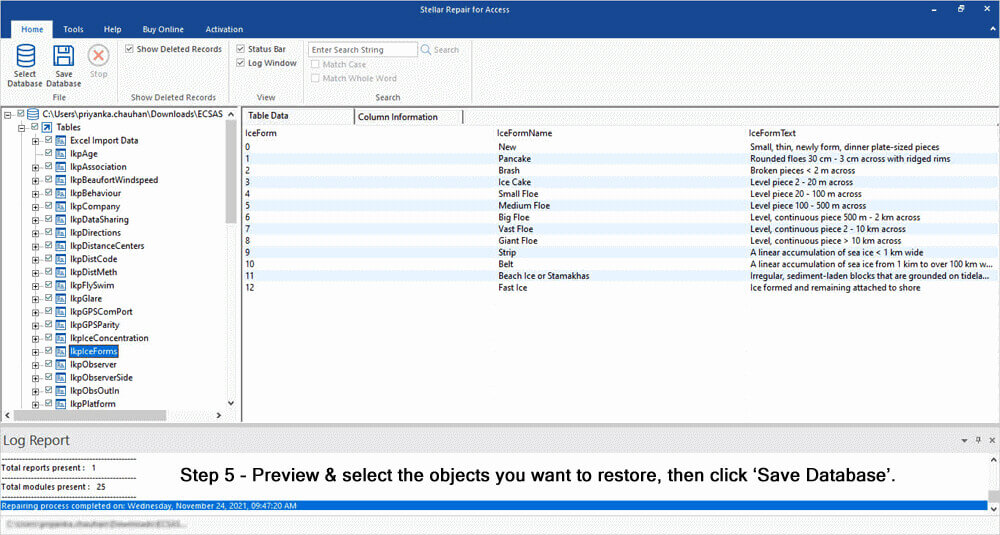
Steps To Fix Access Database Corruption


Frequently Asked Questions:
What Is Event in MS Access?
In MS Access, an event is a feature that controls database forms when moving the focus to the control & when you try to change/update data in a control.
How Do I Enter an Expression in Access?
If you want to enter an expression in Access, follow the steps below:
- Select the field(s) you need to change.
- Go to the ribbon, then click on Table Fields.
- Under the Properties group, you have to click on Default Value. This will display the Expression Builder.
- Now, type your expression, and start the expression with an equal sign (=).
What Is the Shortcut Menu Bar Property in Access?
The ShortcutMenuBar property smears only to controls on a form, not controls on a report.
How to Fix a Corrupted Microsoft Access Database?
If your Access database becomes corrupted or inaccessible, you should use the Compact and Repair tool. To use this:
- Start MS Access.
- Go to the templates page and double-click on the Blank Database.
- Choose the File >> Close.
- Now, choose the Database Tools >> Compact and Repair Database.
How to Open Expression Builder on Access?
You can easily open the expression builder in Access by pressing the CTRL+F2 keys.
Also Read: Fixing MS Access Join Expression Not Supported: Your Last Stop for Clarity!
Final Verdict
So, this is all about how to fix MS Access the expression on load you entered as the event property. By understanding the primary causes of this error & following the working steps mentioned in this blog, you can tackle this situation and ensure the smooth functioning of your databases.
Thanks for reading this post!
References:
- https://learn.microsoft.com/en-us/answers/questions/4765085/error-the-expression-on-load-you-entered
- https://support.microsoft.com/en-us/office/add-remove-or-change-a-trusted-location-in-microsoft-office-7ee1cdc2-483e-4cbb-bcb3-4e7c67147fb4
- https://learn.microsoft.com/en-us/troubleshoot/microsoft-365-apps/access/resolve-reference-issues
 Still having issues? Fix them with this Access repair tool:
 This software repairs & restores all ACCDB/MDB objects including tables, reports, queries, records, forms, and indexes along with modules, macros, and other stuffs effectively.
- Download Stellar Repair for Access rated Great on Cnet (download starts on this page).
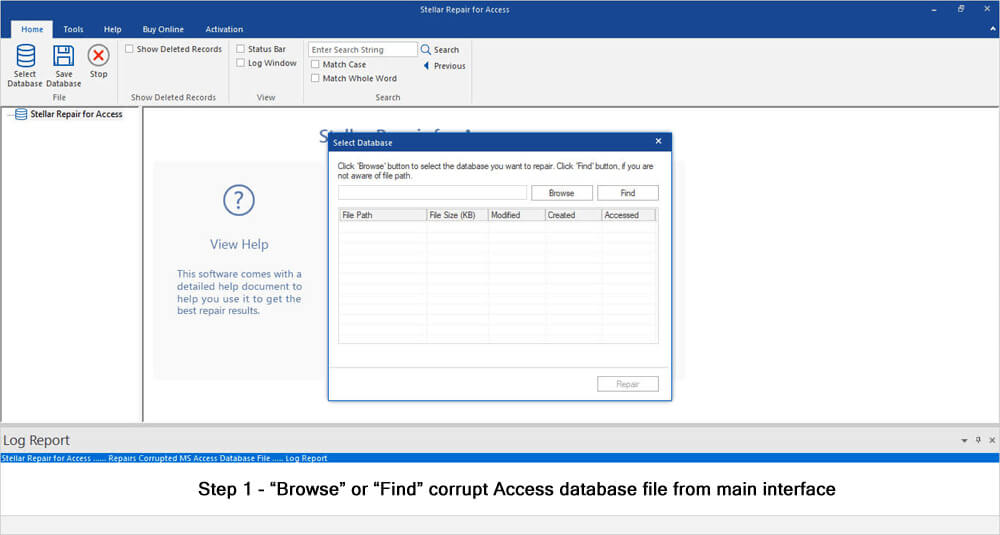
- Click Browse and Search option to locate corrupt Access database.
- Click Repair button to repair & preview the database objects.
Pearson Willey

Pearson Willey is a website content writer and long-form content planner. Besides this, he is also an avid reader. Thus he knows very well how to write an engaging content for readers. Writing is like a growing edge for him. He loves exploring his knowledge on MS Access & sharing tech blogs.