
Have you ever been deep into coding, running a query or SQL statement, and suddenly encountering the dreaded “Run time error 3061: Too few parameters. Expected 1“? It’s frustrating, isn’t it? But no need to worry, you’re not alone. Many users are facing the same problem. Understanding this irritating error, and knowing how to troubleshoot it can save you hours of headaches. Well, this exhaustive guide will assist you in fixing MS Access error 3061 in no time and keep your code running smoothly.
How to Convert MDB to ACCDB File? – (Complete Guide)
Have you ever faced the challenge of dealing with outdated database formats? If you are still using MDB (Microsoft Database) files, it might be time to upgrade to the more robust ACCDB (Access Database) files. This inclusive guide will walk you through everything you need to know about how to convert MDB to ACCDB database file, ensuring you can leverage the improved functionality offered by newer versions of MS Access.
Convert Access Report to Word Document – (Step-by-Step)

Microsoft Access is a popular DBMS (Database Management System) that allows users to create and manage databases. It offers various excellent features and utilities for generating reports, which can summarize and present data in a structured format. However, there may be times when you need to convert Access report to Word document for further editing, distribution, or presentation.
Troubleshooting Guide for Microsoft Access Error 32570
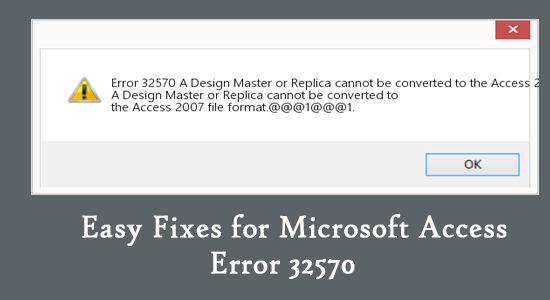
An error message “A Design Master or Replica cannot be converted to the Access 2007 file format…” typically indicates an issue with a network connection, corruption in the Access database file, or problems with the system’s configuration. Encountering this cryptic error can be annoying for users & hinder efficient data navigation. Thus, if you are one such user facing the same problem, don’t fret, we are here to guide you on how to fix Microsoft Access error 32570 through troubleshooting steps.
How to Fix Access “Error Accessing File. Network Connection May Have Been Lost”?

While handling Access databases, users often encounter frustrating situations where they can’t access their DB file properly or run VBA code. One such warning message is “Error accessing file. Network connection may have been lost.” The error message typically indicates a problem with network connectivity or file permissions.
5 Hasty Methods to Fix Type Conversion Failure in Access Error!
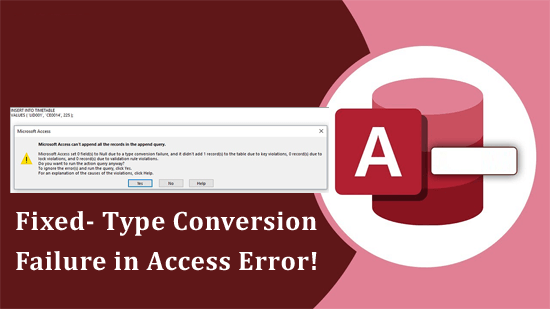
Type conversion failure in Access error typically occurs when the data type of a value does not match the expected data type for an operation, field, or expression. This vexing error may disrupt your workflow and ruin your database experience. In this blog, I will show you how to fix the Microsoft Access type_conversion_failed error with less effort. Likewise, I’ll discuss the insights of this error along with its common causes.
5 Ways for Runtime Error 3218 Could Not Update Currently Locked by User!

The error message “Could not update currently locked by user ‘admin’ on machine” typically occurs in a shared Access database when a record or file is locked by one process and another process attempts to access or update it. This locking mechanism is intended to prevent data corruption & ensure consistency by allowing only one process to modify a record or file at a time.
Solved- Microsoft Access Can’t Open the Table in Datasheet View (Error 2364)

Microsoft Access is generally used for maintaining the record, tracking inventory, or managing tables. For easy handling of Access database tables, there are two types of table views offered- one is “Datasheet View” & another is “Design View”. Sometimes, you may face a frustrating message “Microsoft Access can’t open the table in datasheet view error 2364.” It can stop processes within the Access application and hinder efficiency.
6 Methods- Microsoft Access Not Showing Tabs/Missing Tabs Issue!

MS Access uses the tabs to organize or manage different parts of an application, like Tables, Queries, Reports, Forms, and many more. However, encountering issues with the interface, such as Microsoft Access not showing tabs, it can impact the ability to navigate & use the software efficiently. Therefore, in this troubleshooting guide, we delve into common causes of this issue and how to show tabs in Access to work in the software smoothly again.
How to Fix “Access Error 3197 the Microsoft Jet Database Engine Stopped the Process”?

You may encounter an error “the Microsoft JET database engine stopped the process because you and another user” when working on the Access database file saved over the shared network drive. Facing this warning message can be bothersome and should be addressed ASAP. Well, this article will discuss the common reasons behind the Microsoft Jet database engine error and the possible fixes to solve it.